AI News
05 Dec 2025
Read 9 min
How to fix 403 forbidden and regain site access fast
how to fix 403 forbidden and restore site access fast by resolving permissions and server errors now.
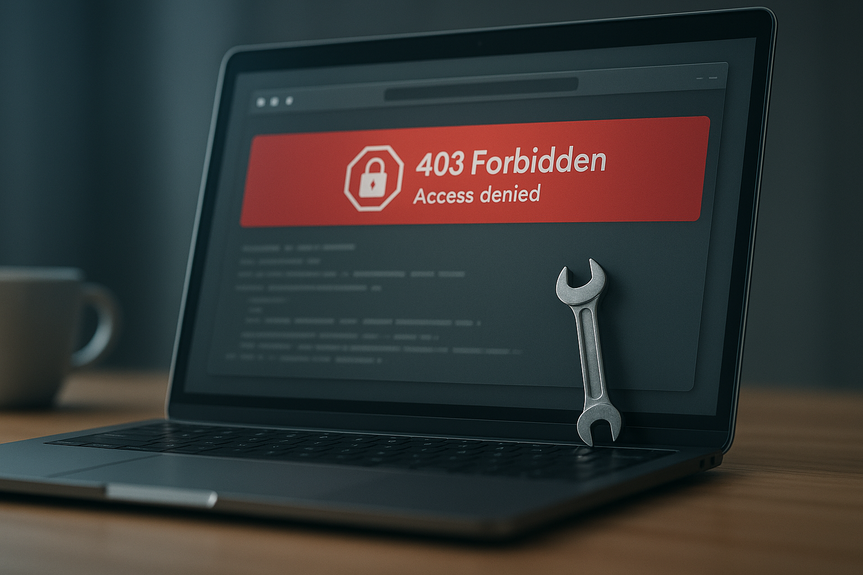
Seeing a 403 message? Here’s how to fix 403 forbidden fast: confirm the URL, clear your browser cache and cookies, check file permissions, review .htaccess or server rules, and test with your firewall or CDN off. These quick steps remove common blocks so you can restore access and keep visitors browsing.
A 403 Forbidden error means the server understands your request but will not let you in. You may have the wrong permissions, a bad rule in a config file, or a block from a firewall or CDN. The good news: you can fix most cases in minutes if you follow a simple checklist.
What a 403 means and why it shows up
Common causes
- Wrong file or folder permissions
- Bad .htaccess or server rules that deny access
- Missing index file or blocked directory listing
- Firewall, WAF, or CDN blocking your IP or country
- Hotlink protection or Referer checks
- Rate limiting or bot rules flagging your browser
- Logged-out user trying to access a restricted page
- URL or protocol mismatch (http vs https, wrong case, or trailing slash)
How to fix 403 forbidden: quick checklist
Start with the easy wins
- Check the URL for typos, wrong case, or a missing/extra slash.
- Switch between http and https if your site changed protocols.
- Refresh the page, then open it in a private/incognito window.
- Clear browser cache and cookies for the site. Try another browser.
- Log in if the page needs an account or role permissions.
Permissions and files
- Confirm a valid index file exists (index.html or index.php) in the folder.
- Set permissions: folders 755, files 644. Avoid 777. Fix ownership to your web user (for example, www-data on Ubuntu).
- On Linux: chown -R webuser:webgroup /path/to/site and chmod -R 755 for folders, 644 for files.
.htaccess and rewrites (Apache)
- Back up .htaccess. Then temporarily rename it to test. If the page works, the file had a bad rule.
- Look for deny all, wrong Allow/Deny directives, or strict RewriteRules. Remove or fix them.
- If directory listing is blocked on purpose, ensure an index file is present so users can enter.
Firewall, WAF, and CDN checks
- Pause your CDN or put the site in development mode. Purge the CDN cache.
- Whitelist your IP in the WAF (e.g., ModSecurity, Cloudflare). Review security logs for blocks.
- Disable rate limiting or bot fight modes temporarily to test.
- Turn off hotlink protection or add your domain to its allow list.
Platform-specific notes
- WordPress: Not sure how to fix 403 forbidden on WordPress? Deactivate all plugins via SFTP (rename wp-content/plugins), switch to a default theme, then restore items one by one. Regenerate permalinks in Settings → Permalinks → Save.
- Headless or SPA: Check your rewrite to index.html or index.php so deep links resolve.
- Object storage (e.g., S3): Update the bucket policy or ACL to allow public reads for intended files.
Server-side fixes for site owners
Apache
- In your VirtualHost, ensure Directory blocks include Require all granted for public folders.
- If you use .htaccess, confirm AllowOverride is set to All or to the needed options.
- Check ModSecurity audit logs for false positives and add exceptions if needed.
Nginx
- Set the correct root and index; example: index index.php index.html;
- Remove deny all; from public paths. Ensure try_files routes to your app index if needed.
- Review location blocks for misplaced return 403; directives.
IIS
- If you see 403.14, enable directory browsing or add an index file.
- Check Authorization rules to allow Anonymous or needed users/groups.
Ownership and deployment
- After deploys, reset ownership and permissions if your CI/CD changes them.
- Keep environment parity: test 403 risks in staging before going live.
Client-side steps for visitors
When you do not manage the site
- Refresh, clear cache/cookies, and try another browser or device.
- Turn off VPN or try a different network in case your IP range is blocked.
- Wait a few minutes if you made many requests; you may be rate limited.
- Contact the site owner with the time, URL, and your IP address.
Prevent the next lockout
Good habits for site owners
- Version-control your .htaccess and server configs. Roll back quickly if needed.
- Automate permission checks in deploy scripts. Keep folders 755, files 644.
- Monitor error and access logs. Alert on spikes in 403 responses.
- Use clear WAF rules. Test changes on staging and document exceptions.
- Keep a simple “maintenance” page to show when access is restricted by design.
For more news: Click Here
FAQ
Q: What does a 403 Forbidden error mean?
A: A 403 Forbidden error means the server understands your request but will not let you in. It usually indicates wrong permissions, a bad rule in a config file, or a block from a firewall or CDN.
Q: What are common causes of a 403 error?
A: Common causes include wrong file or folder permissions, bad .htaccess or server rules, a missing index file or blocked directory listing, and firewall or CDN blocks. Other causes listed are hotlink protection, referer checks, rate limiting, logged-out users accessing restricted pages, or URL and protocol mismatches.
Q: What quick browser-side checks should I try first?
A: Start by confirming the URL for typos, wrong case, or a missing/extra slash and switch between http and https if your site changed protocols. Then refresh the page, open it in a private/incognito window, clear browser cache and cookies, try another browser, and log in if the page requires an account; these are the easiest first steps when figuring out how to fix 403 forbidden.
Q: How do I check and correct file permissions to resolve a 403?
A: Confirm a valid index file exists (index.html or index.php), set folders to 755 and files to 644 while avoiding 777, and fix ownership to your web user. On Linux you can use chown -R webuser:webgroup /path/to/site and chmod -R as needed to apply these permissions.
Q: How can .htaccess or rewrite rules cause a 403, and how do I test them?
A: Back up your .htaccess and then temporarily rename it to test access; if the page works the file had a bad rule. Look for deny all, wrong Allow/Deny directives, or strict RewriteRules and remove or fix them, and ensure directory listing is blocked only when an index file is absent.
Q: What should I check with my firewall, WAF, or CDN when I see a 403?
A: Pause your CDN or put the site in development mode and purge the CDN cache, then whitelist your IP in the WAF and review security logs for blocks. Temporarily disable rate limiting or bot fight modes and turn off hotlink protection or add your domain to the allow list to test whether the security layer is causing the 403, which are common steps to learn how to fix 403 forbidden.
Q: How do I fix 403 forbidden on WordPress?
A: If you are not sure how to fix 403 forbidden on WordPress, deactivate all plugins via SFTP by renaming wp-content/plugins and switch to a default theme, then restore items one by one. Regenerate permalinks in Settings → Permalinks → Save to refresh rewrite rules.
Q: What server-side settings should site owners check to prevent recurring 403 errors?
A: For Apache ensure Directory blocks include Require all granted, AllowOverride is set correctly, and check ModSecurity audit logs for false positives. For Nginx verify root and index settings and remove unintended deny all or misplaced return 403 directives, while on IIS enable directory browsing or add an index file and check Authorization rules; after deploys reset ownership and permissions and test on staging to avoid repeat lockouts.
Contents