AI News
01 May 2026
Read 8 min
How to fix 401 unauthorized download error in 5 easy steps
Fix 401 unauthorized download error fast with five clear steps to restore secure downloads and access.
Getting a 401 when you try to download a file? Here are five quick checks to fix 401 unauthorized download error: sign back in, refresh the link and cookies, sync your device time, turn off VPN or proxies, and request a fresh token or link. Follow the steps below to restore access fast.
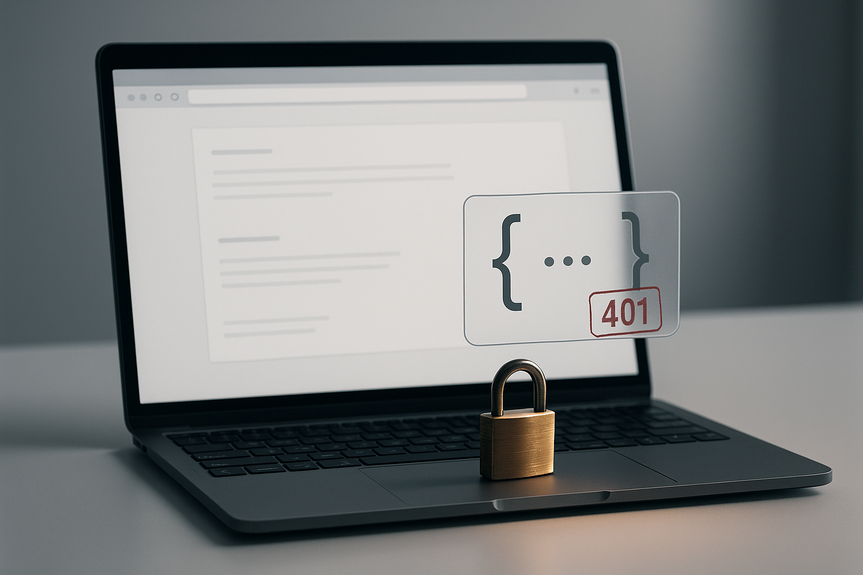
A 401 error means the server cannot verify who you are. It often shows up when a link needs a login, a token, or a signed URL. If the token is missing, expired, or blocked by your browser or network, the download fails. The good news: you can solve most cases in minutes.
You are signed out or using the wrong account.
Your link or token expired or was used already.
Cookies or cache hold old login data.
Your device time is wrong, so time-based tokens fail.
A VPN, proxy, or firewall blocks or strips auth headers.
A browser extension blocks cookies or redirects.
Log out of the site or app. Log back in.
Make sure you use the correct account with download rights.
If content is paid or private, confirm your subscription or role.
Try another browser or a private window to rule out old sessions.
If your team uses SSO, open the portal and re-authenticate first.
Reload the page and request a new download link (many signed links expire in minutes).
Right-click the button and copy the link again. Do not reuse old bookmarks.
Clear cookies and cache for that site only, or use a private window.
If you use a download manager, remove the old task and re-add with the fresh link.
Clearing cookies and using a new link often fix 401 unauthorized download error fast.
Turn on automatic time and time zone on your device.
On Windows or macOS, sync with internet time servers (NTP).
On phones, set “Set Automatically” for date and time.
Restart the browser or app and try again.
Many tokens are time-bound. A clock that is off by even a few minutes can break downloads.
Turn off VPN or proxy and try again. Some servers block them.
Switch networks (home Wi‑Fi to mobile hotspot) to rule out firewall rules.
Pause ad blockers, privacy tools, and script blockers on the download site.
Allow third-party cookies if the site uses SSO across domains.
On corporate networks, ask IT if the domain or headers are being filtered.
Update the app or CLI. Old versions may send bad headers.
Log out/in to refresh OAuth tokens. If you have an API key, paste it again.
For CLI or cURL, include the Authorization header and follow redirects (-L).
If the site uses signed URLs, request a new one from within your account.
Mind case sensitivity in headers and URLs. Small typos trigger 401s.
Open the link in a private window to bypass stale cookies.
Confirm the file is still shared with you or your team.
Make sure the link has not been disabled or replaced.
Try another device to see if the issue is local.
The exact URL domain (not full secret link) and time of failure.
Your browser/app version and device OS.
Whether you tried private mode, another network, or another device.
A screenshot of the 401 page and any request ID shown.
Note that you are trying to fix 401 unauthorized download error and list the steps you already tried.
Always open fresh download links from the source page.
Avoid bookmarking signed URLs; bookmark the file page instead.
Keep your system clock on automatic sync.
Whitelist the site in your ad blocker and privacy tools.
Use a password manager to avoid account mix-ups.
If you must use a VPN, pick locations the service supports.
These habits help you avoid repeats and let you recover fast if a token times out.
A 401 is a sign of a missing or invalid login, token, or link. Work through the five steps above—re-auth, refresh link and cookies, fix your clock, check network blockers, and renew tokens—and you will likely fix 401 unauthorized download error in minutes.
What a 401 means and why it blocks downloads
Common causes
5 steps to fix 401 unauthorized download error
Step 1: Sign back in and confirm access
Step 2: Refresh the link and clear auth data
Step 3: Sync your device time and date
Step 4: Check VPNs, proxies, firewalls, and extensions
Step 5: Get a fresh token or credentials (apps and APIs)
Quick checks that save time
Before you retry
Still stuck? What to tell support
Share clear details so support can act fast:Prevent the next 401
Simple habits
(Source: https://www.wsj.com/tech/ai/google-clears-pentagon-to-use-ai-tools-in-classified-settings-d8162cda)
For more news: Click Here
FAQ
Q: What does a 401 error mean when trying to download a file?
A: A 401 means the server cannot verify who you are, so it blocks the download. It commonly occurs when a link requires a login, token, or signed URL that is missing, expired, or blocked by your browser or network.
Q: What are the fastest checks to fix 401 unauthorized download error?
A: Try five quick checks: sign back in, refresh the link and cookies, sync your device time, turn off VPN or proxies, and request a fresh token or link. Following those steps usually restores access in minutes.
Q: Why would an expired or reused signed link give a 401 during download?
A: Signed links and tokens often expire or can be single-use, so if a token is missing, expired, or already used the server will reject the request. To fix 401 unauthorized download error, request a new download link or re-authenticate in the site or app.
Q: How can clearing cookies or using a private window help with a 401 error?
A: Cookies and cache can hold old login data that conflicts with current authentication, causing a 401. Clearing cookies for the site or opening the link in a private window and using a fresh link often fixes 401 unauthorized download error quickly.
Q: Can my device clock cause a 401 download failure?
A: Yes — many tokens are time-bound, so a clock that is even a few minutes off can break downloads. Turn on automatic time and time zone or sync with internet time servers, then restart the browser or app before trying again.
Q: Should I turn off VPNs, proxies, or browser extensions when I see a 401?
A: Yes — VPNs, proxies, firewalls, or extensions can block or strip authentication headers and cause a 401. Temporarily disabling them, switching networks, or pausing privacy tools on the download site can help isolate and resolve the issue.
Q: What technical details should I provide to support if a download still returns 401?
A: Tell support the URL domain (not the full secret link), the time of failure, your browser/app version and device OS, and whether you tried private mode, another network, or another device. Include a screenshot of the 401 page or any request ID and note that you tried the steps to fix 401 unauthorized download error.
Q: How can I prevent future 401 unauthorized download errors?
A: Open fresh download links from the source page instead of bookmarking signed URLs, keep your system clock on automatic sync, and whitelist the site in ad blockers or privacy tools. Use a password manager to avoid account mix-ups and choose VPN locations the service supports to reduce token or header problems.
Contents