AI News
07 Jul 2026
Read 10 min
LinkedIn AI ad tools guide: How to boost ad ROI
LinkedIn AI ad tools guide reveals how to automate ad creative and optimize targeting to boost ROI.
LinkedIn just added AI tools that speed up ad creation, scale testing, and improve performance. This LinkedIn AI ad tools guide shows how to set up Brand Kit, generate on-brief copy from a URL, personalize creative by role or industry, and use variants with auto-optimization to push budget toward winners and lift ROI.
LinkedIn’s new features help you build more ads with less effort while keeping brand voice sharp. You set your visual and tone rules once. You paste a URL to draft copy. You personalize by job title or industry. You spin up variants fast. Then LinkedIn shifts delivery to the best creatives as results come in. Here’s a simple path to use these updates well.
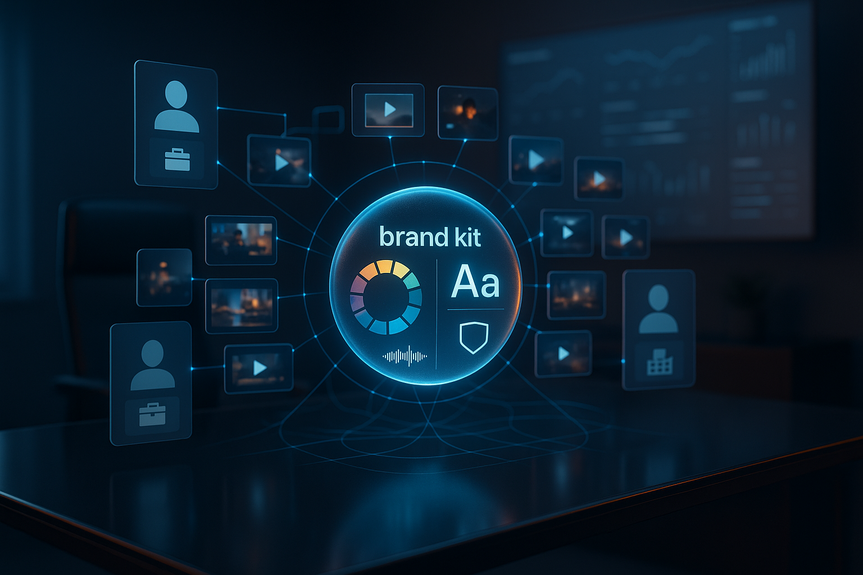
Brand Kit: lock in logo, colors, fonts, and voice so AI outputs match your brand.
Draft with AI: paste a landing page URL, set a goal, add notes, and get ad copy options.
Creative personalization: swap role, company, and industry details to make ads feel relevant.
Ad variants: generate fresh headlines and intro text from a base ad.
Flexible creation: upload images, videos, and copy; LinkedIn mixes and matches for more creatives.
Auto-optimization: the system shifts spend to top-performing creatives as signals emerge.
Upload your logo files (light/dark). Set brand colors and fonts.
Add voice notes: tone (e.g., clear, friendly), banned phrases, and key proof points.
Include 3–5 sample ads that “sound right” for the AI to mirror.
Example: “Use short sentences. Lead with benefit. Avoid buzzwords. Use verbs like Get, Save, Grow. Mention our 14-day trial. Never say ‘free forever.’”
Save this in Brand Kit so every generation follows the same rules.
Define must-include claims and legal lines for regulated offers.
Route all AI outputs through a quick review checklist: brand, benefit, CTA, compliance.
Paste your landing page URL.
Select a campaign goal (lead gen, website visits, conversions).
Add short notes: audience, value prop, offer, and past creatives to emulate.
Ask for multiple options (at least 3 headlines and 3 intros).
Lead with the core benefit in 6–10 words.
Use one clear CTA (Book a demo, Download the guide, Start trial).
Cut fluff. Replace adjectives with proof (numbers, time saved, outcomes).
Match the landing page promise to avoid drop-off.
Test 3–5 headlines per audience. Keep the image constant to isolate copy impact.
Run for a full learning window (usually 5–7 days) before calling a winner.
Personalization options include job title, company, and industry.
Insert one variable per ad to keep the line clean: “IT Managers,” not “IT Managers at [Company] in [Industry].”
Tie the benefit to the variable: “For Finance leaders: Close faster with clean data.”
Avoid sensitive data or tone. Keep it helpful, not invasive.
Ensure the landing page speaks to that role or industry too.
Monitor frequency. Personalized lines fatigue faster; rotate weekly.
Upload 3–5 on-brand images or short videos (3–15 seconds work well).
Provide a headline bank (5–10 lines) and intro bank (3–5 lines).
Set CTA options (e.g., Learn more, Register, Download).
Generate multiple versions from your base ad to widen the test.
Use flexible creation so LinkedIn mixes images, videos, and copy into more creatives.
Name variants clearly: Audience_Role_H1_VideoA so you can spot winners fast.
Keep text on images minimal; let the headline carry the message.
Show product or outcome in the first second of video.
Refresh the top performer with a new opener every 2–3 weeks to avoid fatigue.
Start with broad testing. The system will shift delivery to top creatives as data builds.
Use realistic budgets. Too little spend slows learning; too much hides losers.
Freeze major changes during the learning phase to avoid resets.
Awareness: CTR, video completion, cost per view.
Consideration: landing page view rate, time on page, cost per engaged visit.
Conversion: Lead Gen Form open rate, submit rate, cost per lead, qualified rate.
Revenue: pipeline created, win rate, cost per opportunity, ROAS.
Use UTM tags on every variant. Map to campaigns and creatives in your CRM.
Turn on LinkedIn conversion tracking and import offline conversions if possible.
Grade leads by source and creative to see what actually produces pipeline.
Week 0: Build Brand Kit and voice rules. Gather assets and past winners.
Week 1: Draft with AI from your URL. Create 3–5 variants per audience.
Week 2: Launch tests. Let auto-optimization run. Pause clear laggards.
Week 3: Keep top 1–2 variants. Refresh the opener. Add one new image or video.
Week 4: Review lead quality and pipeline. Shift budget to proven themes.
One promise per ad. Don’t cram features.
Avoid buzzwords. Use verbs and numbers.
Personalize lightly. Overdoing it feels spammy.
Match ad to page. Message mismatch kills conversion.
Document winners. Feed them back into Brand Kit and your headline bank.
In short, use this LinkedIn AI ad tools guide to set strong brand rules, generate focused copy from your URL, add smart personalization, expand with variants, and let optimization move spend to what works. Follow the workflow, measure real outcomes, and your ad ROI will rise.
LinkedIn AI ad tools guide: What’s new and why it matters
Set up Brand Kit for consistent creatives
Lock your building blocks
Write a simple voice prompt
Add guardrails and review
Draft with AI: turn URLs into strong ad copy
Step-by-step workflow
Editing tips for clarity and punch
Test the right pieces
Personalize creatives without going creepy
Use role, company, and industry wisely
Best practices
Scale with variants and flexible creation
Feed the system good ingredients
Let variants do the heavy lifting
Creative hygiene
Optimize delivery and measure true ROI
Lean on auto-optimization, but set rules
Track what matters at each stage
Connect the dots
A simple workflow you can reuse
Pro tips and common pitfalls
(Source: https://www.socialmediatoday.com/news/linkedin-rolls-out-new-ai-powered-promotional-tools/824290/)
For more news: Click Here
FAQ
Q: What new AI-powered promotional tools did LinkedIn introduce?
A: LinkedIn introduced Brand Kit, Draft with AI for URL-based copy generation, creative personalization by job title/company/industry, ad variants, flexible creation that mixes images, videos, and copy, and auto-optimization that shifts delivery based on performance. This LinkedIn AI ad tools guide explains how those features are intended to support faster ad creation and scaled testing.
Q: How does the Brand Kit feature work and why should marketers set it up?
A: Brand Kit lets marketers upload logos, set brand colors and fonts, and save voice notes and example ads so AI outputs align with brand rules. It also supports guardrails by including must-include claims and legal lines and by routing AI outputs through a quick review checklist for brand, benefit, CTA, and compliance.
Q: How do I use Draft with AI to create ad copy from a landing page URL?
A: Paste your landing page URL, select a campaign goal, and add short contextual notes like audience, value proposition, offer, and past creatives to emulate; the system then generates multiple headline and intro options. Request at least three options and edit them to lead with a clear benefit, use a single CTA, and match the landing page promise to avoid drop-off.
Q: What personalization options does LinkedIn offer and what best practices prevent ads from feeling invasive?
A: Personalization can use job title, company, and industry, and best practice is to insert one variable per ad (for example, “IT Managers”) and tie the benefit to that variable. Avoid sensitive data or invasive tone, ensure the landing page speaks to that role or industry, and monitor frequency since personalized lines can fatigue faster and should be rotated weekly.
Q: What are ad variants and flexible creation, and how should I prepare assets for scaling tests?
A: Ad variants create multiple versions of an existing ad by changing headlines and introductory text, while flexible creation mixes uploaded images, short videos, and copy to produce more creatives. Feed the system 3–5 on-brand images or 3–15 second videos, provide a headline bank and intro bank, and set CTA options so LinkedIn can mix and match assets efficiently.
Q: How does LinkedIn’s auto-optimization work and what rules should I use during testing?
A: Auto-optimization reallocates delivery toward better-performing creatives as performance signals emerge, allowing the system to favor top creatives over time. Start with broad testing, use realistic budgets so the system can learn, and avoid major changes during the learning window (usually 5–7 days).
Q: Which metrics should I track to measure campaign effectiveness across the funnel?
A: Track awareness metrics like CTR, video completion, and cost per view; consideration metrics such as landing page view rate, time on page, and cost per engaged visit; and conversion metrics including Lead Gen Form open and submit rates, cost per lead, and qualified rate. For revenue-stage measurement, monitor pipeline created, win rate, cost per opportunity, and ROAS, and use UTM tags plus LinkedIn conversion tracking to connect creatives to CRM outcomes.
Q: What is a simple week-by-week workflow I can reuse to run tests with these tools?
A: A reusable four-week workflow starts with Week 0 building the Brand Kit and gathering assets, Week 1 drafting with AI from your URL and creating 3–5 variants per audience, and Week 2 launching tests while letting auto-optimization run and pausing clear laggards. In Weeks 3–4 keep the top one or two variants, refresh the opener or add a new image/video, review lead quality and pipeline, and shift budget to proven themes.
Contents