Instagram AI opt-out guide shows how to protect your likeness from Muse tools and reclaim control now
Instagram AI opt-out guide: Learn how to stop your public posts and profile from fueling new AI photo and video tools. This quick walkthrough explains what changed with Meta’s Muse rollout, why celebs and creators are pushing back, and the exact settings to review now to protect your likeness and brand.
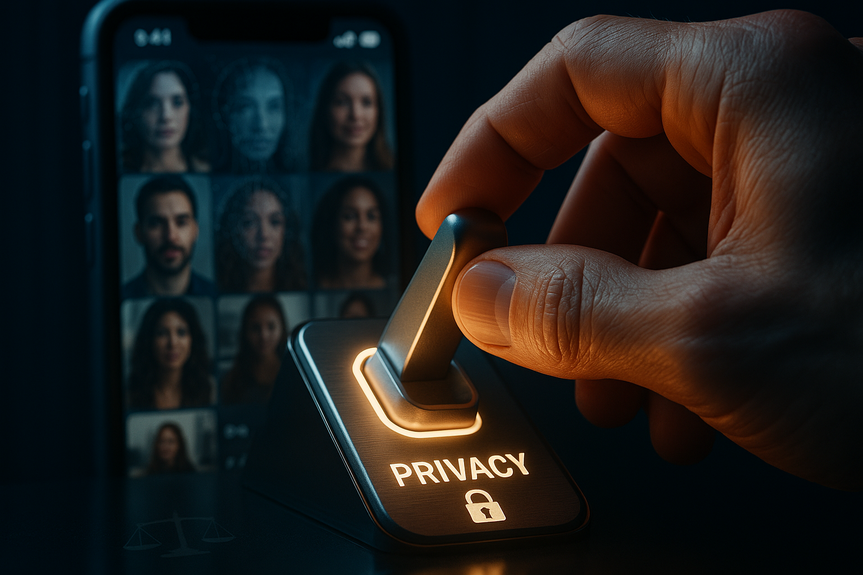
Meta launched Muse Photo and Muse Video and set public Instagram profiles to be opt-out, not opt-in, for AI usage. That means people who do not opt out could see their public content and profile pulled into AI creations. Creative Artists Agency (CAA) urged Meta to switch to opt-in and called for stronger guardrails. Until that happens, use this Instagram AI opt-out guide to lock down your account and cut exposure.
What changed with Meta’s Muse tools
Meta’s new Muse tools create images and videos with AI. The company says public Instagram profiles are included by default unless users opt out. For public figures, artists, and brands, this raises clear risks: misuse of image, false endorsements, and reputational harm. CAA criticized the opt-out approach and asked Meta to make consent the default. The chaotic Sora launch showed how fast AI models can get flooded with famous faces and IP. Do not wait for a policy shift—adjust your settings now.
Instagram AI opt-out guide
Find and use the AI toggle (as it rolls out)
Meta is introducing controls tied to Muse. Menu names may differ by region and app version. Look for a new AI, Muse, or Likeness setting:
Open Instagram > your profile > menu (three lines) > Settings and privacy.
Search bar: type “AI,” “Muse,” “Use of my content,” or “Likeness.”
If you see a toggle like “Allow my public content/profile to be used in AI,” turn it off.
Confirm any pop-up and review connected Meta apps (Facebook, Threads) for the same control.
If you do not see this yet, complete the steps below to reduce risk while you wait. This Instagram AI opt-out guide will still help limit how your content can be reused.
Lock down your profile fast
Switch to Private (strongest option): Profile > menu > Settings and privacy > Account privacy > Private account.
Limit Mentions and Tags: Settings and privacy > Privacy > Mentions and Tags. Set Mentions to “People you follow” or “No one.” Set Tags to “Manually approve.”
Hide Sensitive Content: Settings and privacy > Suggested content > Sensitive content control > “Less.”
Remove Old Public Posts you do not want reused. Archive or delete them.
Limit how others remix or download your posts
Reels and Remixes: Settings and privacy > Privacy > Reels and remixes. Turn off “Allow others to remix your reels.” Turn off “Allow others to download your reels.”
Sharing to Facebook: Turn off “Recommend on Facebook” if you do not want broader reach.
Advanced settings when posting: Disable “Allow remix” or similar options per post.
Control third‑party access
Apps and Websites: Settings and privacy > Accounts Center > Password and security > Apps and websites. Remove tools you do not use.
Login Alerts: Turn on login notifications and two‑factor authentication.
Data Sharing: Review any data sharing in Accounts Center for Facebook/Threads and disable anything you do not need.
Report AI misuse fast
Report posts: Tap three dots on the post > Report > choose Impersonation, Intellectual property, or Misleading/Fake.
Impersonation accounts: Report profiles that pretend to be you or your brand.
Copyright or trademark: Use Meta’s IP reporting portal to request takedowns of stolen content or logos. Provide proof of ownership.
Deepfakes: Flag as manipulated media when reporting. Keep screenshots, URLs, and timestamps to support your case.
Tips for creators, celebrities, and brands
Protect your name, image, and likeness
Publish a clear consent policy: State that AI use of your likeness requires written permission. Pin it to your profile or link in bio.
Use watermarks and content credentials: Add visible marks and, when possible, cryptographic content credentials to help prove origin.
Centralize likeness assets: Agencies like CAA use vaults to manage digital doubles. Keep a controlled archive and track licensing.
Contract for AI rights: In brand deals, specify bans on AI training, cloning, or endorsements without pre‑approval and payment.
Set alerts: Create saved searches and social listening alerts for your name, handle, and brand terms plus “AI,” “deepfake,” and “remix.”
Balance reach and risk
Public vs. private: Public accounts grow faster but carry higher AI and misuse risk. Consider private for personal profiles and public for official pages with strict controls.
Moderation plan: Assign a team member or agent to handle reports and takedowns within hours, not days.
Media strategy: Post lower‑resolution versions publicly and keep master files offline. Share behind‑the‑scenes only with trusted partners.
What to expect next
Meta may refine controls as pressure builds. CAA and other stakeholders want opt‑in by default, clearer disclosures, and faster removals. Watch for a dedicated “AI and Likeness” hub in Settings across Instagram, Facebook, and Threads. Until then, this Instagram AI opt-out guide helps you act now: reduce public exposure, limit remixing, cut third‑party access, and respond quickly to misuse.
The bottom line
Muse puts more urgency on consent and control. Use the steps in this Instagram AI opt-out guide, then revisit settings monthly as Meta updates tools. Your image is an asset. Protect it with clear settings, smart posting habits, and fast enforcement so your likeness does not work for someone else’s AI.
(Source: https://www.hollywoodreporter.com/business/digital/caa-calls-out-meta-muse-ai-video-photo-tool-instagram-1236642814/)
For more news: Click Here
FAQ
Q: What is Meta’s Muse and how does it affect public Instagram profiles?
A: Meta’s Muse tools (Muse Photo and Muse Video) create images and videos using AI, and Meta set public Instagram profiles to be opt-out by default, meaning public content and profiles can be pulled into AI creations unless users opt out. CAA and other creators have criticized the opt-out approach and called for opt-in and stronger guardrails to protect likeness and rights.
Q: How do I find and use the AI toggle to opt out on Instagram?
A: Follow the Instagram AI opt-out guide: open Instagram > your profile > menu (three lines) > Settings and privacy, then use the search bar to look for “AI,” “Muse,” “Use of my content,” or “Likeness.” If you see a toggle like “Allow my public content/profile to be used in AI,” turn it off, confirm any pop-up, and review connected Meta apps like Facebook and Threads for the same control.
Q: What should I do if the AI toggle hasn’t appeared in my account yet?
A: If you don’t see the AI or Muse setting yet, the Instagram AI opt-out guide recommends locking down your account by switching to a Private account, limiting mentions and tags, setting Sensitive content control to “Less,” and archiving or deleting old public posts. These steps help reduce exposure until Meta rolls out the dedicated toggle.
Q: How can I limit others from remixing or downloading my Reels and posts?
A: Go to Settings and privacy > Privacy > Reels and remixes and turn off “Allow others to remix your reels” and “Allow others to download your reels,” and disable per-post remix options in Advanced settings when posting. You can also turn off “Recommend on Facebook” to reduce broader sharing.
Q: What steps should creators and celebrities take to protect their likeness beyond Instagram settings?
A: Creators and celebrities should publish a clear consent policy stating AI use of their likeness requires written permission, use visible watermarks or content credentials, centralize controlled likeness assets like an agency vault, and contract explicitly for AI rights in deals. They should also set saved searches and social listening alerts for name and brand terms plus “AI,” “deepfake,” and “remix” to detect misuse quickly.
Q: How do I report AI misuse, impersonation, or deepfakes on Instagram?
A: Use the post menu (three dots) to Report and choose categories such as Impersonation, Intellectual property, or Misleading/Fake, and report impersonation accounts that pretend to be you or your brand. For copyright or trademark theft use Meta’s IP reporting portal and flag manipulated media as deepfakes while keeping screenshots, URLs, and timestamps to support your case.
Q: What account security and third‑party controls should I review to reduce AI exposure?
A: Review Apps and Websites in Accounts Center and remove tools you do not use, check data sharing settings for Facebook and Threads and disable anything unnecessary, and enable login notifications plus two-factor authentication. These steps limit third‑party access and make it harder for accounts to be compromised or for public content to be pulled into AI creations.
Q: Is switching to a private account the best way to protect against Muse, and what are the trade-offs?
A: Switching to Private is the strongest option to prevent public content from being pulled into AI creations and reused, but the guide notes public accounts still grow faster and carry higher AI and misuse risk, so creators should weigh reach against exposure. If you keep a public presence, the Instagram AI opt-out guide recommends strict controls, lower-resolution public posts, and a fast moderation plan to handle takedowns quickly.