AI News
01 Nov 2025
Read 17 min
How to fix HTTP 502 download error quickly
how to fix HTTP 502 download error and restore downloads fast with simple server proxy and cache fixes
See how to fix HTTP 502 download error fast with a clear checklist. Start with quick client checks, then verify DNS, CDN, and origin health. Reset your network, purge cache, and fix timeouts. This guide shows what it means, why it happens, and the exact steps to stop it.
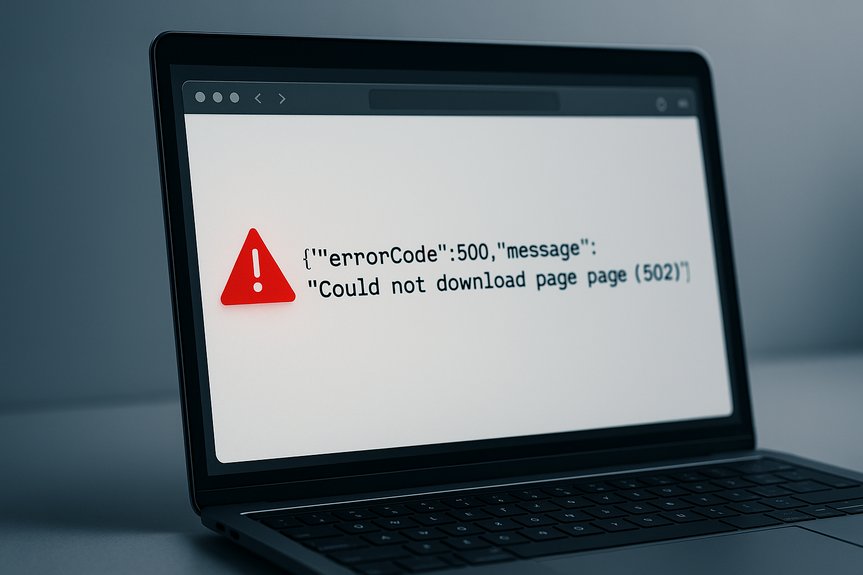
You try to download a file. Your browser flashes “502 Bad Gateway.” Sometimes an app shows a JSON message like {“errorCode”:500,”error”:”Could not download page (502)”}. It feels random, but it has a pattern. A 502 means a gateway or proxy (like a CDN, load balancer, or reverse proxy) could not get a good response from the origin server. The good news: you can fix many causes in minutes.
A 502 can come from:
– A busy or crashed origin server
– A misconfigured CDN or proxy
– DNS issues or old records
– Bad SSL/TLS settings between proxy and origin
– Network drops, timeouts, or blocked ranges
– Range/partial download problems on large files
Below you will find fast steps for users and site owners, plus deeper fixes to end repeat errors.
Does it fail for all users or only some regions/ISPs?
Does it fail for all files or only large downloads?
Does it happen only with the CDN, but origin works?
– Test the origin directly:
Bypass the CDN/load balancer if safe. Use a staging host or a direct origin URL.
If the origin returns 200 OK and streams the file, your edge layer needs fixes.
– Check dashboards:
CDN or WAF error rates, origin health, SSL status, and firewall events.
Load balancer target health and timeouts.
– Inspect logs:
Reverse proxy errors like “upstream prematurely closed connection” or “invalid response headers.”
Origin logs for crashes, high CPU, memory pressure, or slow I/O.
– Fix common misconfigurations:
Increase proxy and upstream read timeouts for large files.
Enable or verify Range/partial content (206) support for big downloads.
Ensure origin SSL is valid and SNI/hostname matches if using HTTPS between edge and origin.
– Purge and retry:
Clear CDN cache for the file if a bad cached header caused broken responses.
Redeploy the service or restart the origin if it is stuck.
Proxy read timeout should exceed the slowest expected origin chunk time.
Add keepalive connections to reduce handshake overhead.
– Buffers and headers:
Increase header buffer limits if the origin sends many or large headers.
Turn off overly aggressive response buffering for big, streaming files.
– Connection limits:
Raise worker connections and file descriptor limits if you serve many downloads at once.
Refresh once, then wait 30–60 seconds.
Incognito window; test a second browser.
Disable VPN/extensions; try another network.
Change DNS to 1.1.1.1 or 8.8.8.8.
Use a mirror or resume the download.
– Site owner side:
Test origin directly; check CDN/WAF dashboards.
Inspect proxy and origin logs for upstream errors.
Fix timeouts, SSL/SNI, and Range/206 responses.
Raise connection limits; autoscale under load.
Purge cache; restart stuck services; monitor 5xx rates.
You came here to learn how to fix HTTP 502 download error without wasting hours. Start with a clean client path, then check DNS, CDN, proxy, and origin health in that order. Most problems come down to timeouts, SSL between layers, or load. With the steps above, you can clear the issue fast and keep your downloads stable.
What a 502 means during a download
A “Bad Gateway” appears when a system in the middle forwards your request to another server and gets an invalid reply. That can happen before or during the file transfer. You might see the error right away, or the download may start and then fail at a random percentage. The middle layer can be: – A CDN like Cloudflare, Fastly, or CloudFront – A load balancer in your cloud – A reverse proxy like Nginx or HAProxy – A security layer like a WAF or DDoS filter If the proxy cannot get a clean, timely answer, it returns 502 to you.Quick user fixes you can try right now
Try these simple steps before you assume the site is broken. Many 502s clear with a fresh path to the server.Refresh and retry with a clean session
– Press refresh once. Wait 30–60 seconds, then try again. – Open the link in a private/incognito window. – Test a second browser (Chrome, Edge, Firefox, Safari). – Disable extensions that change traffic (ad blockers, VPN plugins, privacy filters), then retry.Reset your connection
– Toggle Wi‑Fi off and on. If possible, switch to a different network or mobile hotspot. – Restart your router or modem. – If you use a VPN, disconnect it and test. If you must use a VPN, switch to a different VPN server.Clear DNS or use a reliable DNS resolver
– Flush your DNS cache (or just reboot your device). – Change DNS to 1.1.1.1 or 8.8.8.8, then test the download again.Check the site status
– Look for a status page or recent posts from the site. – Search social media for outages. – If others have the same issue, wait a few minutes and try again.Try a direct link or smaller chunks
– If the file is very large, try a mirror or alternative link. – Pause any download manager and start a plain browser download. – If the site supports resuming, resume instead of restarting from zero. Here is how to fix HTTP 502 download error on your device most of the time: refresh once, switch network or disable VPN, use incognito mode, and change DNS. These steps route your request around bad paths and stale records.How to fix HTTP 502 download error: Quick checklist
This section gives a fast path for people who manage websites and APIs. Use it to isolate the layer that fails. – Confirm scope:Root-cause guide for site owners and developers
Developers can learn how to fix HTTP 502 download error at the source by checking the layers in a simple order: client path, edge, proxy, and origin.1) Rule out client and network edge cases
Not every 502 is your server’s fault. A proxy between you and the user can drop the session. – Confirm it fails on multiple networks and devices. – If only one ISP area breaks, contact the ISP or CDN to reroute traffic.2) Check DNS and hostname routing
– If you recently changed the origin IP, your CDN or proxy might still use the old address. Lower DNS TTL during changes. – Make sure your proxy resolves the right record (IPv4/IPv6). If IPv6 is misconfigured, prefer IPv4 or fix AAAA records. – Clear stale DNS in your proxy layer after infrastructure changes.3) Audit CDN and WAF settings
– Look for firewall rules that block download URLs, file extensions, or large payloads by mistake. – Disable “Under Attack” or bot fight modes temporarily for testing. – Ensure the CDN origin protocol matches your origin (HTTP vs HTTPS). Mismatch can create SSL handshake errors that bubble up as 502.4) Validate reverse proxy and load balancer configs
– Timeouts: Large files need more generous read timeouts between proxy and origin.5) Fix origin server health and performance
– Monitor CPU, memory, disk I/O, and network usage during peak downloads. – If the app process crashes under load, add autoscaling, a queue, or offload file serving to object storage (S3, GCS) behind your CDN. – For on‑prem servers, check NIC errors, MTU mismatches, and firmware.6) SSL/TLS between edge and origin
– Use a valid certificate that matches the origin hostname used by the CDN/proxy. – Enable SNI if your proxy requires it to talk to the correct virtual host. – If HTTP/2 upstream causes issues with your origin stack, test with HTTP/1.1 upstream. – Fix cipher or protocol mismatches that cause handshake drops.7) Large file and Range request behavior
Many download flows use Range requests to resume or fetch in parts. – Ensure the origin returns Accept-Ranges and correct 206 responses. – Validate Content-Length and ETag. Wrong values can break resumes and cause proxies to abort transfers. – If you compress responses, avoid double-compression and disable compression for already-compressed file types (zip, mp4, iso).8) Rate limiting, DDoS controls, and quotas
– Check if your WAF or API gateway limits large or long-lived responses. – Relax limits for download routes or allowlist your CDN IPs. – Tune concurrency controls so long downloads are not cut off.9) Logging and tracing that pinpoints the fault
– Add request IDs and pass them through CDN, proxy, and origin. – Log upstream status codes and timings at the proxy. – Sample a failing download with a trace to see where it pauses or resets.10) Rollbacks, restarts, and safe retries
– If the error started after a deploy, roll back and retest. – Restart stuck app workers or reload proxy configs. – Implement retry with backoff at the edge for transient upstream errors. Do not retry full downloads without Range support.Common 502 patterns and quick fixes
Pattern: works for small files, fails for big ones
– Increase proxy_read_timeout and origin send timeouts. – Enable Range support and correct Content-Length. – Disable compression on already-compressed files.Pattern: only fails behind CDN
– Confirm origin is reachable from the CDN’s egress locations. – Fix SSL origin mode (Full vs Full Strict) and certificates. – Purge bad cache entries; check WAF event logs.Pattern: random failures during peak hours
– Add capacity or autoscaling at the origin. – Raise connection limits and worker counts. – Use object storage + CDN for static files to remove load from your app.Pattern: only one region has 502
– Contact the CDN to reroute around a faulty POP. – Verify any geo blocks or ISP-specific filters.Hardening your download flow so 502s do not return
You can prevent repeat failures with a few design choices.Build a resilient path
– Serve big files from object storage behind a CDN. – Keep the app for auth and signed URLs, not for streaming heavy data.Set smart timeouts and health checks
– Make sure origin and proxy timeouts match your longest expected download time. – Use health checks that verify file reads, not just a 200 from the root path.Use caching and validation headers
– Set Cache-Control, ETag, and Last-Modified so the CDN can cache stable files. – Avoid caching error responses. Configure the CDN to not cache 502.Monitor and alert
– Track 5xx rates per route, region, and POP. – Alert on rising 502s and slow origin response time. – Keep a runbook with the quick checklist and owner contacts.Plan for safe retries
– Support Range requests so failed downloads can resume instead of restarting. – Use signed, time-limited URLs that allow clean retry without re-auth.When to call your host, CDN, or ISP
– If the origin is healthy but one CDN POP fails, open a ticket with the CDN and share request IDs and timestamps. – If an ISP path is broken, ask them to trace the route and fix peering. – If your managed host shows high 5xx rates on their side, request a failover or more capacity.Real-world example of a confusing error
Sometimes you see a JSON wrapper like {“errorCode”:500,”error”:”Could not download page (502)”}. The client thinks it is a 500, but the message reveals the root was a 502 from a proxy. Treat the cause as a gateway problem: – Check the proxy/edge logs. – Verify origin reachability, SSL, and timeouts. – Retry with a direct origin test.Checklist you can copy
– User side:For more news: Click Here
FAQ
Q: What does a “502 Bad Gateway” error mean during a download?
A: A 502 Bad Gateway means a gateway or proxy such as a CDN, load balancer, or reverse proxy received an invalid or no response from the origin server, and it can occur before or during the file transfer. You may see the error immediately or after the download has progressed to a random percentage.
Q: What quick steps should I try on my device to fix a 502 download error?
A: To quickly learn how to fix HTTP 502 download error on your device, refresh once, open the link in an incognito/private window, try a different browser, and disable extensions or VPNs that alter traffic. If that does not help, reset your connection, switch networks or use a mobile hotspot, and change DNS to 1.1.1.1 or 8.8.8.8 before retrying.
Q: How can site owners determine whether the origin or the CDN is causing a 502?
A: Bypass the CDN or load balancer safely and request the direct origin URL; if the origin returns 200 OK and streams the file, the edge layer is likely at fault. Also review CDN/WAF dashboards and proxy logs for error rates, SSL problems, or blocked requests.
Q: Which proxy or server settings most commonly cause 502s on large downloads?
A: Insufficient proxy and upstream read timeouts, disabled Range/partial content support, low header buffer limits, and aggressive response buffering commonly trigger 502s for large files. Increasing timeouts, enabling Range/206 responses, raising buffer limits, and turning off aggressive buffering are common ways to fix HTTP 502 download error at the edge.
Q: Can SSL/TLS mismatches between the CDN and origin cause a 502, and how do I check them?
A: Yes, SSL/TLS mismatches can cause the edge to fail the handshake or connect to the wrong virtual host, resulting in a 502. Verify the origin certificate matches the hostname the CDN uses, enable SNI if required, and test HTTP/1.1 upstream if HTTP/2 is causing handshake problems.
Q: What should I do if downloads fail randomly during peak traffic?
A: Random failures during peak hours usually indicate origin overload or connection limits; add capacity or autoscaling, raise worker and file descriptor limits, and offload static files to object storage behind a CDN. Also tune timeouts and health checks so long-lived downloads are not cut off by short probes.
Q: What logs and tracing data help pinpoint where a download breaks with a 502?
A: Include request IDs passed through CDN, proxy, and origin, and log upstream status codes and timings at the proxy to trace where the failure occurs. Capture a failing download trace or sample to see where it pauses or resets when investigating how to fix HTTP 502 download error.
Q: When should I open a ticket with my host, CDN, or ISP about 502 download errors?
A: Open a ticket with your CDN if one POP or region shows failures and provide request IDs and timestamps, and contact your ISP if an ISP path or peering appears broken. If your managed host reports high 5xx rates or resource pressure, ask for failover, capacity adjustments, or guidance from support.
Contents