AI News
28 Jan 2026
Read 9 min
Artlist AI tools guide shows how to create video assets fast
Artlist AI tools guide helps creators speed video production with AI image, voice and timeline editor.
Use Artlist’s new AI features to move from idea to finished video assets in minutes. This Artlist AI tools guide covers image-to-video, multilingual voice, and Premiere Pro assists like Silence Removal and Auto Zoom. Learn fast workflows, smart model picks, and tips to plan, produce, and publish on time across platforms.
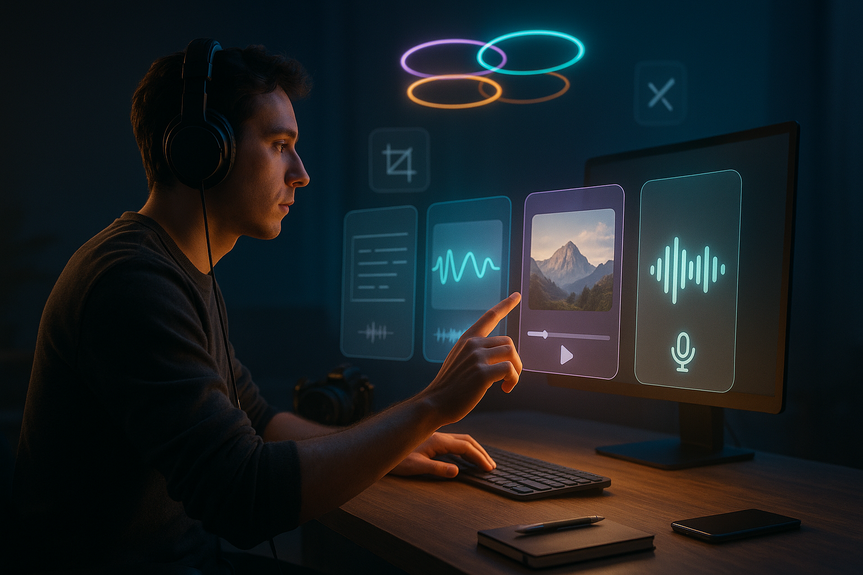
Artlist expanded its creative platform with AI tools that speed up video, audio, and visual work. You can turn prompts into images, images into short clips, and scripts into voiceovers. You can also clean audio and add dynamic zooms inside Adobe Premiere Pro. The goal is simple: help creators ship more, faster, with control.
Text to Image for fast concept art
Image to Image for style-match and variations
Text to Video for motion from a written prompt
Image to Video for animating a still
You can pick from rotating AI models that update often, including Kling 2.6 Pro, Veo 3.1, Sora 2 Pro, and Nano Banana Pro. Each model favors a different look, realism level, or render speed. Use this tool for mood boards, storyboards, title cards, or quick b-roll.
21+ languages and multiple English accents
Different tones, from calm to energetic
Voice-to-voice tweaks to keep timing while changing style
This helps global teams publish consistent, multilingual content without booking multiple voice actors.
Silence Removal identifies and trims dead air
Auto Zoom adds tasteful push-ins on cuts and scene changes
You save time on routine edits while keeping frame-by-frame control.
State audience, platform, and runtime (for example: TikTok, 20–30 seconds).
Write a one-sentence message. Keep it clear.
Intro hook (3–5 seconds)
Core benefit or story (15–20 seconds)
Call to action (3–5 seconds)
Pick a model for realism vs speed (for example: higher realism for ads, faster model for drafts).
List 3 style cues: lighting, color mood, camera angle.
Use Text to Image for 3–5 frames that match your script beats.
Refine with Image to Image if needed to keep style consistent.
Turn your best frames into short clips with Image to Video or Text to Video.
Paste your script into Text to Voice.
Choose language, accent, and tone that match the brand.
Adjust speed and pauses for clarity.
Drop clips and voiceover on the timeline.
Run Silence Removal to tighten pacing.
Apply Auto Zoom on key moments to add energy.
Layer licensed music and SFX from Artlist for emotion.
Check levels and mix: keep voice clear over music.
Export to the right aspect ratio and codec for your platform.
If you need photoreal shots, choose a model known for detail; budget extra render time.
For quick drafts or social posts, use faster models; accept lighter realism.
Match voice tone to the script: friendly for how‑to, confident for product, calm for corporate.
Keep prompts concrete: subject, action, camera angle, lighting, mood, and aspect ratio.
Use image references to lock style across a series.
Review every generated asset for accuracy, brand fit, and rights compliance.
Use AI to assist, not replace, your creative choices.
Blend AI visuals with licensed music and SFX to keep a unique, legal soundscape.
Disclose AI use when required by your platform or client policy.
Pre-visualize scenes, test art direction, and pitch faster.
Produce daily clips with consistent style and clear voiceovers.
Localize campaigns in multiple languages without re-recording.
Deliver more options to clients within the same budget and timeline.
Define goal, platform, and runtime.
Write a tight script with a clear hook and CTA.
Choose the right model for speed or realism.
Generate frames, then animate select shots.
Create voice in the right language and tone.
Assemble fast in Premiere Pro with Silence Removal and Auto Zoom.
Add licensed music/SFX, check mix, and export.
Artlist continues to add tools that shorten the path from idea to delivery while keeping you in control. Use this Artlist AI tools guide to plan, build, and polish video assets quickly, and repeat the workflow to scale your content without losing quality.
(p) (Source: https://usatoday.xpr-gannett.com/press-release/story/23845/artlist-introduces-ai-powered-generator-tools-to-support-content-creators/)
Artlist AI tools guide: the fastest path from brief to assets
In this Artlist AI tools guide, we focus on clear steps you can repeat for social videos, ads, explainers, or storyboards. You will plan your look, generate visuals, add voice, and polish the edit without heavy manual work.What’s new in Artlist’s AI suite
AI Image Generator
Artlist’s AI Image Generator supports:AI Voice: Text to Voice and Voice to Voice
Turn scripts into narration or transform a recorded voice. Features include:Premiere Pro AI Assistant
Artlist adds helpful automations inside Premiere Pro:Step-by-step: build a video asset in 20 minutes
1) Define the goal (2 minutes)
2) Draft a script outline (3 minutes)
3) Set the visual direction (3 minutes)
4) Generate key shots (5 minutes)
5) Build narration (3 minutes)
6) Assemble in Premiere Pro (3 minutes)
7) Add polish (2 minutes)
Smart model and voice choices
Quality control and ethical use
Who benefits most
Filmmakers and video teams
Social media creators
Marketing teams
Freelancers and small studios
Artlist AI tools guide checklist
For more news: Click Here
FAQ
Q: What does the Artlist AI tools guide cover?
A: The Artlist AI tools guide explains how to move from idea to finished video assets in minutes, covering image-to-video workflows, multilingual voice generation, and Premiere Pro assists like Silence Removal and Auto Zoom. It also outlines fast workflows, model selection, and tips to plan, produce, and publish across platforms.
Q: What functions does Artlist’s AI Image Generator offer?
A: The AI Image Generator supports Text to Image, Image to Image, Text to Video, and Image to Video, letting users create visuals from text prompts or uploaded images and convert them into short clips. Users can choose from rotating models such as Kling 2.6 Pro, Veo 3.1, Sora 2 Pro, and Nano Banana Pro that emphasize different style, realism, or processing speed.
Q: How do Artlist’s AI voice tools work and what languages do they support?
A: Artlist provides Text to Voice and Voice to Voice generation to create narration or modify existing recordings while preserving timing when needed. The voice tools support more than 21 languages, multiple English accents, and a range of tonal variations for multilingual and international content.
Q: What Premiere Pro automations does Artlist provide and how do they help editors?
A: Artlist’s Premiere Pro AI Assistant integrates into the editing timeline and includes Silence Removal to identify and remove pauses and Auto Zoom to apply automated zoom effects based on scene changes. These automations are intended to reduce routine editing tasks while keeping the editor in control of final decisions.
Q: Can I build a usable video asset in about 20 minutes using Artlist’s AI workflow?
A: Yes, the guide presents a repeatable 20-minute workflow: define the goal, draft a short script outline, set visual direction, generate key frames, create narration, assemble in Premiere Pro using Silence Removal and Auto Zoom, then add licensed music and export. This step-by-step approach is central to the Artlist AI tools guide for rapid asset production.
Q: How should I choose AI models and voice settings in Artlist for different projects?
A: Choose higher-realism models for photoreal shots and budget extra render time, and pick faster models for quick drafts or social posts, while matching voice tone to the script such as friendly for how-to or confident for product messaging. Keep prompts concrete—specifying subject, action, camera angle, lighting, mood, and aspect ratio—and use image references to maintain consistent style across assets.
Q: What quality control and ethical steps does the guide recommend when using AI-generated assets?
A: The guide recommends reviewing every generated asset for accuracy, brand fit, and rights compliance and using AI to assist rather than replace creative choices. It also advises blending AI visuals with licensed music and SFX and disclosing AI use when required by platform or client policy.
Q: Who benefits most from Artlist’s AI-powered generator tools?
A: Filmmakers and video teams can use the tools to pre-visualize scenes and test art direction, social media creators can produce daily clips with consistent style, and marketing teams can localize campaigns without re-recording. Freelancers and small studios can also use the tools to deliver more options within the same budget and timeline.
Contents