AI News
21 Feb 2026
Read 9 min
How AI distraction blocker for Mac restores deep focus
AI distraction blocker for Mac watches your apps, flags time sinks and steers you back to focused work.
An AI distraction blocker for Mac uses context from your screen to tell work from waste. It watches which app and page you open, then nudges you when you drift. Unlike blunt blockers, it lets you grab needed Reddit or YouTube info without falling into a rabbit hole, restoring deep focus.
Most tools that block websites or apps fail when your work needs those very sites. You stop the blocker to look up one detail. Ten minutes later, you are doomscrolling. A new wave of tools tackles this by reading context. One standout, Fomi for macOS, asks what you are doing, watches your active window, and uses AI to decide if what is on your screen helps the task or hurts it. It is available with a three-day free trial and costs $8 per month.
Why context beats simple blockers
Research often looks like distraction
– You may need a Reddit thread to solve a bug. – You may need a YouTube lecture to understand a topic. – A static block list cannot see the difference between on-task research and off-task browsing.Context-aware tools close the gap
– They compare what is on your screen to the task you set. – They warn only when you veer off-topic. – They let you keep momentum instead of toggling blockers on and off.How this AI distraction blocker for Mac works
Setup
– Tell the app what you do day to day and the tools you use. – Start a focus session and name the task. – List the apps you plan to use for that task.On-screen coaching
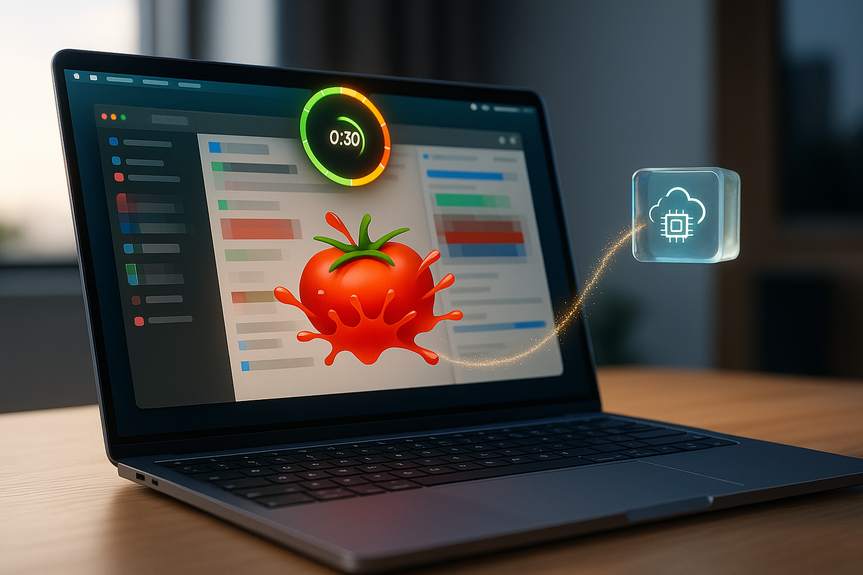
– A timer and a small dot appear around the MacBook notch. – Green means on task. Yellow means risky territory. Red means you are off track. – When you go red, a tomato splats on the screen with a short, specific prompt to get back to work. – If the alert is wrong, click False Alert and continue.Smarter than a block list
– It can tell when an article fits your topic versus when it does not, even on the same site. – It can spot off-topic Reddit or YouTube browsing. – It adapts better if you describe your job and task in clear, specific terms.What it gets right (and wrong)
Strengths
– Catches drift early with gentle, fast feedback. – Keeps access to useful sources without opening floodgates. – Simple visuals (green/yellow/red) reduce decision fatigue. – False positives are easy to dismiss.Limits
– “Work” versus “distraction” can be fuzzy. Inspiration browsing can slip both ways. – You will see occasional wrong calls, especially with broad tasks. – It works best when you write narrow, clear task goals at the start.Privacy and data trade-offs
What the app sends
– It takes frequent screenshots of your active window. – It sends redacted images to a cloud model (OpenAI’s GPT 5 Mini) for one-time analysis. – In tests, uploads can reach roughly half a gigabyte during a full workday.What is protected
– A local computer-vision pass tries to redact personal data first (names, emails, phone numbers, passwords, card numbers). – The company says it does not store screenshots on its servers; images stay in RAM briefly. – It ships via the Mac App Store, which adds baseline privacy checks.What to consider
– This is not for work that involves secrets, regulated data, or strict NDAs. – You must be comfortable with redacted screenshots leaving your device. – If your internet is capped or slow, the upload volume may be a problem.Who benefits and how to get the most out of it
Great fit
– Students who need YouTube or forums but want to avoid endless recommendations. – Writers and researchers who mix open-web reading with drafting. – Developers who jump between docs, issues, and Q&A sites.Not ideal
– Work with confidential client data, medical records, legal files, or unreleased code. – Teams with strict offline or air-gapped policies.Tips for better results
– Be specific: “Outline section on privacy risks” beats “Write article.” – List only the apps you truly need for the session. – Use short focus blocks (25–50 minutes) and planned breaks. – Hit False Alert when it’s wrong, then keep moving. – Review what triggered yellow or red and tighten your next task. Deep focus is easier when tech understands intent. With context-aware nudges instead of blanket bans, an AI distraction blocker for Mac like Fomi helps you stay on task without cutting you off from the sources you need. Weigh the privacy cost, try the free trial, and see if it builds better habits. (Source: https://www.wired.com/story/fomi-ai-will-tell-you-to-stop-slacking-off/) For more news: Click HereFAQ
Q: What is Fomi and how does this AI distraction blocker for Mac work?
A: Fomi is a macOS application that asks what you’re working on, watches your active windows and apps, and uses AI to judge whether on-screen activity is task-relevant or distracting. It analyzes redacted screenshots with a cloud model for one-time context checks and gives real-time nudges during focus sessions.
Q: How does Fomi differ from traditional site or app blockers?
A: Rather than blocking sites outright, Fomi compares what’s on your screen to the task you set and warns only when you veer off-topic. As an AI distraction blocker for Mac it lets you access needed sources like Reddit or YouTube for research without opening floodgates to doomscrolling.
Q: What do the green, yellow, and red indicators mean?
A: During a focus session Fomi shows a green dot and a timer when you’re on task, switches to yellow for risky territory, and turns red with an animated tomato and a short, specific prompt when it detects clear distraction. You can click the False Alert button to dismiss wrong calls from the AI distraction blocker for Mac.
Q: How does Fomi handle screenshots and personal data?
A: Before uploading, Fomi runs a local computer-vision pass to detect and redact personally identifiable information like names, phone numbers, emails, passwords, or card numbers, and only the redacted image is sent to an AI model for one-time analysis. The company says it doesn’t store screenshots on its servers and keeps images only in RAM, though sending redacted images to a cloud model (OpenAI’s GPT 5 Mini) is the main privacy trade-off with this AI distraction blocker for Mac.
Q: Is Fomi appropriate for sensitive or confidential work?
A: No; the article notes Fomi isn’t something you should use if your job requires secrecy because it uploads many redacted screenshots to the cloud and in tests sent roughly half a gigabyte during a regular workday. For regulated, confidential, or unreleased material you should avoid this AI distraction blocker for Mac.
Q: What does Fomi cost and is there a trial?
A: Fomi offers a three-day free trial and subscription plans cost $8 per month as reported in the article. You can use the trial to evaluate whether the AI distraction blocker for Mac balances usefulness and privacy for your workflow.
Q: Who benefits most from an AI distraction blocker for Mac like Fomi?
A: The article suggests it’s a good fit for students who need YouTube or forums, writers and researchers mixing open-web reading with drafting, and developers who jump between docs, issues, and Q&A sites. These users can keep access to useful sources without constantly toggling blockers and still get early nudges when they drift.
Q: How can I get the best results from Fomi?
A: Be specific when describing your occupation and task (for example, “Outline section on privacy risks”), list only the apps you truly need, use short focus blocks (25–50 minutes) with planned breaks, and hit False Alert when the app is wrong. Following these setup and usage tips helps the AI distraction blocker for Mac reduce false positives and keep momentum.
Contents