AI News
31 Mar 2026
Read 17 min
How to run GAIA Agent UI locally to secure data
Run GAIA Agent UI locally to keep AI workflows private and analyze documents, code, and files offline.
Want private AI on your PC? Here is how to run GAIA Agent UI locally to keep documents and code off the cloud. Learn the setup for Windows and Linux, what hardware and SDKs you need, how to use tool approvals, and how to tune performance so your Ryzen AI NPU handles daily tasks fast and safely.
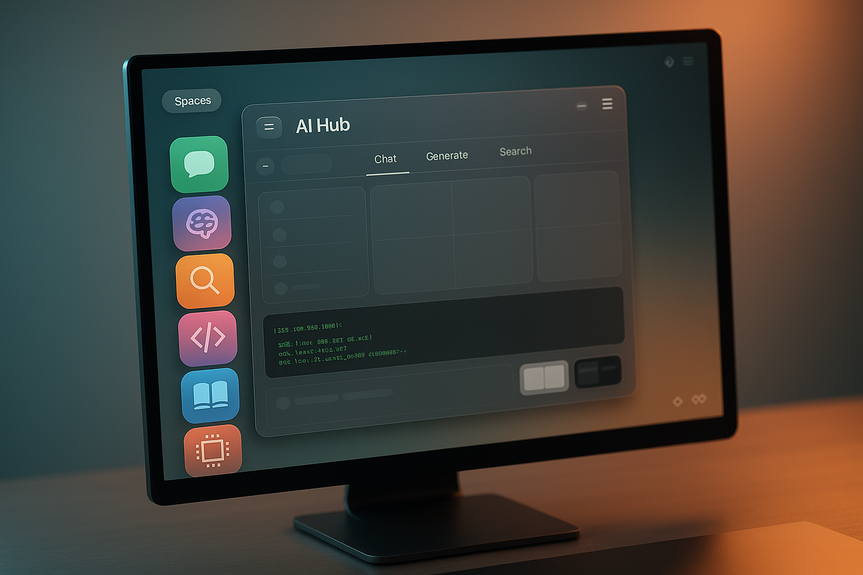
AMD’s GAIA 0.17 release adds Agent UI, a privacy-first desktop app for local AI agents. It runs everything on your machine. It does not send data to the cloud. You can analyze documents, search files, write code, and even approve shell commands before they run. The front end uses React and TypeScript inside an Electron shell, so it feels like a modern desktop app. With the new tool execution guardrails, better hardware detection, and a tight link to the Lemonade SDK 10.0 plus FastFlowLM 0.9.35, it is now much easier to set up a fast, secure local workflow on Ryzen AI laptops and Linux desktops.
Document analysis with local RAG: Drop PDFs, Word, and many more formats. Get answers with page-level citations.
Safe tool execution: The agent proposes actions like shell commands or file writes. You must approve each step.
File search and project browsing: Ask the agent to find files, scan folders, and locate content across your work.
Session memory: Create, switch, and persist sessions with full history, so you can pick up work later.
Live reasoning view: Watch responses stream in blocks to see how the agent thinks.
Metrics at a glance: Hover to see token counts, latency, and throughput per response.
Optional remote access: A built-in ngrok tunnel lets you reach your local instance from your phone.
This local-first model is great for teams and solo builders who want to keep code, contracts, and customer data on their own hardware. It also avoids rate limits and costs from cloud AI calls.
Confidentiality: Work with legal docs, source code, and financial data without exposing them to a cloud provider.
Compliance support: Local processing helps with data residency and audit needs.
Predictable performance: Your NPU/GPU gives consistent speed without network jitter.
Cost control: No cloud inference bills for everyday tasks.
The latest release improves Ryzen AI and Radeon detection, messaging, and system prompts, which makes setup smoother and results more stable.
Hardware: A Ryzen AI laptop or desktop with a supported NPU. A recent Radeon GPU can help with some workloads.
Operating system: Windows or a modern Linux distro (for example, Ubuntu or Fedora).
Drivers and runtime: Up-to-date AMD graphics/NPU drivers. On Linux, install the AMD-provided runtime stack for your OS.
SDKs and runtime tools: Lemonade SDK 10.0 and FastFlowLM 0.9.35 to enable NPU-backed local LLMs, especially on Linux.
Disk space: Room for model files and document indexes (RAG embeddings can take gigabytes for large corpora).
Internet (one time): Only for downloads. Daily use can be offline.
Tip: Always read the release notes on AMD’s GitHub to confirm exact OS, driver, and SDK versions for GAIA 0.17.
Go to the GAIA releases page on GitHub (v0.17.0).
Download the installer or archive for your OS.
Install or extract the app.
Launch GAIA Agent UI.
This route avoids a build toolchain and is best for most users.
Install Node.js LTS and a package manager (npm, yarn, or pnpm).
git clone the GAIA repository.
Check out tag v0.17.0.
Install dependencies.
Run the start/build script for the Electron app.
Follow the repo’s README for exact commands. Building from source lets you audit the app and customize behavior, but takes longer.
Open the settings or status panel.
Check that GAIA sees your Ryzen AI NPU and, if present, your Radeon GPU.
If detection fails, update drivers and the Lemonade SDK, then restart.
Correct detection ensures fast local inference and stable tool use.
Install Lemonade SDK 10.0 as directed by AMD.
Install FastFlowLM 0.9.35 to run optimized, often quantized, models.
Pick a model that fits your memory and speed needs. Smaller models respond faster. Larger models may reason better.
Set the model path in GAIA’s settings.
If you are new to local models, start small to verify everything works. Then try larger models as your hardware allows.
Create a new session for each project or topic.
Drag and drop PDFs, Word docs, or other supported formats into the UI.
Let the app index these files locally. This builds embeddings on your machine.
Ask questions. The agent will quote and cite pages.
Good hygiene:
Organize your knowledge base into clear folders.
Index only what you need to keep storage lean.
Re-index after big document updates.
Every command requires your approval. Read it carefully before you accept.
Start with read-only tasks (search, list files) before allowing write or execute actions.
Use a low-privilege user account for extra safety on Linux and Windows.
Enable MCP tools only if you understand what they do and why the agent needs them.
This approval loop keeps you in control. It also teaches the agent which actions are normal in your workflow.
Summarize a long contract. Drop the PDF in a session and ask for a summary with key risks, citing pages.
Explore a codebase. Let the agent index your repo. Ask where a function is used or why a build step fails.
Draft secure scripts. Have the agent propose a shell snippet. Review, then approve execution step by step.
Research across notes. Drag in meeting notes and reports. Query by topic and get linked citations.
Because everything runs locally, you avoid accidental data leaks and external retention.
Create named sessions for each client or project.
Switch sessions to keep context clean.
Session history persists, so you can resume later without losing track.
Hover over responses to see token counts.
Watch latency and throughput to judge model size vs. speed.
Use these metrics to pick the right model and hardware path (NPU vs. GPU) for each task.
Enable it only when you need mobile access.
Protect the tunnel with strong auth where available.
Never expose the agent if your device holds highly sensitive data and you do not control the network.
Turn the tunnel off after use.
Local-first is safest. Treat remote access as a temporary helper, not a default.
Work offline by default. Disconnect the network when you do not need downloads.
Store your project folder and model cache on an encrypted disk or OS-encrypted volume.
Keep OS, drivers, and GAIA updated to get the latest guardrails and fixes.
Review every tool action the agent proposes. Deny anything you do not fully understand.
Run with least privilege. Avoid admin rights for routine work.
Back up your session data securely. Keep copies offsite in encrypted form.
If you use ngrok, treat it as an exposure and limit access time.
With these habits, you reduce risk without losing speed or convenience.
Pick a model size that fits your RAM and VRAM. Bigger is not always better for everyday tasks.
Watch the token and latency metrics. If responses lag, try a smaller model or adjust context length.
Use the NPU for sustained, efficient inference. Consider GPU offload for bursts that suit your system.
Close heavy background apps to free up memory and CPU for the agent.
Batch indexing when you are away from the keyboard. RAG builds are compute-heavy.
As drivers and SDKs improve, rerun tests. GAIA 0.17 already benefits from hardware detection and prompt tuning updates.
Update AMD drivers and the Lemonade SDK.
Restart the app and your machine.
Confirm your OS build matches driver guidance.
Use FastFlowLM 0.9.35 as recommended.
Start with a smaller model to confirm the path is correct.
Check file permissions and storage space.
Index in smaller batches.
Exclude huge binary files that do not help Q&A.
Let indexing finish before heavy multitasking.
This is by design. Approvals protect you.
Group actions: Ask the agent to plan steps first, then approve the plan item by item.
Create a session named “Project Brief.”
Drop a few PDFs and docs that describe the task.
Ask the agent to extract key goals, risks, and timelines with citations.
Approve a read-only file search across your project folder.
Have the agent draft a to-do list and a shell script to set up folders. Review, then approve each safe step.
Monitor metrics to gauge speed. Adjust model size if needed.
In under an hour, you will have a private, repeatable process that you can copy to new projects.
What GAIA Agent UI does and why it matters
GAIA Agent UI gives you a local agent that can act on your files with your approval. It shines when you want speed, privacy, and control. Key features include:Why you should run GAIA Agent UI locally for data security
Local AI means your files do not leave your machine. No uploads. No third-party storage. With GAIA’s tool approval flow, you also decide which commands the agent may run. This cuts the risk of a script doing something you did not intend. Consider these benefits:How to run GAIA Agent UI locally: Step-by-step
Below is a clear path to get started on both Windows and Linux. You will use AMD’s GitHub for downloads and follow safe defaults.Prerequisites
Before you install, check the basics:Option A: Download prebuilt binaries
For the fastest path, use the official releases:Option B: Build from source (advanced)
If you prefer to review or modify code:Verify hardware detection
When you start the app:Configure models and tools
The GAIA Agent UI needs local models and safe tools to act on your data. Set these up once, then reuse across sessions.Use Lemonade SDK 10.0 and FastFlowLM 0.9.35
This pair unlocks strong local LLM performance, especially on Linux:Document analysis with local RAG
RAG (Retrieval-Augmented Generation) helps the agent answer with citations from your files:Safe tool execution and MCP
Tools let the agent run commands, browse folders, and write files. GAIA 0.17 adds guardrails:Everyday workflows you can trust
Here are practical ways to use the agent with sensitive files while staying private:Access, sessions, and monitoring
The UI is designed to help you work in a focused, measurable way.Session management
Performance insights
Use from your phone with ngrok (with care)
GAIA includes an optional ngrok tunnel so you can reach your local instance remotely:Security checklist for a private setup
Lock down your environment so your data stays yours.Performance tuning on Ryzen AI and Radeon
You can get more out of your hardware with a few tweaks:Troubleshooting tips
If things do not work as expected, try these simple checks:Agent cannot see the NPU or GPU
Models do not load or crash
Document indexing is slow
Security prompts seem frequent
A simple workflow to get started today
Try this first project to build trust and skill:The bottom line
AMD’s GAIA 0.17 makes private AI practical. You get local document analysis with real citations, safe tool execution with human approval, and clear performance metrics. Pair it with Lemonade SDK 10.0 and FastFlowLM 0.9.35, and your Ryzen AI hardware turns into a quiet, capable workhorse for daily tasks. If you want control, speed, and privacy, the best move is to run GAIA Agent UI locally and keep your data on your machine.(Source: https://www.phoronix.com/news/AMD-GAIA-0.17-Agent-UI)
For more news: Click Here
FAQ
Q: What is AMD GAIA Agent UI and why does it matter?
A: AMD GAIA Agent UI is a privacy-first desktop web application introduced in GAIA 0.17 that runs local AI agents on Ryzen AI hardware. To run GAIA Agent UI locally is to keep document analysis, code generation, file search, and approved command execution strictly on your machine without any cloud AI usage.
Q: What operating systems and hardware do I need to run GAIA Agent UI locally?
A: You need a Ryzen AI laptop or desktop with a supported NPU and a Windows or modern Linux distribution such as Ubuntu or Fedora. You should also have up-to-date AMD drivers and, especially on Linux, Lemonade SDK 10.0 plus FastFlowLM 0.9.35 to enable local LLMs.
Q: How can I install GAIA 0.17 — are prebuilt binaries available or do I need to build from source?
A: For most users the fastest path is to download prebuilt installers or archives from the GAIA releases page on AMD’s GitHub (v0.17.0), then install or extract and launch the app. Advanced users can build from source by installing Node.js LTS, cloning the repo, checking out tag v0.17.0, installing dependencies, and running the Electron start or build script as documented in the repository README.
Q: How does GAIA Agent UI perform document analysis and provide citations?
A: GAIA Agent UI uses a local RAG workflow where you drag and drop PDFs, Word documents, or any of 53+ supported file formats and the app indexes those files locally to build embeddings. When you query the indexed content the agent returns answers with page-level citations drawn from your local documents.
Q: What safety controls are in place for executing shell commands and file writes?
A: GAIA 0.17 adds tool execution guardrails so the agent proposes shell commands, file writes, or MCP tool actions but requires your explicit approval before performing each action. The article advises starting with read-only tasks, using a low-privilege user account, and reviewing every proposed command to keep control and reduce risk.
Q: Can I access my local GAIA instance from a mobile device, and what precautions should I take?
A: GAIA includes an optional built-in ngrok tunnel that lets you reach your local instance from a phone when enabled. You should enable the tunnel only when needed, protect it with strong authentication where available, and turn it off after use to avoid exposing highly sensitive data.
Q: How can I tune performance for everyday tasks on Ryzen AI and Radeon hardware?
A: Choose a model size that fits your RAM and VRAM because smaller models respond faster while larger models may offer better reasoning, and monitor token counts, latency, and throughput to guide adjustments. Use the NPU for sustained, efficient inference and consider GPU offload for bursts, close heavy background apps, and batch indexing to improve throughput.
Q: What troubleshooting steps should I try if GAIA can’t detect the NPU or models fail to load?
A: Update AMD drivers and the Lemonade SDK, restart the app and your machine, and confirm your OS build matches driver guidance if the NPU or GPU is not detected. If models do not load try FastFlowLM 0.9.35 as recommended, start with a smaller model to verify the model path, and check file permissions and available storage space.
Contents