AI News
31 Mar 2026
Read 10 min
how to use Noi AI app to stop switching between AI tools
how to use Noi AI app to unify your AI tools into one desktop, speeding workflows and reducing tabs
Learn how to use Noi AI app to put ChatGPT, Claude, Gemini, Perplexity, and even local models in one desktop window. Install the app, add your favorite services as tabs, build custom Spaces, and use the built-in terminal for local tasks. Stop tab-juggling and keep every AI tool within easy reach.
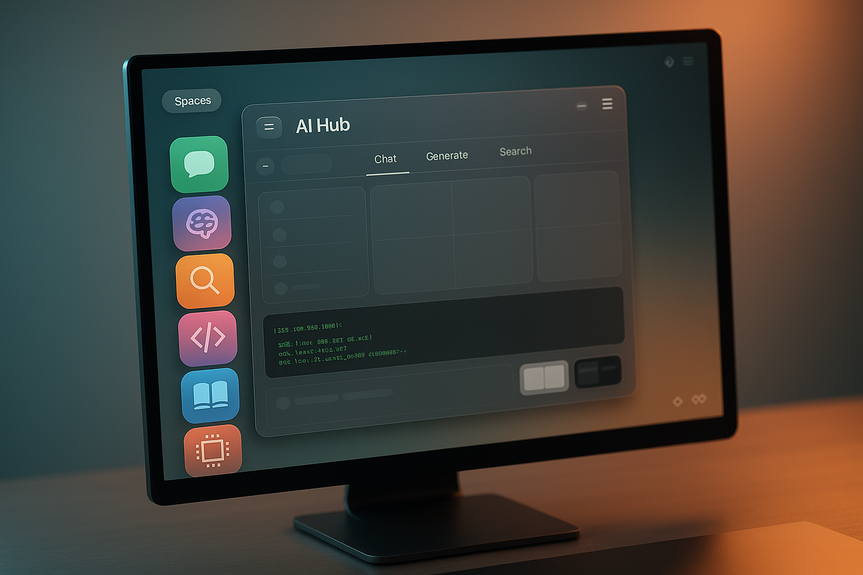
If you bounce between AI tools all day, you will love Noi. This free desktop app pulls web AI chatbots, research tools, and even local models into one clean interface. You get tabs, multi-window support, session isolation, prompt management, and a built-in terminal. Here’s how to use Noi AI app to speed up your workflow in minutes.
Tabs and multi-window management
Session isolation for separate projects
Local-first history and prompt storage
Prompt management to reuse great instructions
Built-in terminal for local commands
Multiple themes for comfort
Noi runs on Linux, macOS, and Windows. You can download installers from the official releases page and install it like any other desktop app.
Download the installer for your OS from the official Noi releases page.
Run the installer and open Noi.
On first launch, you’ll see a sidebar with default services. This is your first “Space.”
Click the small link icon at the top-left of the sidebar.
Enter a clear name (for example, “ChatGPT”).
Paste the service URL (for example, https://www.chatgpt.com).
Save to create a pinned entry in the sidebar. Open it in a tab and start chatting.
Tip: Some services let you browse without an account. If you want synced history and settings, sign in when prompted.
Click the Spaces icon in the bottom toolbar.
Click + to create a new Space.
Name it (for example, “Research” or “Dev Work”) and click Save.
Use the link icon to add only the services you want to this Space.
Note: Pinning services to a new Space with one click is not available yet. You add each service manually by URL.
Command line: Open the terminal and use your local tools (for example, Ollama CLI) as you normally would.
Local web UI: If you run a local web server (for example, an Ollama WebUI at http://192.168.1.25:3000), add that URL as a service. It opens as a tab inside Noi.
Now you can chat with local and cloud models side by side.
Open separate tabs for different questions or projects. Tabs reduce context mix-ups.
Use session isolation to keep conversations and cookies apart.
Save strong prompts in the prompt manager. Reuse them to get consistent outputs.
Rely on local-first history when you do not want data synced to the cloud.
Close that tab and reopen it from the sidebar.
Sign in if the service requires an account for full access.
If issues persist, try a new Space to isolate the session.
Research Space: Perplexity, Gemini, DeepWiki
Coding Space: Claude, GitHub, your local terminal
Writing Space: ChatGPT, a notes app in a web tab, and your prompt library
Each Space opens fast and keeps your brain in one lane.
Open a second Noi window for dual monitors (for example, chat on one screen, code on the other).
Switch themes to reduce eye strain and keep focus during long sessions.
Rely on local history and prompt storage when you care about privacy.
Use the terminal for local commands and models. You stay productive even if a web service is down.
Save prompts for code review, bug fixing, or summarizing sources.
Apply the same prompt across models to compare answers in adjacent tabs.
Some services require an account to sync data. Anonymous use can be limited.
If a tab misbehaves, a quick close-and-reopen often fixes it.
Pinning services to new Spaces in one step is not available yet, so you must add URLs manually.
Writers and researchers who switch between search, chat, and notes
Developers who want cloud and local models in one place
Teams who need clear project separation with isolated sessions
Anyone who hates switching between browser tabs all day
By grouping tools into Spaces, saving prompts, and using the terminal, you reduce clicks and protect your flow.
In short, you now know how to use Noi AI app to put every AI tool under one roof. Install it, create Spaces, add your go-to services, and wire up local models. With tabs, session isolation, and local-first storage, you will work faster and switch less, every single day.
What Noi Is and Why It’s Useful
Noi is a single desktop interface for many AI services. It supports popular tools like ChatGPT, Claude, Gemini, and Perplexity. It also helps you run local models through a terminal or a local web UI. You can use some services without signing in, but you need an account to sync history. Your history and prompts save locally by default, which keeps your data close to you. Key features:How to use Noi AI app
1) Install and Launch
2) Add Services to Your Default Space
3) Create Custom Spaces for Focus
Spaces help you group tools by task. You can keep research tools in one Space and coding tools in another. To create a Space:4) Use the Built-in Terminal
The terminal lets you run local commands without leaving Noi. This is great if you prefer local AI models. Two common ways to connect local AI:5) Manage Sessions and Prompts
6) Handle Common Hiccups
If a service shows a permission error or fails to load:Build a Smooth Daily Workflow
Set Up Spaces by Task
Use Multi-Window and Themes
Keep Everything “Local-First” When Possible
Move Faster With Smart Prompts
Limits and What to Expect
Who Benefits Most
(Source: https://www.zdnet.com/article/noi-ai-desktop-app/)
For more news: Click Here
FAQ
Q: What is Noi and why is it useful?
A: Noi is a desktop GUI app that brings multiple AI services like ChatGPT, Claude, Gemini, and Perplexity into a single interface. Learning how to use Noi AI app helps reduce tab switching by using tabs, session isolation, prompt management, and a built-in terminal.
Q: How do I install Noi on my computer?
A: Noi runs on Linux, macOS, and Windows and you can download an installer from the official Noi releases page. To begin learning how to use Noi AI app, run the installer and open Noi like any other desktop application.
Q: How do I add services like ChatGPT or Gemini to Noi?
A: Click the small link icon at the top-left of the sidebar, give the service a name, and paste its URL (for example https://www.chatgpt.com) to add it. After saving, the service appears as a pinned entry you can open in a tab and use immediately, which is a core part of how to use Noi AI app.
Q: What are Spaces in Noi and how do I create one?
A: Spaces are user-created groups of services that let you keep tools organized by task; the sidebar starts as your default Space. To create a new Space, click the Spaces icon in the bottom toolbar, click +, name it, click Save, and then add services manually by URL to populate that Space.
Q: Can I use my local AI models inside Noi?
A: Yes — Noi includes a built-in terminal for running local commands and can open local web UIs as tabs, so you can use command-line tools like an Ollama CLI or add a local WebUI URL such as http://192.168.1.25:3000. Using the terminal or local web UI is part of how to use Noi AI app when you want local-first models and workflows.
Q: How does Noi handle session isolation, history, and prompts?
A: Noi supports session isolation so tabs can keep conversations and cookies separate, and it stores history and saved prompts locally by default. You can use the prompt manager to save and reuse instructions for consistent outputs.
Q: What should I do if a service in Noi shows a permission error or fails to load?
A: If a tab shows a permission error or fails to load, close the tab and reopen it from the sidebar and sign in if the service requires an account. If the issue continues, try opening the service in a new Space to isolate the session.
Q: Who benefits most from using Noi and what workflows does it support?
A: Noi is useful for writers, researchers, and developers who switch between chat, search, coding tools, and local models, as it groups tools into task-focused Spaces. Its multi-window support, themes, and local-first storage help build workflows for research, coding, or writing without constant browser tab switching.
Contents