AI News
16 Jan 2026
Read 9 min
Veo 3.1 YouTube Shorts guide How to make 4K vertical clips
Veo 3.1 YouTube Shorts makes 4K 9:16 vertical videos from images fast, keeping identities consistent
Veo 3.1 YouTube Shorts guide: Use Google’s upgraded video model to turn reference images and short prompts into crisp 9:16 clips, then upscale to 1080p or 4K. Start from YouTube Shorts or the YouTube Create app, select vertical, add images and a clear prompt, generate, refine, and export for fast Shorts publishing.
Google’s latest Veo model focuses on speed and quality for short-form video. You can build vertical stories from still images, keep characters consistent across scenes, and upscale results to 1080p and 4K. Veo 3.1 sits inside YouTube Shorts and the YouTube Create app on Android (rolling out first in India, the US, Canada, New Zealand, and Australia), and is also available in the Gemini app.Veo 3.1 YouTube Shorts guide: Quick steps
1) Start in Shorts or YouTube Create
- In YouTube Shorts: tap Create [+] and choose “Create Video,” or open the menu (top-right) and select “Create video.”
- In YouTube Create (Android): download the app, then tap “Generate video.”
- Note: The feature rolls out in phases. If you do not see it yet, check region and device support, and try again later.
2) Set up the canvas
- Select the 9:16 vertical aspect ratio for full-screen Shorts.
- Add clear reference images (product shots, character images, or brand visuals). These “ingredients” tell Veo what to show.
- Write a short, specific prompt. State the action, style, mood, and any camera moves. Example: “Close-up of a red running shoe tilting, then rotating on white, soft shadow, smooth camera pan.”
3) Generate, refine, and upscale
- Generate a draft. Watch the motion and framing. If something feels off, clarify the prompt or swap a reference image.
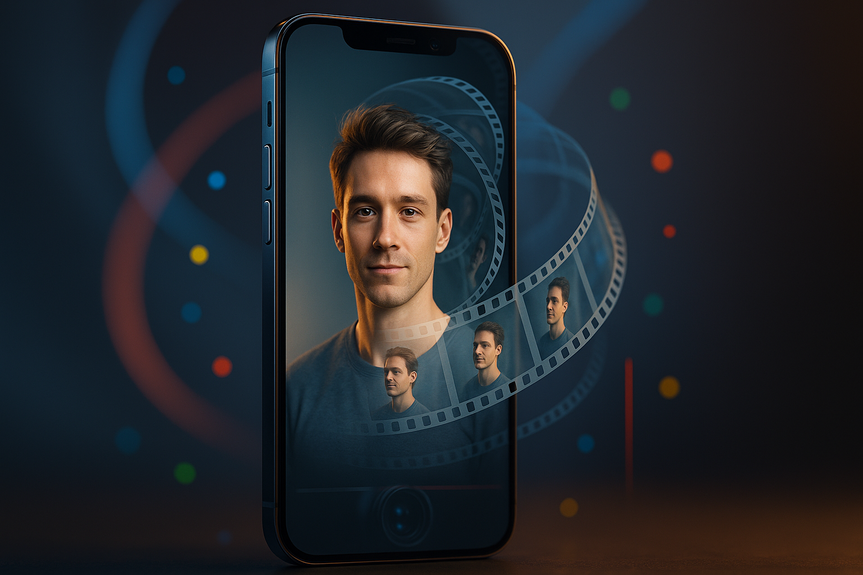
- Use identity consistency by reusing the same subject images across scenes to keep faces, products, and backgrounds steady.
- Upscale to 1080p or 4K for a sharper final. Export, add captions, music, and publish to Shorts.
Prompt and image tips that work
Write tight prompts
- Describe the action first (“camera slides right as bottle glows”).
- State the look (“clean studio lighting, soft shadows, brand-red accent”).
- Keep it short, but specific. Remove vague adjectives and filler.
- If you need multiple beats, separate them: “Beat 1… Beat 2… Beat 3…”
Pick strong reference images
- Use high-resolution, well-lit images with clear subjects.
- Match angles if you want smooth transitions (front angle to front angle).
- Avoid busy backgrounds unless they are part of the story.
- Check rights for any logos or people. Only use images you own or can legally use.
Remember: a great idea beats a long prompt. Viral AI videos still start with a clever concept. Use Veo’s speed to test several ideas and keep the best one.
Keep characters and style consistent
- Use the same face or product photos across scenes to anchor identity.
- Stick to one lighting style and color palette for a unified look.
- Repeat key words from earlier prompts (“same model,” “same background”) if you need steadier continuity.
Best uses for fast, vertical content
- Product loops for Shorts (spin, tilt, unbox-style reveals).
- Feature callouts (one scene per benefit with bold text overlays).
- Storyboards and concept teasers to test before a full shoot.
- Motion posters and channel trailers in 9:16.
When to use real footage instead
- Live demonstrations that need exact performance or real hands-on context.
- Complex scenes with many unscripted interactions.
- Regulated claims that require on-camera proof or disclaimers.
Where else you can access Veo 3.1
- Gemini app: generate in video or portrait modes for quick iterations.
- Developers and teams: Flow, Gemini API, Vertex AI, and Google Vids for deeper workflows or automation.
Troubleshooting and quick fixes
- Faces look off or change between cuts: add clearer subject photos and reuse them for later scenes.
- Cropping issues: make sure 9:16 is selected from the start to avoid reframing later.
- Soft visuals: run the upscaler to 1080p or 4K and review again.
- Motion feels random: limit the prompt to one main action and one camera move.
- Feature missing: rollout may be limited by region or device; check YouTube Create on Android and try again soon.
Creative tips for standout Shorts
- Hook in the first second with a bold action or surprising angle.
- Use on-screen text to highlight one clear benefit per scene.
- Keep cuts short and rhythmic; match beats to your chosen track.
- End with a strong call to action: “Watch more,” “Shop now,” or “Comment your pick.”
You can ship polished vertical clips fast with Veo’s native 9:16 mode, better identity consistency, and built-in upscaling. Use this Veo 3.1 YouTube Shorts guide to plan your idea, feed Veo clean images, write tight prompts, and upgrade the final to 4K. The tool is powerful, but your concept still wins the scroll.
(Source: https://www.socialmediatoday.com/news/google-launches-improved-veo-ai-video-generation-tools/809512/)
For more news: Click Here
FAQ
Contents