AI News
27 May 2026
Read 9 min
How to build Android apps without coding in minutes
Build Android apps without coding using Google AI Studio and Gemini to prototype installable apps fast
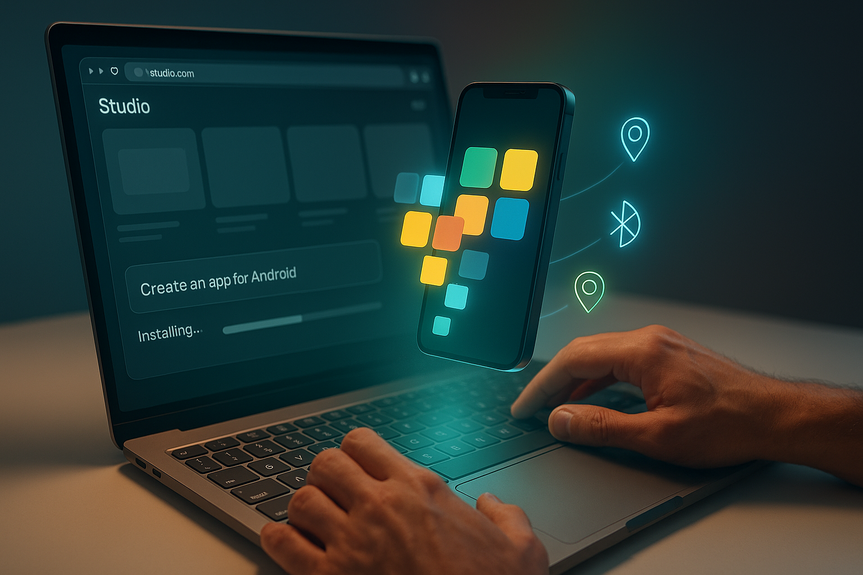
Google’s new Gemini tools in AI Studio let anyone build Android apps without coding in minutes. Type a plain-English prompt, preview the app in a browser, and install it on your phone. It can use GPS, Bluetooth, or NFC and works well for fast prototypes, tests, and personal projects.
Google shared a big update at its I/O developer event. The company added Gemini-powered features to Google AI Studio that turn simple prompts into working Android apps. This push fits a growing trend called “vibe coding,” where you explain what you want and AI writes the software for you. The result is faster idea testing and lower barriers for first-time makers.
How to build Android apps without coding with Google AI Studio
What you need
- A Google account and web browser
- Access to Google AI Studio
- An Android phone for on-device testing (optional but helpful)
Step-by-step
- Describe your idea: Write a clear prompt, like “Create a two-screen habit tracker with daily reminders and a progress chart.”
- Set features: Ask for phone features you need, such as GPS for location, Bluetooth for device links, or NFC for quick taps.
- Review the preview: AI Studio shows a live preview in your browser. Click through screens and try common actions.
- Refine with chat: Tell the AI what to fix. Use short, direct notes like “Make buttons bigger” or “Add dark mode.”
- Test on your phone: Install the app to Android and try it in real life. Check speed, layout, and permissions.
- Repeat and polish: Keep tweaking prompts until it feels right. Save versions as you go.
What these AI-made apps can do
AI Studio focuses on simple, useful apps. You can connect to phone features and common flows. Today, Google says these builds are best for personal use and testing. Wider sharing and publishing options are planned.Common use cases
- Personal tools: grocery lists, budget trackers, workout logs
- School projects: study timers, quiz cards, lab notebooks
- Work tests: quick prototypes, proof-of-concept demos
- Event helpers: checklists, schedules, maps with GPS pins
- Hardware demos: Bluetooth or NFC interactions for gadgets
Why it helps
- Speed: Go from idea to a working build in minutes.
- Access: Students and hobbyists can build Android apps without coding by using natural language.
- Iteration: You can change features fast and test again.
- Learning: New makers see how prompts map to app behavior.
Who should try it and when
- Students: Build class projects without weeks of coding.
- Founders: Pitch an idea with a live prototype.
- Designers: Validate flows before handing off to engineers.
- Educators: Show app logic with easy, visual steps.
- Hobbyists: Make tools for daily life and share feedback.
Tips for better results
Write a strong prompt
- State the goal: “A two-screen hiking log that saves trails and photos.”
- List screens: “Home, Log Trail, Trail Detail, Settings.”
- Name data: “Trail name, distance, difficulty, photo, GPS route.”
- Define actions: “Add, edit, delete, share.”
- Note style: “Large text, high contrast, dark mode.”
Test like a user
- Tap every button. Try bad inputs. Rotate the phone.
- Check permissions. Only ask for what the app needs.
- Watch performance on older devices.
- Keep versions so you can roll back.
Know the limits
- These builds are best for simple flows right now.
- Publishing and broad sharing features are still coming.
- Advanced features may need a developer and Android Studio later.
Smarter app discovery with AI
Google is also making it easier to find apps. “Ask Play” lets you search the Play Store with a natural conversation. You can say, “I need a free photo editor with RAW support,” and get guided picks. Gemini will also start recommending apps inside chats on Android and the web. This pairs well with fast prototyping: if your quick build falls short, you can discover a ready-made app instead.What’s next: faster models and new dev tools
Google says a faster Gemini model is rolling out for developers. This should speed up prompts, previews, and edits. The company also announced Antigravity, a development system built for AI workflows. Together, these updates aim to reduce wait times and make building and testing smoother.Bottom line
If you want to build Android apps without coding, Google AI Studio and Gemini make the process fast and friendly. Start with a clear prompt, test in the browser, install on your phone, and refine. For simple tools, class projects, and early prototypes, you can build Android apps without coding and move from idea to demo in a single afternoon.For more news: Click Here
FAQ
Q: What new capability did Google announce at I/O for creating Android apps?
A: Google added Gemini-powered features to Google AI Studio that turn simple prompts and natural language into working apps, letting people build Android apps without coding in minutes. Users can preview the app in a browser and install it onto Android phones for testing.
Q: What do I need to get started with Google AI Studio?
A: You need a Google account and a web browser, access to Google AI Studio, and an Android phone for on-device testing if available. Those are the basic requirements listed in the article.
Q: How does the prompt-to-app workflow work in AI Studio?
A: You describe your idea in plain English, specify screens and data, and request phone features like GPS or Bluetooth so the AI can generate the app. AI Studio shows a live preview in your browser that you can refine via chat and then install on an Android phone to test and iterate.
Q: Can apps created in AI Studio use phone hardware like GPS, Bluetooth, or NFC?
A: Yes, apps built with Gemini in AI Studio can access Android features such as GPS, Bluetooth and NFC. You can preview functionality in the browser before installing the app on your phone to verify hardware interactions.
Q: Can I publish apps made with AI Studio to the Google Play Store now?
A: For now, these AI-made apps are mainly designed for personal use and testing, and Google said broader sharing and publishing options are planned for the future. Full production releases and advanced features may still require a developer and tools like Android Studio.
Q: What kinds of projects are best suited to build Android apps without coding using AI Studio?
A: AI Studio is best for simple, useful apps and fast prototypes such as grocery lists, study timers, workout logs, proof-of-concept demos, event checklists, and hardware demos. The tool is aimed at students, founders, designers, educators and hobbyists who want quick tests or personal tools.
Q: What practical tips improve the quality of an AI-generated app?
A: Write a clear, detailed prompt that states the goal, lists screens, names data fields, defines actions, and notes style preferences to guide the build. Then test like a user by tapping every button, checking permissions and performance on older devices, and keep versions so you can roll back if needed.
Q: How do Google’s app-discovery features like “Ask Play” relate to AI Studio prototypes?
A: Ask Play lets you search the Play Store with natural-language conversation and Gemini will begin recommending apps inside chats on Android and the web. This helps when a quick prototype from AI Studio falls short, since you can discover existing apps or get guided picks instead of building every feature yourself.
Contents