AI News
24 Jul 2026
Read 9 min
Best AI video upscaler Windows: How to fix blurry clips
best AI video upscaler Windows restores shaky, low-res footage to sharp 4K results in minutes flat.
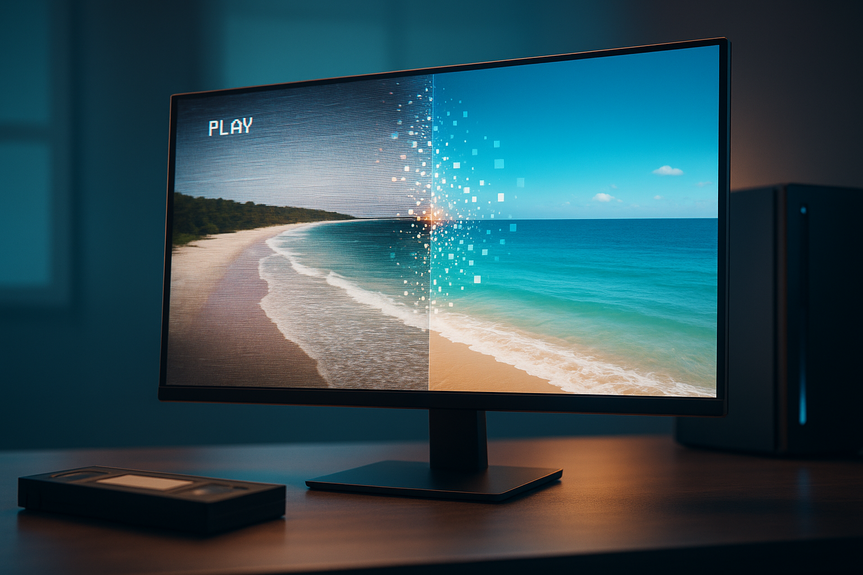
Want to fix shaky, fuzzy footage fast? The best AI video upscaler Windows users can try right now is VideoProc Converter AI. It sharpens, denoises, and upscales old or compressed clips to 1080p, 2K, or 4K in a few clicks. It also stabilizes action-cam shots and supports hundreds of output formats.
Old home videos, phone clips, and action-cam shots often look soft or shaky. Compression and low light make it worse. VideoProc Converter AI gives you a quick, clear fix on Windows. It cleans noise, restores edges, and boosts detail while keeping motion smooth. If you want an easy path to better quality without a long learning curve, this tool is a strong pick.
The best AI video upscaler Windows pick: VideoProc Converter AI
What it does well
- Upscales to 1080p, 2K, or 4K with AI detail enhancement
- Reduces noise and blur from low-light or old footage
- Stabilizes shaky video from drones, phones, and GoPro
- Offers Fast and High-Quality modes to match your timeline
- Exports to 420+ profiles: MP4, MKV, ProRes, MOV, and more
- Fixes fisheye distortion and compresses large files
- Upscales images up to 8K and 10K, and makes GIFs
Step-by-step: Fix a blurry clip in minutes
- Import your video and pick an output profile (MP4 H.264 is a safe start).
- Choose AI Enhance. Enable denoise and deblur if the clip looks rough.
- Set upscale target (1080p/2K/4K). Keep aspect ratio.
- Turn on Stabilize for shaky handheld or drone shots.
- Select Fast for quick results, or High-Quality for best detail.
- Preview a short section. Tweak sharpness if you see halos.
- Export and check motion and faces on a larger screen.
Realistic results to expect
Old or compressed footage
- Cleaner edges on faces, text, and objects
- Less blocky noise and banding in dark areas
- Smoother motion with fewer jitters after stabilization
Action cams and drones
- Reduced micro-shake and rolling blur
- More legible details in trees, roofs, and grass
- Better clarity for wide shots when upscaled to 4K
Settings that matter for clean upgrades
- Mode: Use Fast for batches and social posts; High-Quality for final renders.
- Resolution: Upscale only as high as your source supports without artifacts. 1080p is a safe target for phone clips.
- Noise and blur: Apply denoise first, then add a small amount of sharpen.
- Bitrate: Don’t export at a very low bitrate after upscaling; you will reintroduce artifacts.
- Stabilization: Use it on moving shots; skip it on tripod clips to avoid warping.
- Format: MP4 (H.264/H.265) for sharing; ProRes for editing in another app.
Who benefits most
- Families digitizing VHS and old camcorder videos
- Creators who post shorts and reels and want faster cleanup
- Drone and action-cam users who need steadier 4K
- Coaches and teachers who must make low-res clips readable
- Small businesses refreshing product demos and webinars
Price and value
A lifetime family license has been offered around $30 (MSRP about $120) via select deals, which is strong value for an AI upscaler that also stabilizes, converts, and compresses. As always, prices and promos can change.How to choose the best AI video upscaler Windows users need
- Quality: Look for AI denoise, deblur, and edge detail that avoids halos.
- Speed: A Fast mode helps if you edit on a deadline.
- Formats: Wide codec support makes sharing and editing easy.
- Stability tools: Built-in stabilization saves a trip to another app.
- Privacy: Desktop processing keeps files local versus some web tools.
- Extras: Fisheye fix, GIFs, and image upscaling add daily value.
For more news: Click Here
FAQ
Q: What can VideoProc Converter AI do for blurry or shaky footage, and is it the best AI video upscaler Windows option?
A: The article names VideoProc Converter AI as the best AI video upscaler Windows pick and says it sharpens, denoises, and upscales old or compressed clips to 1080p, 2K, or 4K while stabilizing shaky footage. It also supports over 420 output profiles and offers Fast and High-Quality enhancement modes.
Q: How can I fix a blurry clip in minutes with VideoProc Converter AI?
A: Import your video, pick an output profile (MP4 H.264 is a safe start), choose AI Enhance and enable denoise and deblur as needed, then set the upscale target to 1080p/2K/4K and turn on Stabilize for shaky shots. Select Fast for quick results or High-Quality for best detail, preview a short section, tweak sharpness if necessary, and export.
Q: What realistic improvements should I expect after using the upscaler on old or compressed footage?
A: Expect cleaner edges on faces, text, and objects, reduced blocky noise and banding in dark areas, and smoother motion after stabilization. For action-cam and drone footage you’ll see reduced micro-shake and rolling blur, more legible details in trees, roofs, and grass, and better clarity for wide shots when upscaled to 4K.
Q: Which settings matter most to get clean upscales without artifacts?
A: Use Fast for batches and social posts and High-Quality for final renders, and upscale only as high as your source supports—1080p is a safe target for phone clips. Apply denoise first, then add a small amount of sharpen, avoid exporting at a very low bitrate after upscaling, and enable stabilization only for moving shots.
Q: Who benefits most from using this AI upscaler?
A: Families digitizing VHS and old camcorder videos, creators posting shorts and reels, and drone and action-cam users who need steadier 4K benefit most. Coaches, teachers, and small businesses refreshing product demos or webinars can also find it useful.
Q: Does VideoProc Converter AI run on modest Windows PCs and how does it handle files?
A: VideoProc Converter AI runs on Windows and is described as a practical option for users on modest PCs with simple controls for clean results. Because processing is done on the desktop rather than in a web service, files remain local which can help with privacy.
Q: What export and image options does VideoProc Converter AI support?
A: It offers over 420 output profiles including MP4, MKV, ProRes, MOV, and 4K exports, and can compress large videos or fix fisheye distortion. The tool also upscales images to 8K and 10K and can create GIFs.
Q: How should I choose the best AI video upscaler Windows for my projects?
A: Test a 10–20 second sample clip and check faces, text edges, and fast motion to ensure the tool keeps detail without introducing noise or flicker. When comparing the best AI video upscaler Windows options, look for AI denoise and deblur, a Fast mode for speed, wide codec support, built-in stabilization, desktop processing for privacy, and extras like fisheye correction and image upscaling.
Contents