Crypto
07 Aug 2026
Read 13 min
Fix 401 unauthorized download error: 5 quick fixes *
Fix 401 unauthorized download error quickly with five actionable steps to restore secure file access.
You can fix 401 unauthorized download error fast by refreshing your login, clearing cookies, syncing your device time, updating the app or URL, and checking your network or VPN. Most 401 issues happen because the server cannot verify who you are. Follow the five steps below to restore access and finish your download.
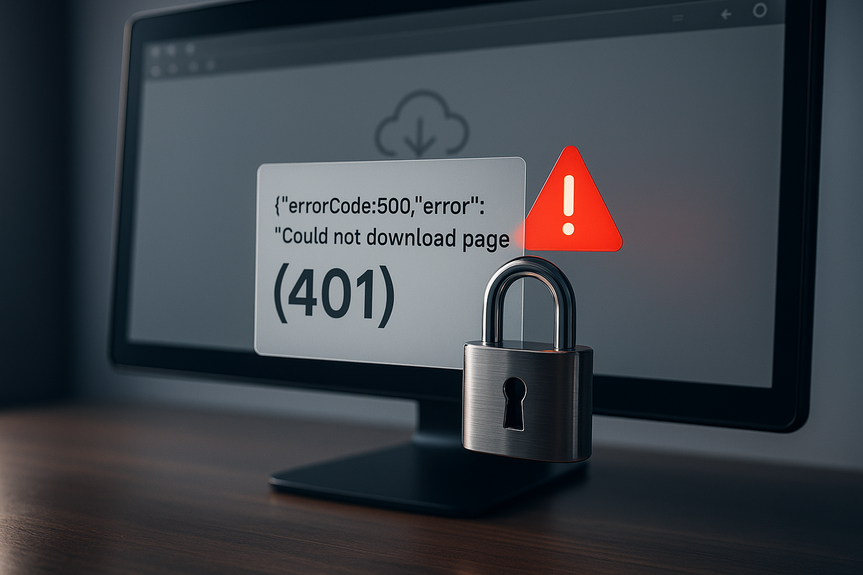
A 401 error means the site or app will not let you download because it cannot confirm your identity. This may happen after a session times out, a token expires, or a link loses its permission. Sometimes the message looks odd, like this: {“errorCode”:500,”error”:”Could not download page (401)”}—that can happen when a gateway wraps a 401 in a 500. The root problem still points to login or authorization.
How to fix 401 unauthorized download error in minutes
1) Refresh your login and session
You may be signed in, but your session might be stale. The server stops trusting it and blocks the file.- Log out of the site or app, then log back in.
- If the site uses multi-factor, complete the prompt again.
- For private links, click the file from inside your account, not from an old bookmark.
- On mobile apps, remove the account, then add it back.
- For API tools (like curl), send the right Authorization header. Example: Authorization: Bearer YOUR_TOKEN
2) Clear site data and try a private window
Old cookies or mixed cache can block a valid login. A clean session often fixes this.- In your browser, clear cookies and site data for the domain.
- Open a private or incognito window and try the download again.
- Disable extensions that block cookies or change headers, then retry.
- If you use a download manager, delete any saved cookies or session data for the site.
3) Sync your device time and update certificates
Secure downloads use tokens with strict time windows. If your clock is off, the server can reject you.- Turn on automatic date, time, and time zone.
- Sync with an internet time server (NTP).
- Install pending system updates that refresh security certificates.
- Restart your browser or app after syncing time.
4) Update credentials, app, and URL
Make sure your tools and tokens are valid and current.- Confirm you have an active account and permission to the file.
- Reset your password if you changed it on another device.
- Reauthorize the app if the token expired or the scope changed.
- Update the app to the latest version to support modern login flows.
- Check the link path. A moved or renamed file can cause a 401 if access control changed.
5) Check network, VPN, and proxy settings
Some sites block downloads from unknown networks or from masked IPs.- Turn off your VPN and try again.
- If you are on a corporate proxy, connect to your home or mobile network.
- Disable privacy filters or firewalls that strip headers or cookies.
- Try a different browser or device on the same network to compare.
What a 401 really means (and why it shows up during downloads)
A 401 error means “unauthorized.” The server needs proof of your identity. It expects a valid cookie, an API key, a bearer token, or a fresh session. During file downloads, this check happens even if the file link looks public. Common triggers include:- Expired session cookie after idle time
- OAuth token that reached its lifetime without refresh
- One-time download URL that already expired or was used
- Hotlink protection that blocks direct file access without a referer
- Account role that lost permission to the folder or bucket
Developer and power-user checks
If the quick steps do not solve it, inspect the request and response. These checks help you pinpoint the missing proof:- Look for a WWW-Authenticate header in the response. It may tell you the needed scheme (Basic, Bearer, or Digest).
- In APIs, confirm the Authorization header value and token scope (read vs. download).
- Send a User-Agent header. Some CDNs block unknown or empty user agents.
- Ensure cookies are sent on the file request if the site gates files by session.
- Verify the referer header if the site uses hotlink protection. Start the download from the page that hosts the link.
- Check CORS and credential flags if you fetch from the browser via script. You may need credentials: “include”.
- Confirm the pre-signed URL expiration (exp) and the device time sync.
Mobile vs. desktop tips
On phones and tablets
- Use the app’s in-app browser to keep the session. External browsers may drop cookies.
- Toggle Airplane Mode on and off to refresh the network.
- Update the app, then log out and back in.
- If using a managed device, check with IT about required VPN or SSO steps.
On laptops and desktops
- Try another browser to rule out extensions.
- Sign out of all accounts on the site, then sign back into the correct one.
- If using a password manager, update the saved login and domain match.
- If SSO is required, start from the organization’s portal link, not a deep file URL.
Prevent the next 401
Keep access smooth with a few habits:- Open download links from inside the source app or portal. Avoid old bookmarks.
- Renew tokens before they expire, and store them securely.
- Keep your device time in sync and your OS updated.
- Document which account owns access to each resource.
- Know your network rules. Use the approved VPN or proxy for gated resources.
When to contact support
Ask the site or app owner for help if:- You can log in, but every file in a folder fails with 401.
- Your role changed or your subscription lapsed.
- The link was shared with you, but the owner forgot to grant you access.
- The error body conflicts with the status code (for example, 500 with a 401 message) and persists across networks and devices.
- The exact URL or file name (hide sensitive parts if needed)
- Time and timezone of the error
- Your account email and role
- Whether it works on another network or device
- A copy of the response headers (if allowed)
For more news: Click Here
FAQ
Q: What does a 401 unauthorized download error mean?
A: A 401 during a download means the server will not let you access the file because it cannot confirm your identity. This commonly happens when a session times out, a token expires, or a one-time link loses permission, so to fix 401 unauthorized download error refresh your login or renew the link.
Q: How can I fix 401 unauthorized download error quickly?
A: Refresh your login and session, clear cookies or try a private window, sync your device time and certificates, update credentials or the URL, and check your VPN or proxy. These five steps usually restore access and let the download finish.
Q: Why does my browser show {“errorCode”:500,”error”:”Could not download page (401)”}?
A: That message appears when a gateway or CDN wraps an origin 401 in a 500 status, so the body reports a 401 even though the response code is 500. The underlying issue still points to authentication or expired tokens, so focus on login, tokens, and link permissions to fix 401 unauthorized download error.
Q: What should I do if logging out and back in doesn’t fix the download?
A: Clear cookies and site data for the domain, open a private/incognito window, and disable extensions or download-manager session data that might block cookies or headers. If that doesn’t help, inspect response headers (look for WWW-Authenticate), test with curl to see if Authorization or cookies are missing, and then reauthorize the app or request a fresh pre-signed link.
Q: How do I troubleshoot API or curl download failures that return 401?
A: Include the correct Authorization header (for example Authorization: Bearer YOUR_TOKEN), confirm the token scope allows downloads, and send a User-Agent header if required by the CDN. Test with curl using cookies or the bearer header to isolate whether the problem is browser cookies/extensions or an account/link permission issue.
Q: Can incorrect device time or expired certificates cause a 401 unauthorized download error?
A: Yes — secure tokens and pre-signed URLs use strict time windows, so clock drift can cause the server to reject your request. Turn on automatic date, time, and time zone, sync with an internet time server (NTP), install pending system updates that refresh certificates, and restart the browser or app before retrying the download.
Q: Could my VPN or corporate proxy be causing the 401 download error?
A: Yes — some sites block downloads from unknown networks or masked IPs, so turn off your VPN or connect from a different network to test. If downloads work without the VPN, add the site to your VPN split-tunnel or use the approved corporate sign-in route to fix 401 unauthorized download error.
Q: When should I contact support about a persistent 401 download problem and what should I include?
A: Contact the site or app owner if every file in a folder fails, your role or subscription changed, the owner forgot to grant you access, or the error persists across networks and devices. Provide the exact URL or file name, time and timezone, your account email and role, whether it works elsewhere, and a copy of the response headers, and note the pattern {“errorCode”:500,”error”:”Could not download page (401)”} if present to help them trace the origin logs.
* The information provided on this website is based solely on my personal experience, research and technical knowledge. This content should not be construed as investment advice or a recommendation. Any investment decision must be made on the basis of your own independent judgement.
Contents