AI News
23 Aug 2026
Read 9 min
fix 403 forbidden download error fast with 5 fixes
fix 403 forbidden download error fast with five clear fixes to restore downloads and avoid repeats now
Hit with a 403 while trying to download a file? Here are fast fixes. Learn what causes the block and how to fix 403 forbidden download error in minutes: refresh your session, sign in, stop VPNs and blockers, refresh DNS, and check server rules. Works on Chrome, Edge, and Firefox.
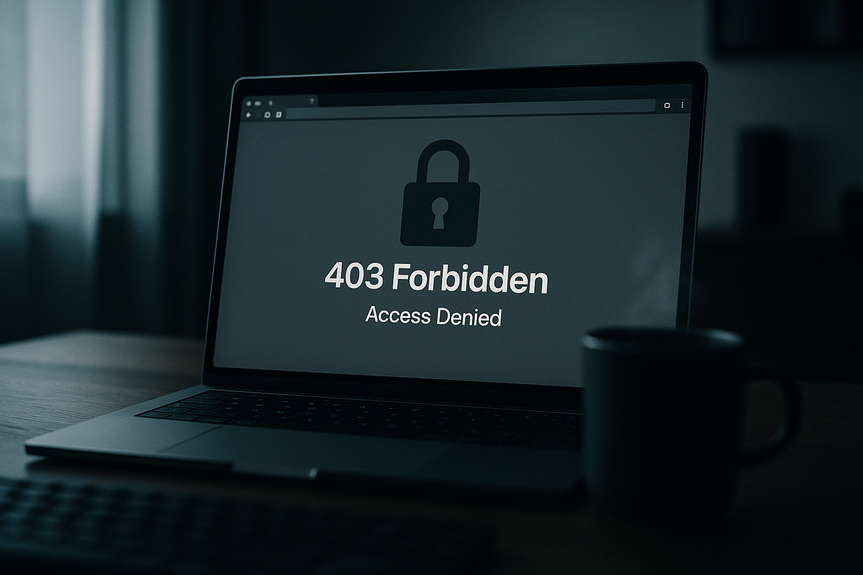
A 403 Forbidden means the website saw your request but will not let it through. The server blocks the file for your user, your link, or your network. The good news: most 403s fall to a few quick steps. Try these in order, from fastest to deeper checks.
Reload the page. Press Ctrl+R (Windows) or Cmd+R (Mac).
Check the URL. Make sure the path and filename are exact, with correct case.
Open the link in a new tab or copy it into the address bar to remove junk parameters.
Try a private window. Use Incognito (Chrome/Edge) or Private Window (Firefox) to skip stale cookies.
Clear site data for the domain. In Chrome/Edge: click the lock icon > Site settings > Clear data. In Firefox: padlock > Clear cookies and site data.
Try a second browser to rule out extensions or bad cache.
Log in on the site before clicking Download. Then try again from the product or file page.
Open the download page first. Do not paste a direct file URL someone sent you. That may trigger hotlink protection.
Accept terms, verify email, or enter license keys if asked. Some links do not work until you finish these steps.
If the link came by email, request a fresh link. Time-limited tokens often expire within hours or days.
From cloud drives (Drive, Dropbox, OneDrive), make sure the file is shared with you. Ask the owner to grant view or download rights.
Disable your VPN or proxy and retry. If it works, switch to another VPN region or keep it off for the download.
Pause ad blockers, privacy filters, and “anti-tracking” extensions on the site. Some strip the Referer header that servers require to allow downloads.
If you use a firewall or security suite with HTTPS scanning, pause it briefly and test again.
Try a different network. Use mobile data or another Wi‑Fi to see if your home or office IP is blocked.
Sync your device date and time with the internet. Wrong time can invalidate signed URLs.
Flush DNS cache:
– Windows: open Command Prompt as admin, run: ipconfig /flushdns
– macOS: open Terminal, run: sudo dscacheutil -flushcache; sudo killall -HUP mDNSResponder
– Linux (systemd): sudo resolvectl flush-caches
Switch DNS to a reliable resolver, then retry:
– Cloudflare: 1.1.1.1 and 1.0.0.1
– Google: 8.8.8.8 and 8.8.4.4
Reboot your router if multiple devices hit 403 for the same site.
File and folder permissions: typical safe defaults are files 644 and directories 755.
.htaccess/NGINX rules: look for Deny directives, blocked file types, or strict Rewrite rules. Ensure GET and HEAD are allowed for your path.
Hotlink protection: allow your domain or needed referers so the file can be delivered from the correct page.
WAF/CDN settings (Cloudflare, Sucuri, ModSecurity): relax rules that block your path, user agent, or country. Check rate limits and bot filters.
Logs: check access and error logs for 403 entries. Note request method, IP, user agent, referer, and the rule that fired.
The exact download URL and the page you clicked it from.
Time and timezone of the failed attempt and your IP or ISP.
Screenshot of the 403 page and any request IDs.
Browser, OS, and whether VPN, proxy, or blockers were on.
Your account email, order number, or license (if relevant).
Share this in your ticket so support can spot the block in logs fast.
A 403 means the server refused the request, but you are not stuck. Refresh your session, sign in, disable VPNs and blockers, update DNS and time, and check server rules if you can. With these steps, you can fix 403 forbidden download error quickly and get your file.
5 ways to fix 403 forbidden download error fast
Use these quick checks to fix 403 forbidden download error on any browser.1) Reset the page and your browser session
2) Sign in and use the right link
Many downloads need proof you are allowed to get the file.3) Turn off VPN, proxy, and content blockers
Sites often block shared IPs or stripped headers.4) Refresh DNS and time
Bad DNS or wrong time can break secure links.5) Server or admin checks (advanced)
If you manage the site or can contact the admin, review these common 403 causes.If the problem stays, contact support with details
If you cannot fix 403 forbidden download error with the steps above, gather facts to speed up help.(Source: https://techxplore.com/news/2026-08-openai-advanced-ai-cyberattack.html)
For more news: Click Here
FAQ
Q: What does a 403 Forbidden error mean when I try to download a file?
A: A 403 Forbidden means the website saw your request but will not let it through. The server blocks the file for your user, your link, or your network.
Q: What quick steps should I try first to fix 403 forbidden download error?
A: To fix 403 forbidden download error fast, start by reloading the page, checking the URL and filename, opening the link in a new tab, or using a private window to skip stale cookies. You can also clear site data for the domain or try a second browser to rule out extensions or bad cache.
Q: Why does signing in or using the correct link often resolve a 403 download problem?
A: Many downloads require proof you are allowed to get the file, so logging in on the site before clicking Download often fixes permission-related 403 blocks. Avoid pasting direct file URLs that may trigger hotlink protection, and complete any required steps like accepting terms, verifying email, or entering license keys.
Q: How can VPNs, proxies, or ad blockers cause a 403 when downloading?
A: Sites often block shared IPs or requests with stripped headers, which can happen when you use a VPN, proxy, or aggressive privacy extensions. Disable those services, pause ad blockers or HTTPS-scanning security suites, or try a different network to see if the 403 disappears.
Q: How do I refresh DNS and time to try resolving a 403 download error?
A: Wrong device time can invalidate signed URLs, and stale DNS can prevent access, so sync your date and time with the internet and flush the DNS cache. Follow the platform commands in your system (for example, ipconfig /flushdns on Windows or resolvectl flush-caches on systemd Linux) or switch to reliable DNS resolvers like Cloudflare or Google, then retry.
Q: What server-side checks should a site admin perform to fix repeated 403 downloads?
A: Admins should verify file and folder permissions (typical safe defaults are files 644 and directories 755) and inspect .htaccess or NGINX rules for Deny directives or strict rewrites. They should also review hotlink protection, WAF/CDN settings like rate limits and bot filters, and check access and error logs for the rule that fired.
Q: What details should I provide when contacting support about a 403 download failure?
A: Include the exact download URL and the page you clicked it from, the time and timezone of the failed attempt, and your IP or ISP to help locate the request in logs. Also attach a screenshot of the 403 page or any request IDs and note your browser, OS, and whether a VPN, proxy, or blockers were active, plus any relevant account or order information.
Q: Will using a private window or another browser help fix 403 forbidden download error?
A: Yes, using Incognito or a Private Window can skip stale cookies and help determine if extensions or cached data caused the block, and testing in a second browser can rule out browser-specific issues. Clearing site data for the domain or opening the link directly in a new tab are additional quick checks to try before deeper troubleshooting.
Contents