AI News
26 Aug 2026
Read 9 min
How to master Meta AI Mac business integrations guide
Meta AI Mac business integrations guide speeds workflows with screen sharing, dictation and ad tools.
Use this Meta AI Mac business integrations guide to set up the desktop app, connect Facebook, Instagram, ad accounts, and Google Workspace, and build repeatable workflows. Learn how to launch it fast, dictate anywhere, share a window safely, and automate weekly reports without giving away control.
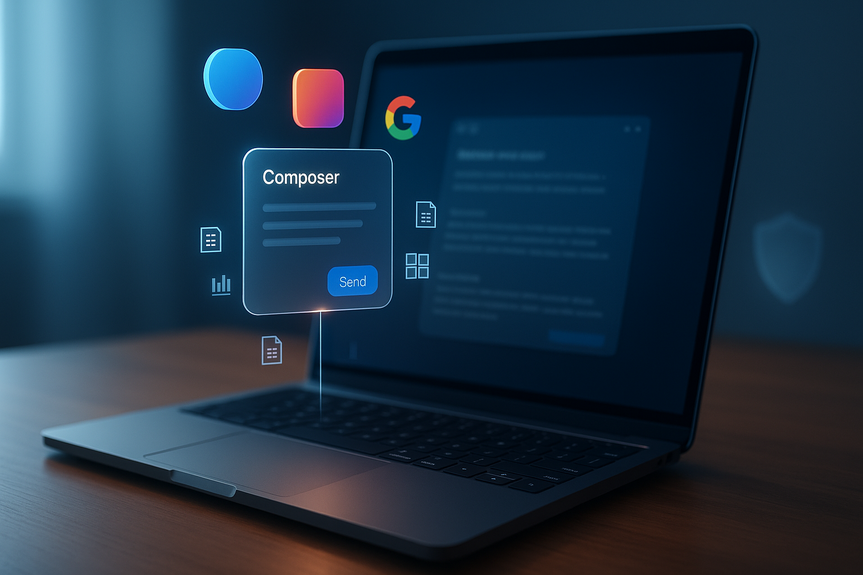
Meta released a lightweight Mac app that brings its AI assistant to your desktop. You can open a small composer with a shortcut, dictate text into any app, and share a single window for context. It reads what is on that window and helps you plan posts, write copy, and draft reports. It does not click buttons or control your Mac. Pair it with professional Facebook and Instagram accounts, ad campaigns, and Google Workspace to turn daily metrics into action.
Meta AI Mac business integrations guide: Setup and connections
Check requirements
- Apple silicon Mac
- macOS 15 or later
- Latest Meta AI app (v1.0 beta)
- Professional Facebook and Instagram access if you want business features
- Google Workspace account for Docs, Sheets, and Slides support
Install and quick launch
- Download and install the Meta AI app for Mac.
- Press Option + Space to open the compact composer over any app.
- Hide the app from the Dock if you prefer keyboard-only access.
Connect business accounts
- Sign in with your professional Facebook and Instagram profiles.
- Link your Meta advertising accounts to expose campaign data.
- Connect Google Workspace to let the assistant draft Docs, Slides, and Sheets.
Grant the right permissions
- Enable Screen Recording for window sharing so the app can read visible text.
- Grant Accessibility so the app can capture the selected window as an image.
- Limit access to only what you need; review these settings often.
Master the desktop features for daily work
Option-Space composer for speed
- Use Option + Space to ask quick questions without leaving your current app.
- Paste metrics, URLs, or snippets to get instant summaries or drafts.
- Pin the small window near your active task to reduce context switching.
Dictation that works in any app
- Turn on dictation to speak emails, posts, notes, or code into your editor.
- Use short sentences and add “period,” “comma,” or “new line” for clean text.
- Proof the result inside your app before sending.
Window sharing for context, not control
- Attach one open window to a chat to let Meta AI read on-screen text.
- Ask for summaries, bullet points, alt text, captions, or ad copy.
- Note: It cannot click, edit files, or run apps. It only interprets what it can see.
Prompt patterns that work
- Summarize: “Read the selected window. Give 5 key takeaways and 3 risks.”
- Improve: “Rewrite the on-screen caption in a friendly voice. Keep under 120 characters.”
- Plan: “Based on these insights, suggest 3 post ideas with hooks, visuals, and CTAs.”
- Report: “Turn this into a weekly update with a short intro and next steps.”
Build business workflows that save time
Turn social metrics into action
- Connect Facebook and Instagram. Pull reach, likes, shares, and saves.
- Ask which posts outperformed and why (topic, format, time, caption style).
- Get next-post suggestions aligned to what worked.
Plan content using Google Workspace
- Have the assistant draft a post calendar in Sheets with dates, channels, copy, and assets.
- Generate slide outlines in Slides for client or team reviews.
- Create a content brief in Docs with audience, tone, keywords, and CTAs.
Automate weekly reporting
- Schedule recurring tasks for performance summaries each week.
- Include top posts, key metrics, learning notes, and recommended experiments.
- Export to Docs or Sheets, then share with your team.
Campaign support without overreach
- Ask for ad headline and description variations from your on-screen creative.
- Request target audience ideas based on past engagement patterns.
- Track ideas in Sheets and link to assets in Drive.
Team handoff made easy
- Use dictation to capture client feedback quickly.
- Share a window of the client brief and ask for a one-page summary.
- Post the summary and action items to your project hub.
Privacy, security, and compliance
Limit and review access
- Only connect the accounts you need for a task.
- Use separate work profiles for business data.
- Review and revoke permissions after each campaign or team change.
Protect sensitive content
- Share only the window you intend to share, not your whole screen.
- Redact or hide private data before attaching the window.
- Avoid sharing customer PII or unreleased financials.
Document retention and regional rules
- Check how long data is kept and where it is stored.
- If you work under EU rules, confirm consent workflows and data removal paths.
- Keep an internal log of connected services and data flow.
Troubleshooting and optimization
When the app cannot read your window
- Recheck Screen Recording and Accessibility permissions in System Settings.
- Make sure the target window is frontmost and not minimized.
- Zoom to 100% and use light mode if OCR struggles with contrast.
If dictation feels inaccurate
- Use a quiet room and a headset mic.
- Speak in short phrases and review output before sending.
- Add custom words (product names, brands) in your prompts.
Keep prompts consistent
- Save prompt templates for summaries, captions, and reports.
- Repeat the same structure each week to improve comparability.
- Track which prompts lead to higher engagement.
(Source: https://www.techrepublic.com/article/news-meta-ai-mac-app-business-integrations/)
For more news: Click Here
FAQ
Q: What are the system requirements for the Meta AI Mac app?
A: According to the Meta AI Mac business integrations guide, the app requires an Apple silicon Mac running macOS 15 or later and the latest Meta AI app (v1.0 beta). For business features you also need professional Facebook and Instagram access and a Google Workspace account for Docs, Sheets, and Slides support.
Q: How do I open the Meta AI composer and keep it keyboard-accessible on Mac?
A: Press Option + Space to display a compact Meta AI composer over another app, and you can hide the app from the Dock so the keyboard shortcut is the primary access point. Pin the small window near your active task to reduce context switching.
Q: How does window sharing work and what can Meta AI do with a shared window?
A: With Screen Recording and Accessibility permissions enabled, Meta AI can read visible text and capture a screenshot of a selected window to answer questions, make suggestions, or create content based on what appears on the screen. It cannot click buttons, edit files, or operate applications on your behalf.
Q: How do I connect Facebook, Instagram, ad accounts, and Google Workspace to Meta AI?
A: Sign in with professional Facebook and Instagram profiles, link your Meta advertising accounts to expose campaign data, and connect Google Workspace so the assistant can draft Docs, Sheets, and Slides. These connections let the assistant analyze metrics and generate content from account information.
Q: What privacy and security steps should teams take before sharing windows or connecting accounts?
A: Only connect the accounts you need, use separate work profiles for business data, and review or revoke permissions after campaigns or team changes. Share only the window you intend to share, redact private data before attaching the window, and avoid sharing customer PII or unreleased financials.
Q: Can Meta AI control my Mac or perform actions like clicking buttons and editing files?
A: No; the Mac app gathers context from shared windows and dictation but does not control the computer or operate applications on your behalf. Meta AI can interpret and suggest based on visible information but cannot click buttons or edit files.
Q: How can Meta AI help automate weekly reports and regular marketing workflows?
A: Businesses can schedule recurring tasks for weekly performance summaries that include top posts, key metrics, learning notes, and recommended experiments. Those summaries can be exported to Docs or Sheets and shared with the team to support repeatable workflows.
Q: What troubleshooting steps help if Meta AI can’t read a window or dictation accuracy is poor?
A: Recheck Screen Recording and Accessibility permissions, ensure the target window is frontmost and not minimized, and try zooming to 100% or using light mode if OCR struggles. For dictation, use a quiet room and a headset mic, speak in short phrases, and add custom words for product or brand names.
Contents