Crypto
17 Oct 2026
Read 13 min
Fix 401 unauthorized download error in 3 simple steps *
Fix 401 unauthorized download error quickly to restore access and resume secure file downloads now
To fix 401 unauthorized download error fast, sign in again, refresh or replace expired credentials, and remove local blockers like bad cookies, VPNs, or a wrong system time. These three moves solve most cases for browsers, APIs, and apps, so your downloads work without delay.
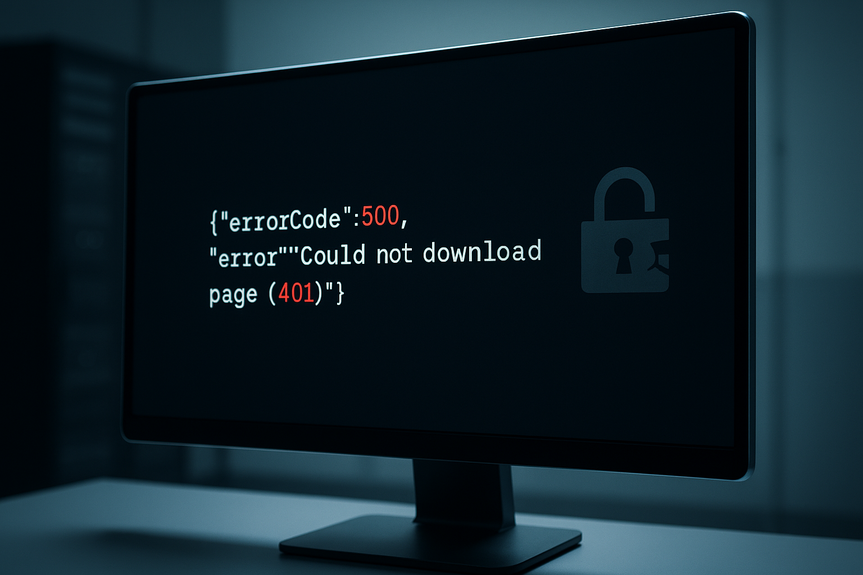
A 401 means the server did not accept your identity. It often shows up when you download files from a site, cloud storage, or an API. The good news: most issues come from simple sign-in or token problems. Follow the three steps below to fix 401 unauthorized download error and get back on track in minutes.
Open the site’s login page and sign in again. Use the correct account with file access.
If you used a magic link or a pre-signed URL, check the timestamp. Many links expire in minutes. Ask for a fresh link if needed.
Paste the full link into the address bar. Email apps can cut off long URLs. Remove trailing dots or spaces.
If your company uses single sign-on (SSO), sign in through the SSO portal and then retry the download.
Check licenses, seats, or subscription status for paid downloads. If your plan lapsed, the server can return 401.
If you switched organizations or workspaces, make sure you are on the correct one in the app before clicking the download.
Result to expect: If the issue was a bad session or an expired link, the download should start now. If not, go to Step 2.
Browser fix: Log out, then log in again. Try a private window. Clear site cookies for the domain and retry.
Disable extensions that block headers or cookies, like strict ad blockers, privacy filters, or download helpers. Test with all extensions off.
API or script: Include the Authorization header. For tokens, use: Authorization: Bearer YOUR_TOKEN
Basic auth: Use user:password or a base64-encoded header only if the server expects it. Example with curl: curl -u user:pass https://example.com/file
Refresh expired tokens. Generate a new personal access token or OAuth token with the right scopes (read/download, s3:GetObject, or similar).
Do not wrap tokens in quotes in config files. Remove hidden spaces and line breaks.
For package tools, sign in correctly:
npm: set an authToken in .npmrc or run npm login
pip: use a direct URL with a token or configure pip.ini/pip.conf credentials
Result to expect: If your credentials were missing or expired, the server should accept your request and allow the download.
Sync your system clock. Tokens and signed URLs depend on time. Enable automatic time (NTP) and retry.
Turn off VPN or proxy. Some services block unknown exit nodes. Try your home network or mobile hotspot.
Corporate firewall or security appliance may strip headers. Test on another network to confirm.
Update the app, CLI, or browser. Old versions may not send modern auth or TLS correctly.
Clear DNS cache and try again. Windows: ipconfig /flushdns. macOS: sudo dscacheutil -flushcache; sudo killall -HUP mDNSResponder
Disable download accelerators or managers that split requests. Some lose cookies or headers on each chunk.
Result to expect: With time, network, and client settings fixed, the server can verify you, and the download should work.
Sign out and sign in again on the same domain that hosts the file.
Open a private window to bypass stale cookies.
Clear cookies for the site only, not your whole browser, if you prefer.
Disable content blockers on the download domain and reload.
Check if the download link is for a different subdomain (app.example.com vs files.example.com). Sign in on the exact host.
Test with verbose output to see the 401 details: curl -v -L https://example.com/file
Add the header: curl -H “Authorization: Bearer YOUR_TOKEN” https://example.com/file
For basic auth: curl -u user:pass https://example.com/file
Confirm token scopes in the provider’s dashboard. Update and retry.
Remove quotes, stray spaces, or newlines from environment variables and secrets.
Pre-signed URLs expire quickly. Generate a fresh link and try again.
Check system time; even a small skew can break signed requests.
For CLI, use the right profile and region:
AWS: aws s3 cp s3://bucket/file . –profile myprof
Confirm permissions: you need read access (for example, s3:GetObject).
GitHub and GitLab now require tokens, not passwords, over HTTPS. Use a personal access token with repo scope.
Set a credential helper so Git sends the token on each fetch or clone.
npm, pip, Maven, and NuGet can store tokens in config files. Check the right file path, registry URL, and no extra quotes.
Force sign out, close the app, reopen, and sign in again.
Clear the app cache (not data) if possible, then retry.
Update to the latest version to fix broken auth flows.
If managed by your company, ask IT if a policy blocks downloads for that app.
You are not signed in, or your session cookie is missing or invalid.
Your token or pre-signed URL expired due to time limits.
The Authorization header is missing, wrong, or uses the wrong scheme.
The token lacks the right scope or permission to read the file.
Your system clock is off, so the server rejects time-based signatures.
A VPN, proxy, or extension stripped or blocked your auth headers.
You switched accounts or workspaces, so the server cannot match your rights.
How it differs from other errors:
401 Unauthorized: the server needs valid credentials. Try signing in.
403 Forbidden: you are signed in, but you still do not have permission.
404 Not Found: the resource does not exist, or the server hides it.
Use a password manager and SSO where possible to reduce login mistakes.
Store tokens securely and set calendar reminders for token rotation before expiry.
Grant the least privileges needed, but include read/download rights for target paths.
Keep device time synced automatically. Avoid manual time changes.
Document your download process: required headers, scopes, and the exact URL host.
For scripts and CI, strip whitespace from secrets and echo the auth method (not the token) in logs to verify.
Maintain a fallback path: if a pre-signed URL fails, let users request a new one in one click.
Use this checklist when you hit trouble:
Am I signed in on the correct account and domain?
Is my link or token still valid and scoped for download?
Is my client adding the right Authorization header?
Is my time, VPN, or network blocking or changing the request?
You can also test the same link in:
A private browser window with all extensions off.
Another network without VPN or proxy.
A fresh curl command using a clear Authorization header.
If it works in one place and not another, the difference points to the cause. Fix that part, and the 401 will vanish.
Getting blocked mid-task is frustrating, but these steps are quick to run. Confirm access and session, refresh credentials, and clear client or network blockers. That is the fastest way to fix 401 unauthorized download error on browsers, APIs, and apps, and keep your files moving without breakage.
3 steps to fix 401 unauthorized download error
Step 1: Confirm access and your session
Start with your account and the link you are using. A bad session or an expired link is the top trigger.Step 2: Refresh or add the right credentials
Your request likely lacked the right header, cookie, or token. Add or refresh them.Step 3: Fix client and network blockers
If the server still says no, your device or network may be breaking the request or the time check.Quick fixes by platform to fix 401 unauthorized download error
If you use a web browser
If you call an API with curl or wget
If you use cloud storage links (S3, GCS, Azure Blob)
If you use Git or package managers
If you use a mobile or desktop app
Why the 401 error happens
Prevent the error from coming back
(Source: https://www.wsj.com/business/financial-services-roundup-market-talk-b4026e6d)
For more news: Click Here
FAQ
Q: What does a “401 Unauthorized” mean when I try to download a file?
A: A 401 means the server did not accept your identity. It often appears when you download files from a site, cloud storage, or an API, and following the steps to fix 401 unauthorized download error usually resolves it.
Q: What are the three simple steps to fix a 401 unauthorized download error?
A: Confirm access and your session (sign in again and check the link), refresh or add the correct credentials (tokens or Authorization header), and remove client or network blockers like bad cookies, VPNs, or wrong system time. These three moves solve most cases for browsers, APIs, and apps, and will fix 401 unauthorized download error quickly.
Q: How can I tell if my pre-signed URL or magic link has expired?
A: Check the timestamp on a magic link or pre-signed URL because many links expire in minutes, and paste the full link into the address bar to ensure it wasn’t cut off. If it’s expired, ask for a fresh link or regenerate the pre-signed URL to fix 401 unauthorized download error.
Q: What Authorization header or token should I add for API downloads?
A: Include the Authorization header such as Authorization: Bearer YOUR_TOKEN for token-based APIs, or use basic auth with user:password or curl -u user:pass only if the server expects it. Refresh expired tokens, ensure they have the right scopes, and avoid wrapping tokens in quotes or leaving stray spaces to fix 401 unauthorized download error.
Q: Can my device’s clock or network settings cause a 401 error?
A: Yes; system clock skew can break tokens and time-based signed URLs, so enable automatic time (NTP) and sync your clock. Also try turning off VPNs or proxies and testing another network, since those can block or strip auth headers and removing them often lets you fix 401 unauthorized download error.
Q: What browser steps should I try when a download returns 401?
A: Sign out and sign in again on the exact host, open a private window to bypass stale cookies, clear site cookies, and disable content blockers on the download domain. These browser steps often allow the server to accept your session and let the download proceed.
Q: How do I diagnose whether the problem is my client or the server?
A: Test the same link in a private browser window, on another network without VPN or proxy, or with a fresh curl command including a clear Authorization header to compare results. If it works in one place but not another, the difference points to a client or network blocker you can fix rather than a server-side permission issue.
Q: What practices help prevent 401 errors from coming back?
A: Use SSO or a password manager, store tokens securely and rotate them before expiry, keep device time synced, and document required headers, scopes, and the exact host for downloads. These practices reduce login mistakes and help avoid having to fix 401 unauthorized download error in the future.
* The information provided on this website is based solely on my personal experience, research and technical knowledge. This content should not be construed as investment advice or a recommendation. Any investment decision must be made on the basis of your own independent judgement.
Contents