AI News
10 Apr 2026
Read 10 min
Best personalized AI news apps that give instant briefings
best personalized AI news apps give fast concise briefings tailored to interests, calendar and inbox.
Get quick, clear updates without doomscrolling. The best personalized AI news apps turn your interests into instant briefings you can read or hear in minutes. Below are three strong picks—audio, RSS, and chat—that cut noise, cite sources, and fit busy days. Use them together for a faster, calmer news routine.
Keeping up with headlines is hard. Feeds are noisy, and your time is short. The tools below give you short, relevant updates based on your interests, not the algorithm’s guess. They respect your attention, help you verify sources, and make it easy to act on what matters.
Start with 5–8 focus topics. Fewer topics mean sharper briefings.
Use keywords for teams, companies, and niche subjects you follow.
Keep calendar and email access off at first. Turn them on only if you want those reminders in your briefing.
Save standout segments and share them to your notes app for later.
Good for:
Commuters and multitaskers who want updates while moving.
People who prefer listening over reading.
Watch-outs:
Review permissions carefully. Limit inbox/calendar access if you value extra privacy.
Audio can hide sources. Skim the episode notes to see where stories came from.
Follow your must-read outlets and expert blogs. Avoid adding too many at once.
Create Leo priorities for 3–5 themes you track. Add clear keywords and excluded terms.
Make mute filters (for rumor, sponsored posts, or generic listicles).
Review your “Must Read” board each afternoon and archive the rest to keep things light.
Good for:
Analysts, product leads, and researchers who need control and coverage breadth.
People who want transparent sources and export options.
Watch-outs:
Free plans are limited. Advanced Leo features require a paid tier.
Expect some training time. Your feed gets sharper as you refine rules.
Ask for a 100-word brief, three key facts, and three sources to keep it tight.
Request a timeline when a story is moving fast.
Compare angles: “Summarize how Outlet A vs. Outlet B frames this issue.”
Save threads for ongoing topics and set reminders to revisit weekly.
Good for:
People who want speed plus citations.
Anyone who cross-checks sources before sharing.
Watch-outs:
As with any AI tool, verify key claims by opening the links.
Breaking stories can change fast; refresh and re-check later in the day.
Format: Prefer listening? Pick Huxe. Want a reading stack you can scan? Choose Feedly. Need fast answers with links? Use Perplexity.
Control: If you must see every source and tune filters, Feedly + Leo is strongest.
Transparency: Perplexity shows citations in-line. Feedly shows the original URL. With Huxe, check episode notes for sources.
Depth vs. speed: Huxe gives quick hits. Perplexity gives quick context. Feedly supports deep dives.
Integrations: Feedly works well with Slack and note apps. Huxe fits into your commute. Perplexity works in any browser.
Privacy: Limit data you share. Start with the minimum and expand only if the value is clear.
Minute 0–3: Play Huxe while you make coffee. Star one segment to revisit.
Minute 3–7: Open Feedly. Scan Leo-priority items. Save two must-reads, archive the rest.
Minute 7–10: Ask Perplexity for a 120-word brief on your top story with three sources. Read the links for anything you plan to share.
This stack uses three of the best personalized AI news apps to give you speed, control, and clarity without endless scrolling.
Set a daily time cap. Stop when you hit it.
Track topics, not just outlets. Mute hype and vague trends.
Balance sources across viewpoints and regions.
Open the primary links before you post or forward.
Review your filters weekly. Remove topics you no longer need.
You do not need more news. You need better filters, shorter briefings, and clear sources. Used together, these apps give you a quiet, powerful way to follow what matters and skip what doesn’t.
When you want fast, focused updates without the noise, these are among the best personalized AI news apps to try today—and the ones most likely to stick in your daily routine.
The best personalized AI news apps for instant briefings
Huxe: Hands-free, personal newscast
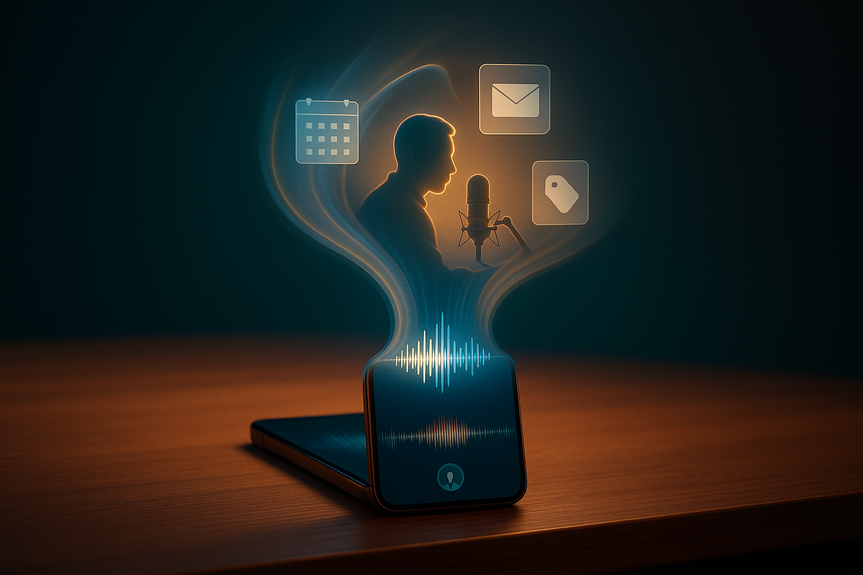
Huxe creates a private audio show for you each time you open the app. It checks your chosen topics and, if you allow it, looks at your calendar and email for key items. Then it plays a short “radio” update with news and features you care about, from tech and AI to arts and education. There’s also a Discover tab with curated audio shows from online content. Huxe was co-founded by a former Google leader behind NotebookLM. Setup is simple: pick categories, add keywords, and, if you want, connect Gmail and Google Calendar. It’s currently available on iOS and Android. Tips to get the most from Huxe:Feedly + Leo: Smart RSS with firm control
Feedly gathers news from sites and newsletters you choose. Its AI assistant, Leo, helps you focus. You can tell Leo what to prioritize (for example, “AI regulation,” “chips,” “ransomware,” or a company) and what to mute (hype, press releases, or certain tickers). It highlights top items, removes duplicates, and adds concise summaries. How to set it up well:Perplexity: Fast, cited news recaps
Perplexity answers news questions in plain language and shows sources inline. Use the News mode to get fresh, cited briefs on any topic, then ask follow-up questions. You can scan summaries, open links, and drill down without leaving the thread. It’s great for quick context checks and comparing coverage. Power tips:How to choose among the best personalized AI news apps
A 10-minute daily routine
Keep your feed accurate and calm
(Source: https://www.fastcompany.com/91521391/3-ai-tools-that-make-keeping-up-with-the-news-easier)
For more news: Click Here
FAQ
Q: Which three apps does the article recommend as the best personalized AI news apps?
A: The article highlights Huxe, Feedly with its Leo assistant, and Perplexity as three of the best personalized AI news apps. Huxe provides a personalized audio newscast, Feedly + Leo is an AI-powered RSS reader, and Perplexity offers cited chat-style news recaps.
Q: How does Huxe personalize news briefings?
A: Huxe generates a private audio show each time you open the app based on your chosen topics and, if you allow it, your calendar and email. It also includes a Discover tab for curated audio shows and is currently available on iOS and Android.
Q: What setup tips does the article give for using Huxe effectively?
A: The article recommends starting with 5–8 focus topics and adding keywords for teams, companies, and niche subjects to sharpen briefings, and to keep calendar and email access off at first for more privacy. It also suggests saving standout segments and sharing them to your notes app for later.
Q: What does Feedly + Leo do and who benefits most from it?
A: Feedly gathers news from sites and newsletters you choose while Leo helps prioritize topics, remove duplicates, add concise summaries, and mute noise like hype or press releases. The setup is described as good for analysts, product leads, and researchers who need control and transparent sources.
Q: How should you train Leo in Feedly for better results?
A: Follow your must-read outlets, create Leo priorities for 3–5 themes with clear keywords and excluded terms, and make mute filters for rumor, sponsored posts, or generic listicles. The article also recommends reviewing your “Must Read” board each afternoon and archiving the rest to keep things light.
Q: What can Perplexity do for news readers and what limits should you watch for?
A: Perplexity’s News mode gives quick, plain-language briefs with inline citations so you can scan summaries and open source links for context and follow-up questions. The article cautions that you should verify key claims by opening the links and refresh breaking stories later because coverage can change quickly.
Q: How does the article suggest choosing among these apps?
A: Choose by format and needs—Huxe if you prefer listening, Feedly + Leo for a scannable reading stack with strong filter control, and Perplexity for fast answers with links—and weigh control, transparency, depth versus speed, integrations, and privacy. It advises starting with minimal data sharing and expanding only if the value is clear.
Q: What is the recommended 10-minute daily routine using these tools?
A: Play Huxe for 0–3 minutes while you make coffee and star a segment, spend 3–7 minutes scanning Leo-priority items in Feedly and saving two must-reads, then use Perplexity for a 120-word brief with three sources during minutes 7–10. This stack is presented as a way to get speed, control, and clarity without endless scrolling.
Contents