 AI-generated
 AI News
18 Aug 2026
Read 9 min
Facebook Creator Studio app guide 5 ways to use AI to grow
Facebook Creator Studio app guide shows creators how AI tools boost engagement and grow audiences.
Facebook just launched a stand-alone iOS app for creators that adds an AI assistant for planning, engagement, and growth. This Facebook Creator Studio app guide explains what’s new, who can use it, and five smart ways to turn AI insights into real audience gains—without losing your voice or wasting hours in dashboards.
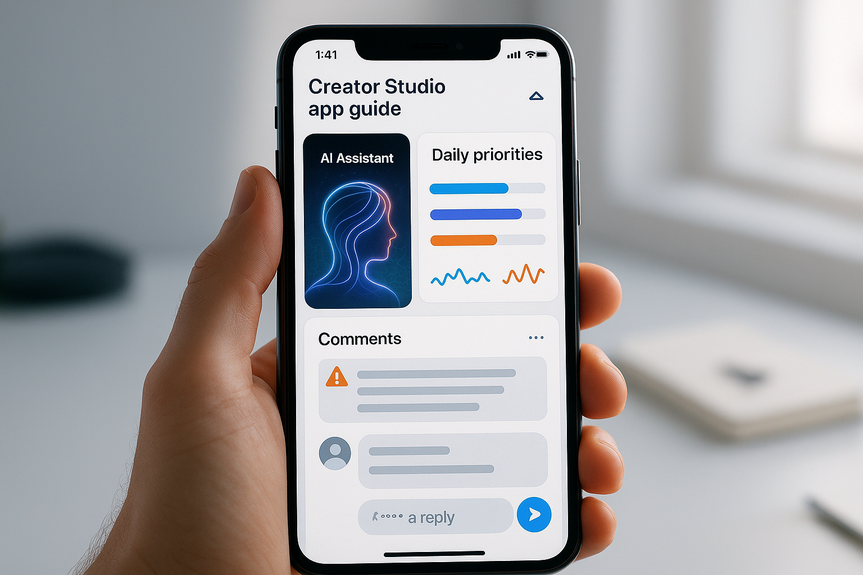
Facebook’s new Creator Studio app puts an AI assistant in your pocket. It answers quick questions like when to post, which formats are working, and what your audience is saying. It also drafts reply suggestions in your tone and shows a daily priorities feed so you can act fast. The app is now available to creators on iOS in the U.S. and Canada.
Ask the assistant: “When should I post this week?” and “Are Reels, photos, or links performing best right now?”
Run simple A/B tests. Post two versions at different times or with different hooks, then ask, “Which version drove more watch time or comments?”
Build repeatable hooks. Have the AI suggest 3–5 opening lines that match your style. Save the winners as templates.
Use the AI comment tool to surface key threads, questions, and sentiment. Focus on what matters instead of scrolling forever.
Let the app draft replies in your voice, then edit for clarity and warmth. Always add one personal detail before posting.
Pin helpful replies. Turn strong answers into mini-FAQs or highlights to guide new viewers.
Start each day by reviewing the app’s top tasks: new performance notes, goal progress, and comments that need a response.
Act within minutes. Reply to flagged comments, fix weak captions, and reshare standout clips.
End the day with one question to the assistant: “What is the one action most likely to grow my reach tomorrow?”
Ask: “Give me 10 post ideas based on my last three best posts.” Sort by effort and impact, then pick 3 for this week.
Create a balanced mix. Plan Reels for discovery, photos or carousels for saves, and text posts for quick asks.
Ride trends with purpose. Request “trend ideas that fit my niche” and adjust each idea to your brand and audience.
Set one clear goal for the week: reach, watch time, comments, or shares. Let the app track it.
Ask targeted questions: “Why did reach dip on Tuesday?” “Which audience segment engaged most?”
Iterate in short loops. Change one thing at a time—timing, hook, or thumbnail—and check results after 24–48 hours.
Edit every AI-drafted reply. Add a name, a thank-you, or a quick tip to make it feel real.
Don’t over-automate. Schedule fewer posts with higher intent. Quality beats volume.
Review suggestions before posting. Avoid sensitive claims or promises the AI may create.
Use clear rules for moderation. Remove harmful comments, and escalate reports that need a human look.
Morning: Check priorities, answer key comments, schedule one post.
Midday: Ask one analytics question and adjust your next post.
Evening: Save best ideas and templates for tomorrow.
Download the Creator Studio app on iOS. Connect your Facebook Page.
Set one weekly goal and enable notifications for comment flags.
Try one growth play today: optimize timing, refresh a caption, or reply to a top comment.
Note: Availability is currently U.S. and Canada on iOS.
Facebook Creator Studio app guide: 5 ways to use AI to grow
1) Post at the right time with the right format
2) Turn comments into community, fast
3) Use the daily priorities feed to stay focused
4) Generate ideas and build a simple content calendar
5) Track goals with quick Q&A analytics
Best practices and guardrails
Keep your voice human
Protect your brand and community
Build a simple workflow
Get started in minutes
Why this matters now
Meta wants creators to stay active on Facebook as it competes with TikTok and YouTube. The AI assistant helps you skip heavy dashboards and get straight to action. It may also reduce the need for third-party tools for ideas and analysis. Recent Meta experiments—Forum for Groups, Instants for quick photos, Pocket for gaming vibes, and StoryKit for AI stories—show the company’s push to build more creator tools under one roof. The bottom line: Use this Facebook Creator Studio app guide to post smarter, respond faster, and learn every day. Lean on AI for speed, but keep your voice front and center. With tight goals and simple routines, you can grow reach and community without adding busywork.For more news: Click Here
FAQ
Q: What is the Facebook Creator Studio app and who is it for?
A: This Facebook Creator Studio app guide explains that the stand-alone iOS app is an AI-powered tool giving creators personalized tips to grow their audiences and new tools to engage their communities. It is available to creators on iOS in the United States and Canada.
Q: What are the main AI features included in the app?
A: The AI creator assistant provides personalized recommendations based on content style, performance, audience engagement, and goals, answers questions like when to post and what people are saying, and supports follow-up questions. The app also includes an AI-powered comment tool that surfaces key comments, drafts replies in your tone, and a daily priorities feed for quick action.
Q: How can I use the AI assistant to plan and test content?
A: Ask the assistant when to post and which formats (Reels, photos, or links) are performing best, run simple A/B tests and then ask which version drove more watch time or comments, and have it suggest 3–5 opening lines to build repeatable hooks. Save winning templates and iterate quickly based on the assistant’s recommendations.
Q: How does the AI comment tool help manage community engagement?
A: The comment tool surfaces the most important threads, highlights sentiment and questions, and drafts replies in the creator’s own tone for you to edit and approve. Pinning helpful replies and turning strong answers into mini-FAQs or highlights is suggested to guide new viewers.
Q: What workflow does the app recommend for daily use?
A: The daily priorities feed prompts creators to start by reviewing top tasks like new performance notes, goal progress, and flagged comments, act within minutes to reply or reshare standout clips, and end the day by asking the assistant the one action most likely to grow reach tomorrow. The guide outlines a simple routine of morning priorities, a midday analytics check, and an evening save of best ideas and templates.
Q: Can the app track goals and analytics through Q&A?
A: Creators can set one clear weekly goal—reach, watch time, comments, or shares—and let the app track it while asking targeted questions such as why reach dipped or which audience segment engaged most. The guide recommends iterating in short loops, changing one thing at a time and checking results after 24–48 hours.
Q: What guardrails and best practices should creators follow when using the AI features?
A: Edit every AI-drafted reply to keep your voice human by adding a name, a thank-you, or a quick tip, and avoid over-automating by scheduling fewer posts with higher intent. Review suggestions before posting to avoid sensitive claims, use clear moderation rules to remove harmful comments, and escalate reports that need a human look.
Q: How do the five growth strategies in the Facebook Creator Studio app guide help increase reach without wasting time?
A: The guide’s five strategies—optimizing timing and format, turning comments into community, using the daily priorities feed, building a simple content calendar, and tracking goals with quick Q&A—are designed to cut through dashboards and focus on actionable steps. By leaning on AI for speed while keeping your voice and using tight routines, creators can prioritize one change at a time and measure impact without added busywork.
Keep reading, keep building
Three things from our own workshop that fit this topic:
- Diktly Free is our dictation app for Mac: speech becomes text entirely on your own machine, nothing goes to the cloud. Free version, Basic 14.99 €.
- 1000+ Prompts to Level Up Your Life is our most downloaded pack. Pay what you want, including 0.
- OpenAI Agent Mode for Beginners walks you through letting AI agents handle tasks for you. 19.99 $.
Our own products. Tech Moments is our newsletter on AI and tech in plain language, one email, no noise. Subscribe below.
Contents