Crypto
18 Jan 2026
Read 10 min
Fix 401 unauthorized download error now with 5 simple steps *
Fix 401 unauthorized download error quickly with 5 steps to restore access and resume downloads now.
Use these five quick checks to fix 401 unauthorized download error fast. Reconfirm your access, refresh your login, correct the link and time, adjust your app and network, and share clear proof with support. Most 401 blocks vanish once you renew credentials or fetch a fresh, valid download URL.
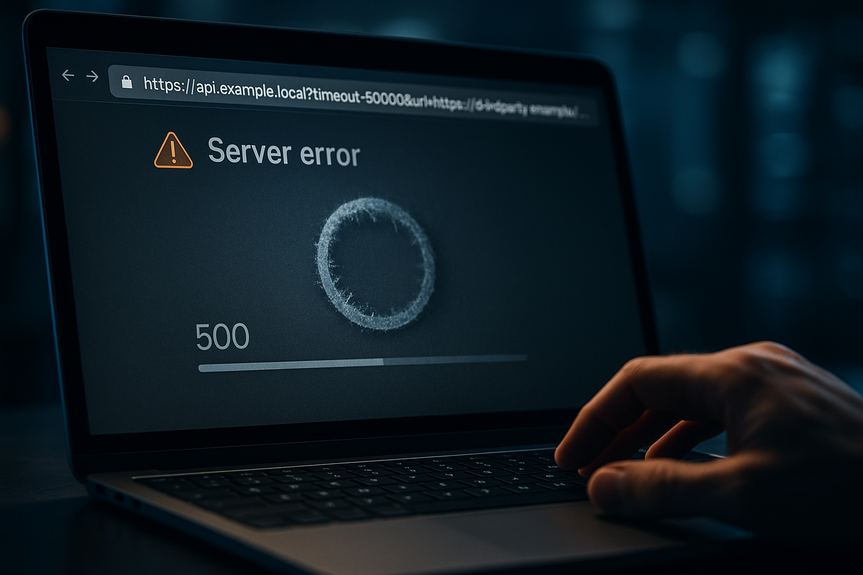
A 401 error stops a file download when the server cannot confirm who you are. It usually means your login, token, or permission is missing, expired, or wrong. Do not panic. You can recover in minutes if you follow a clear plan. This guide shows simple steps that work in browsers, apps, and APIs.
Wrong username or password, or a locked account
Expired session, token, or presigned link
Missing Authorization header or cookies in the request
Clock mismatch that breaks time-limited links
VPN, proxy, or firewall that strips headers or blocks cookies
Typos in the URL or trying HTTP instead of HTTPS
Sign out, then sign back in with the correct account
Reset your password if you had recent login issues
Check your plan or license status; many sites block downloads if expired
Complete two-factor authentication if required
If the file is team-restricted, ask the owner to grant you access
These checks often fix 401 unauthorized download error messages that show up right after you log in.
Close all tabs for the site, then open a fresh window
Clear site cookies for the domain and try again
Use an incognito/private window to avoid stale credentials
If you use an app or CLI, sign out and sign back in
For APIs, fetch a new OAuth token and include it as Bearer in the Authorization header
If you received a one-time or presigned link, request a new one
Check the URL for typos, missing path parts, or the wrong case
Use HTTPS, not HTTP; some servers reject non-secure requests
If it is a time-limited link (like cloud storage), confirm it has not expired
Sync your device clock to automatic network time; large time drift can break signed links
Some services require a User-Agent, Referer, or specific cookie; ensure your tool sends them
For download managers, enable “use browser cookies/session” so the file server can verify you
Disable ad blockers or privacy extensions for the site and retry
Turn off VPN or proxy; some services block unknown IP ranges
Try a different network (mobile hotspot vs. office Wi‑Fi) in case a firewall is filtering requests
Update your browser/app/CLI to the latest version
Test with another browser to rule out a local setting
Advanced users: test with curl or Postman to inspect the exact request and response
Note the exact time, file URL (without secret tokens), and the error code
Capture a screenshot of the 401 page and any “WWW-Authenticate” message
Copy the response headers if you can; they often show why the server refused the request
Ask for a fresh link, a role update, or an IP allowlist if your company uses strict rules
Check the service status page or social feeds for outages or policy changes
If you still cannot download, you can fix 401 unauthorized download error by requesting a new, valid link or asking the owner to grant the right permissions to your account.
Make sure you are signed in to the correct account for that link
Ask the sender to verify the link has not expired or been restricted
For Amazon S3 presigned URLs, ensure your device clock is correct
If the file is “organization-only,” switch from personal to work account
Confirm your role has download permissions; some roles can view but not download
Use your company VPN if required; some resources only allow corporate IPs
Complete any training or compliance steps that unlock file access
Include Authorization: Bearer YOUR_TOKEN in the header for each request
Renew tokens before expiration and handle refresh tokens in your code
Respect CORS and same-site cookie settings when downloading from web apps
Check rate limits; repeated unauthorized calls can trigger extra blocks
401 Unauthorized: credentials missing, wrong, or expired; server invites you to authenticate
403 Forbidden: the server knows you but will not allow access; you need higher permissions
404 Not Found: the link or file path is wrong or the file was removed
If you see 403, ask for access rights. If you see 404, confirm the link path. Reserve these steps for 401 only.
Bookmark the sign-in page and log in before starting downloads
Use your primary account for the service and avoid switching mid-session
Enable automatic time sync on all devices
Keep your browser, app, or CLI updated
Store tokens securely and refresh them on schedule if you build apps
Use trusted networks when downloading sensitive files
A few small habits prevent most future blocks and save you from last-minute scrambles.
You now have a clear path to restore access and move on with your work. Start by checking your permissions, then refresh your session, fix the link and time, adjust your network and tools, and share proof if you need help. With these steps, you can fix 401 unauthorized download error quickly and confidently.
What a 401 error means and why it shows up
A 401 Unauthorized response tells your device, “You must prove your identity.” The server needs valid credentials. If you are signed in, it may still fail if your session timed out or your link expired. Some services also require a specific header, cookie, or user role. Knowing this helps you act fast, rather than guessing. Common 401 causes:How to fix 401 unauthorized download error in 5 steps
Step 1: Confirm your access and permissions
Make sure you are allowed to download the file. Start with the basics.Step 2: Refresh tokens, cookies, and sessions
An expired session is a top reason for download failures.Step 3: Fix the link, time, and headers
Small details can break authorization even when you are logged in.Step 4: Adjust your app, browser, and network
Middlemen can block or strip the credentials your download needs.Step 5: Document the failure and contact support
If the problem remains, gather proof so support can act fast.Quick checks for common download scenarios
Cloud storage links (OneDrive, Google Drive, Dropbox, S3)
Corporate portals and learning platforms
APIs and developer downloads
How to tell it is really a 401 (not a 403 or 404)
A quick status check can save time.Keep 401 errors away: simple habits that work
(Source: https://www.barrons.com/articles/bitcoin-xrp-ethereum-prices-crypto-bill-senate-34d67237)
For more news: Click Here
FAQ
Q: What does a 401 Unauthorized error mean when a download fails?
A: A 401 Unauthorized response means the server needs proof of identity and cannot confirm your credentials. It commonly occurs when your login, token, or permission is missing, expired, or wrong.
Q: What are the common causes of a 401 error during file downloads?
A: Common causes include wrong username or password, an expired session or token, or a missing Authorization header or cookies. Other causes are clock mismatches that break time-limited links, VPNs or proxies that strip headers, and typos or using HTTP instead of HTTPS.
Q: How can I quickly fix 401 unauthorized download error in five steps?
A: To fix 401 unauthorized download error, follow five checks: confirm your access and permissions, refresh tokens and sessions, correct the link/time and required headers, adjust your app and network, and document the failure before contacting support. These steps apply across browsers, apps, and APIs and often restore downloads within minutes.
Q: What should I do if my session or token has expired and the download returns 401?
A: Sign out and sign back in, close all site tabs, clear site cookies, or use an incognito/private window to avoid stale credentials. For APIs or CLIs fetch a new OAuth token and include it as Bearer in the Authorization header, or request a fresh presigned link if applicable.
Q: Can browser extensions, VPNs, or network settings cause a 401 error?
A: Yes, middlemen can block or strip the credentials your download needs, causing a 401. Disable ad blockers or privacy extensions, turn off VPNs or proxies, try a different network, update your browser or app, or test with another browser or tools like curl or Postman.
Q: How can I tell if the error is actually a 401 and not a 403 or 404?
A: A 401 Unauthorized means credentials are missing, wrong, or expired and the server is asking you to authenticate. By contrast, 403 Forbidden means the server knows you but denies access, and 404 Not Found means the link or file path is wrong or the file was removed.
Q: What information should I gather before contacting support about a 401 download failure?
A: Note the exact time, the file URL without secret tokens, capture a screenshot of the 401 page and any WWW-Authenticate message, and copy the response headers if you can. Also ask for a fresh link, a role update, or an IP allowlist and check the service status page for outages.
Q: What habits help prevent future 401 unauthorized download error occurrences?
A: Bookmark the sign-in page and log in before starting downloads, use your primary account, enable automatic time sync, keep your browser or app updated, and store and refresh tokens securely. These simple habits prevent most blocks and make it easier to fix 401 unauthorized download error quickly if issues arise.
* The information provided on this website is based solely on my personal experience, research and technical knowledge. This content should not be construed as investment advice or a recommendation. Any investment decision must be made on the basis of your own independent judgement.
Contents