AI News
19 Jul 2026
Read 10 min
Google Images redesign 2026: How to Use New AI Features
Google Images redesign 2026 offers a tailored gallery and fast AI to find or generate exact visuals.
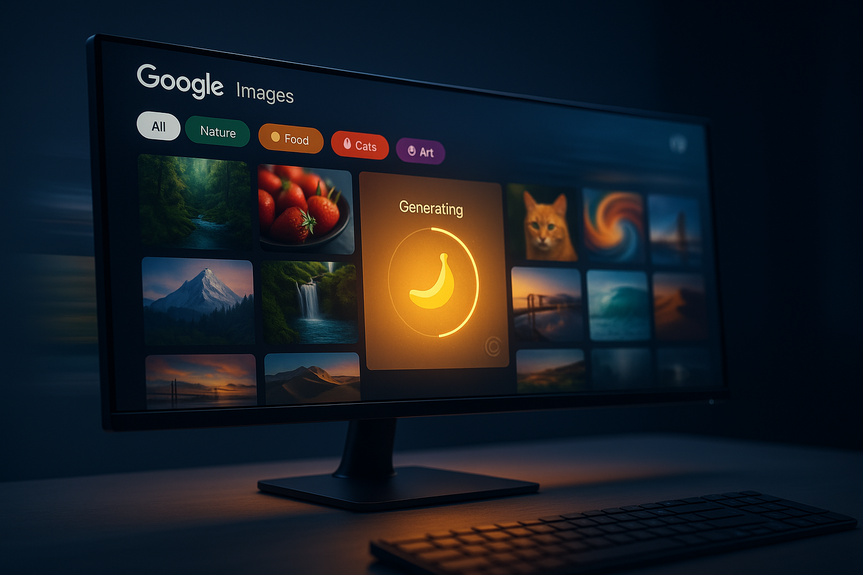
Google Images redesign 2026 brings a new home feed and built‑in AI image generation. You now browse a live, personal gallery, save ideas into tabs, and create pictures on the spot when the web has no match. The update starts on desktop in the U.S. (English) and uses SynthID watermarks on all AI outputs.
Google just gave Images its biggest change in 25 years. The classic wall of thumbnails is gone. In its place, you get a scrolling gallery that updates as you browse and a faster way to save ideas. When results do not exist, AI Overviews can now generate a fresh image in seconds. Here’s how to try it and why it matters.
The homepage now shows a continuous visual feed from across the web.
It updates in real time as you scroll.
Collections move into tabs above the gallery for quick access.
You need to be signed in to your Google Account.
Rollout starts on desktop in the U.S. in English.
This layout feels like Pinterest: a personal visual stream plus board‑like tabs. Google tried a similar idea with its Keen app in 2020, but this time it sits inside Search where people already look for images.
If the web does not have the picture you want, you can ask AI Overviews to make one.
Google says its latest “Nano Banana 2 Lite” model can render a 1K image in about four seconds.
The company cites an average developer cost of about three and a half cents per image.
Every generated image includes a SynthID watermark.
Rollout is in English where AI Mode image creation already works.
Together, these updates make Search less dependent on existing photos. You can browse a richer feed and then fill gaps with a new image when nothing quite fits.
Go to images.google.com on desktop.
Sign in to your Google Account.
Scroll to see the live gallery update as new ideas surface.
Hover or tap an image and choose Save to add it to a Collection.
Use the tabs above the gallery to jump between Collections (for example, “Kitchen remodel” or “Trail ideas”).
Rename, reorder, or remove items to keep each tab focused.
Pro tip: Create a tab per project. For planning tasks (home, outfits, trips), the new tab view cuts the time you spend hunting for saved links.
Search in Google as usual. If you see AI Overviews, expand it.
Add a prompt like “Create a 1K image of a mid‑century walnut coffee table on a blue rug.”
Refine the prompt: colors, angle, background, lighting, or style.
Review the results. Ask for edits (e.g., “Make the rug darker” or “Show a top‑down view”).
Download or save into a Collection tab.
Notes:
Generated images include SynthID watermarking.
Quality and speed depend on your region’s access to image creation in AI Mode.
Browse the gallery for room setups. Save looks into a “Living Room” tab.
Use AI Overviews to make a missing view: “Generate a 1K image of a 72‑inch media console in oak with matte black pulls.”
Scroll outfits and products. Build a “Fall capsule closet” tab.
Ask AI to visualize a colorway or fabric that is hard to find online.
Collect trail photos, landmarks, and menus in a “Weekend trip” tab.
Generate a scene that matches your plan, like “Sunrise view from a ridge with wildflowers.”
Be specific: subject, material, color, setting, angle, and lighting.
Use short edits: “warmer light,” “wider shot,” “remove background.”
Avoid brand logos or protected content requests.
Use one tab per goal. Name tabs with a verb + noun (e.g., “Plan desk setup”).
Pin 5–10 reference images before you generate. This sharpens your prompts.
Archive older tabs to reduce clutter.
Circle to Search (Android, now on 580M+ devices): circle parts of an outfit or object to shop or learn more.
Lens + AI Mode: Google can split one photo into many sub‑queries to read a full scene.
Search Live: point your camera and talk to Search in real time.
New search box: upload several images with a question at once.
These tools work well with the Google Images redesign 2026: collect references fast, ask questions with pictures, and generate what is missing.
Google applies SynthID watermarks to every AI image for traceability.
The system still links to sources in the gallery, but more in‑Search answers may lower clicks to sites.
Creators and brands should monitor their traffic, add clear licensing, and consider how AI images affect their funnels.
Don’t see the new feed? Make sure you are signed in and on desktop in the U.S. (English) during rollout.
Low‑quality outputs? Add details to your prompt and request small edits.
Missing features? Some tools appear only in regions that already support image creation in AI Mode.
The shift has been a long time coming. From Search by Image in 2011 to Lens, Multisearch, and Circle to Search, Google has moved from blue links to visual answers. The Google Images redesign 2026 pushes that idea further by letting you both browse and create, all without leaving the results page.
In short, this update makes image search more like a creative workspace. Use the live gallery to collect ideas, then switch to AI Overviews when you need a picture the web cannot provide. If you plan projects, shop visually, or design by example, the Google Images redesign 2026 can save you time from start to finish.
(Source: https://hothardware.com/news/google-images-redesign-25-years-ai-tools)
For more news: Click Here
What’s new in the Google Images redesign 2026
A live, Pinterest‑style gallery
AI images inside AI Overviews
How to use the new home feed
Open the gallery
Save and organize with tabs
How to generate images with AI Overviews
When search results fall short
Practical use cases to try today
Home and DIY
Style and shopping
Travel planning
Tips for better prompts and Collections
Prompt smart
Keep Collections clean
How this fits with other Google search tools
Trust, watermarking, and the open web
Troubleshooting and limits
FAQ
Q: What are the main changes in the Google Images redesign 2026?
A: The overhaul replaces the classic thumbnail wall with a live, Pinterest-style gallery that refreshes as you scroll and moves Collections into tabs above the main feed. It also adds AI image generation to AI Overviews, using Google’s Nano Banana model to create images when the web has no match, with rollout starting on desktop in the U.S. in English.
Q: How does the new home gallery work compared to the old thumbnail layout?
A: The new home shows a continuous visual feed pulling images from across the web that updates in real time as you scroll, instead of a static wall of thumbnails. Collections appear as tabs above the gallery for quicker access and you must be signed into a Google Account to use the feature during the desktop U.S. rollout.
Q: How do I generate images using AI Overviews?
A: When AI Overviews appears in your search, expand it and add a text prompt describing subject, color, angle, and lighting, then refine prompts or request edits before downloading or saving results to a Collection. Generated images carry SynthID watermarking and the feature rolls out in English in regions that already support image creation in AI Mode.
Q: What is the Nano Banana 2 Lite model and how fast is image generation?
A: Google cites the Nano Banana 2 Lite model as a fast, high-volume generator that can render a 1K image in roughly four seconds. The company also says developer costs average about three and a half cents per 1K-resolution image, and every output includes SynthID watermarking.
Q: Are AI-generated images labeled or watermarked in Google Images?
A: Yes, every AI-generated image includes SynthID watermarking to help trace generated content. Google applies these marks to outputs created through AI Overviews according to the announcement.
Q: Who can access the new Google Images features and where is the rollout happening?
A: The redesigned home feed begins rolling out on desktop in the United States in English and requires a signed-in Google Account to access. AI image generation in AI Overviews is rolling out in English across regions that already support image creation in AI Mode.
Q: How should creators and website owners respond to the Google Images redesign 2026?
A: Creators and brands are advised to monitor referral traffic, add clear licensing information, and consider how more in-Search images might affect visits to their sites. The article notes that a gallery tuned to personal taste and built-in generation could reduce clicks to original image hosts.
Q: What should I do if I don’t see the new feed or get low-quality AI results?
A: If the new feed is missing, make sure you are signed in and using desktop in the U.S. (English) during the rollout, and note that some features only appear in regions that support AI Mode image creation. For low-quality outputs, add more detail to your prompt and request small edits to improve the generated image.
Contents