AI News
20 Apr 2026
Read 9 min
How to use Canva AI assistant to automate design workflows
how to use Canva AI assistant to automate design work, generate layered assets, and save hours weekly.
Learn how to use Canva AI assistant to speed up content creation. Start with a clear prompt, let the bot call the right tools, then refine each layer before you publish. Connect Slack, Gmail, Drive, Calendar, and Zoom to add context. Use scheduling to draft repeat tasks. Keep a human review for quality and brand safety.
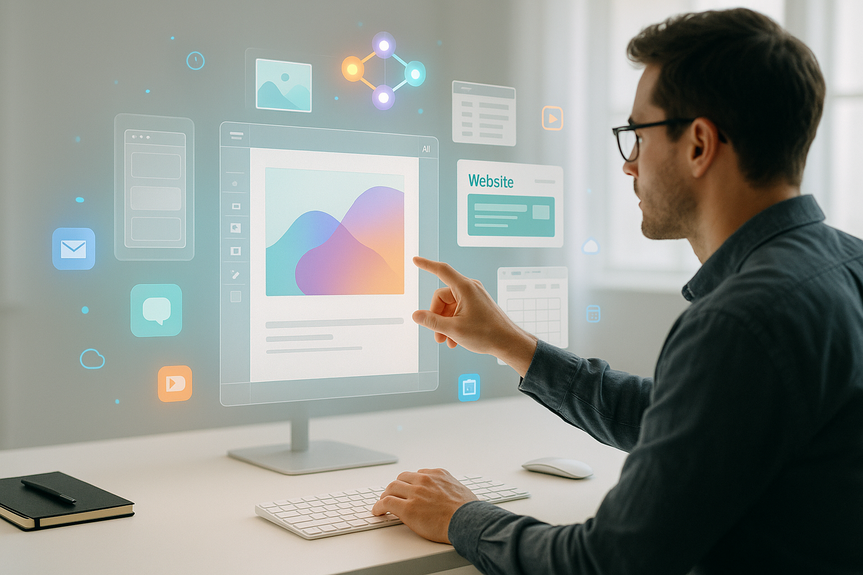
Canva’s new AI upgrade builds full, editable designs from a simple description. It plans steps, calls tools like image generation and layout, and returns several options, all organized in layers. You can change text, swap images, and adjust colors without rebuilding the whole design. The assistant is rolling out in research preview now, with wider access coming soon.
Update Canva and join the research preview if it is available in your account.
Open a new project or start from a text prompt in the assistant.
State your goal in one sentence: “Create a LinkedIn carousel that explains our April feature launch.”
Pick a format (post, slide, flyer, web page) and any size or ratio you need.
Use the pattern: Audience + Goal + Format + Key points + Brand cues.
Example: “For small business owners, make a 5-slide Instagram carousel about our spring sale (30% off). Use our blue and orange brand colors, friendly tone, and add a clear CTA on the last slide.”
Ask for 2–3 options so you can compare layouts.
Tell the assistant what to avoid (stocky photos, too much text, off-brand fonts).
Click into any layer to edit copy, swap imagery, or tweak shapes and colors.
Regenerate only the part you do not like (for example, “Try a bolder headline” or “Change background to a subtle gradient”).
Use image-to-video for quick motion posts, then trim and caption inside Canva.
Lock brand elements you approve, then iterate on the rest.
Summarize a Slack thread, then auto-draft a slide with the key decisions.
Pull talking points from a Zoom meeting, then build a one-pager for follow-up.
Import brand assets from Drive, then apply your fonts and colors across outputs.
Add Calendar data to plan posts around events and deadlines.
Use web research to find current stats, then cite the source in your design.
Keep access narrow: pick specific channels, folders, or labels, not your whole workspace.
Weekly roundup: Pull top links from Drive, write 3 captions, design 1–2 images, and queue drafts every Friday.
Event recap kit: Use Calendar and Zoom notes to create a blog header, a slide summary, and 3 social crops.
Sales refresh: Update a one-pager with new pricing from Drive, then alert the team in Slack for approval.
AI code generator can now import HTML. Turn existing HTML into editable blocks or generate code snippets you can reuse.
Describe spreadsheets with prompts to create simple sheets for content calendars or campaign trackers.
Faster media generation: Canva says its Lucid Origin image model is 5x faster and 30x cheaper, and its 12V image-to-video model is 7x faster and 17x cheaper. Faster runs mean more variations in less time.
Stay human-in-the-loop: always review drafts for facts, tone, and brand fit.
Use Brand Kit and locked styles to keep fonts, colors, and logos consistent.
Limit data access to only what the assistant needs; disconnect sources after use.
Cite sources when using web research; replace any low-quality images.
Use comments and version history so your team can approve changes quickly.
If results feel generic, add examples, constraints, and target audience details.
If designs look off-brand, attach your Brand Kit and ask the assistant to reapply it.
If facts are shaky, paste trusted links and request a grounded rewrite.
If layouts feel crowded, ask for fewer words and more white space.
Remember: scheduling creates drafts; you still publish after review.
How to use Canva AI assistant: Quick start
Turn it on and set your goals
Write prompts that produce strong, editable results
Review and refine with layers
Connect apps to add context and speed
Canva now integrates with Slack, Gmail, Google Drive, Calendar, and Zoom. You can let the assistant read select emails, chats, files, or meeting notes to ground designs in real work. It also has a web research skill to gather references and facts. If you need to learn how to use Canva AI assistant with these apps, start by granting only the minimal access needed for each task.Smart ways to use integrations
Automate repeat work with scheduling
The assistant can schedule repeatable tasks to run in the background, such as weekly social posts or monthly reports. It will prepare drafts on your timeline so you can review and publish. This is a core piece of how to use Canva AI assistant for recurring content while staying in control.Example automation flows
Power tools worth trying
Best practices and guardrails
Troubleshooting and quick fixes
Why this workflow works
Canva’s agent-style assistant plans the work, calls the right tools, and returns layered outputs you can edit fast. That mix of automation plus human review fits how teams ship content: ideate, draft, refine, and publish. Competing tools from Adobe and Figma are moving this way, but Canva leans into the “final mile” of editing, collaboration, and deployment. With these steps, you now know how to use Canva AI assistant to plan tasks, connect the right data, draft repeat work, and finish with clean, on-brand edits. Start small with one workflow, keep approvals simple, and expand as your team sees time saved and quality gains.For more news: Click Here
FAQ
Q: What does the Canva AI assistant do?
A: The Canva AI assistant builds full, editable designs from simple text prompts, plans the task, and calls relevant tools such as image generation and layout to return several layered options you can edit. Learning how to use Canva AI assistant helps speed up content creation while keeping preferences for future tasks.
Q: How do I start a project with the assistant?
A: Update Canva and join the research preview if it is available in your account, then open a new project or start from a text prompt in the assistant. State your goal in one sentence and pick a format and size so the assistant can generate appropriate options.
Q: How should I write prompts to produce editable results?
A: Use the pattern Audience + Goal + Format + Key points + Brand cues and ask for 2-3 layout options so you can compare results. Tell the assistant what to avoid and include brand specifics like colors and tone to keep outputs on-message.
Q: How do I review and refine designs created by the assistant?
A: Work with the assistant’s layered outputs so you can click into any layer to edit copy, swap imagery, or tweak shapes and colors. Regenerate only the parts you don’t like, use image-to-video for motion posts, and lock approved brand elements to maintain consistency.
Q: Which apps can I connect to add context, and how should I manage access?
A: The assistant integrates with Slack, Gmail, Google Drive, Calendar, and Zoom and can read selected emails, chats, files, or meeting notes to ground designs, and it also offers a web research skill. Grant only the minimal access needed—choose specific channels, folders, or labels—and disconnect sources after use to limit data exposure.
Q: How does scheduling and automation work in the assistant?
A: You can tell the assistant to schedule repeatable tasks to run in the background and it will prepare drafts on your timeline for review. Scheduling creates drafts that you must review and publish, keeping a human in the loop.
Q: What power tools are included in the update and what efficiency improvements does Canva report?
A: Power tools include an AI code generator that can import HTML, prompt-driven spreadsheet creation, and faster media-generation features like image-to-video. Canva says its Lucid Origin image model is now 5x faster and 30x cheaper, and its 12V image-to-video model is 7x faster and 17x cheaper.
Q: What quick fixes should I try if the assistant’s output is off?
A: If results feel generic, add examples, constraints, and audience details; if designs look off-brand, attach your Brand Kit and ask the assistant to reapply it. If facts are shaky paste trusted links for a grounded rewrite, request fewer words and more white space for crowded layouts, and remember scheduling only prepares drafts for your review.
Contents