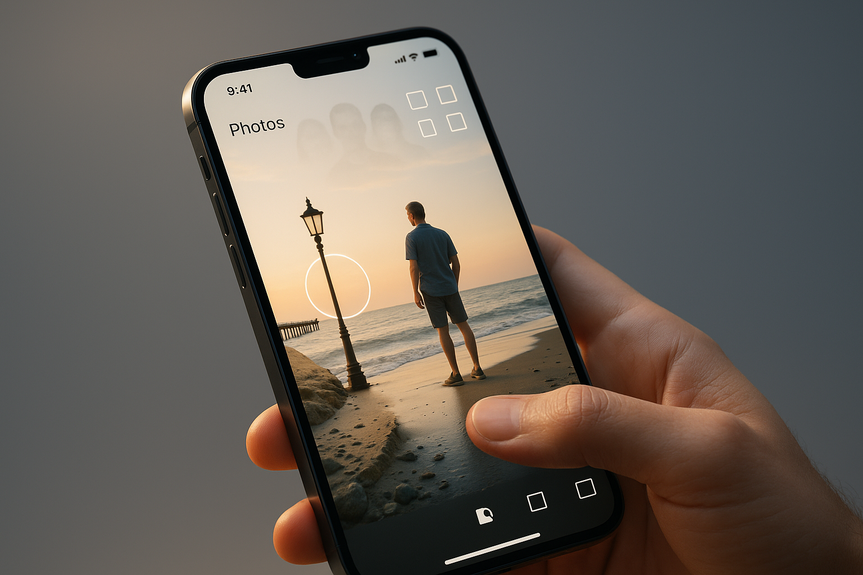
iOS 27 AI photo editing lets you change perspective, extend edges and fix flaws with realistic results
iOS 27 AI photo editing brings Spatial Reframing, Expand, and a smarter Clean Up to Photos, so you can shift camera perspective, widen the frame, and remove distractions in seconds. Image Playground now makes photorealistic scenes you can tweak with simple gestures and words—all right on your iPhone.
Apple’s latest Photos upgrades, powered by Apple Intelligence, turn routine fixes into quick wins. You can nudge a shot’s point of view, stretch a tight crop without awkward edges, and erase clutter with more natural fills. Image Playground also steps up from quirky cartoons to realistic results you can direct with circles and simple language.
Quick start guide to iOS 27 AI photo editing
Open Photos, pick an image, and tap Edit.
Select Spatial Reframing, Expand, or Clean Up from the editing tools.
Make small moves first, preview, and apply or undo.
Duplicate your photo before heavy edits so you always keep an original.
Spatial Reframing: change perspective after you shoot
This tool simulates a new camera angle by generating the missing parts you would see from that view. It helps fix awkward framing or tilt without a reshoot. Despite the name, it works on any photo, not only spatial shots.
Best uses
Recentering a subject when you were off to one side
Reducing extreme tilt on buildings or horizons
Making tight portraits feel a bit roomier
How to do it
Choose Spatial Reframing and drag to explore new angles.
Stop when the subject looks natural and edges stay clean.
Apply, then zoom in to check lines, hands, and faces for warping.
Tips for clean results
Keep adjustments modest; big shifts can bend straight lines.
Watch repeating patterns (fences, bricks) for telltale seams.
Retry if textures or shadows look off; small tweaks often fix it.
Expand: fill beyond the frame
Expand adds believable content past your photo’s edges. It is great for social crops, prints, or wallpapers when the original is too tight.
Best uses
Creating extra sky or ground for a better crop
Adding breathing room around a product or face
Fitting different aspect ratios without cutting off key details
How to do it
Pick Expand and choose how far to extend the canvas.
Let the tool generate new edge content, then review.
If textures repeat or faces appear, reduce the amount or try again.
Tips for realism
Natural backgrounds (sky, water, bokeh) expand best.
Match light direction; expanded areas should keep the same glow and shadows.
Avoid pushing into complex detail like text, logos, or small patterns.
Clean Up: smarter object removal
Clean Up erases distractions and fills the gap with more realistic detail than before. It works well on simple surfaces and now holds up better on tricky scenes.
Best uses
Removing photobombers, power lines, or trash
Hiding small blemishes, smudges, or dust
Clearing signs or gear that pull the eye
How to do it
Brush over the object you want gone.
Preview the infill; undo and try smaller passes if it smears.
Zoom in to confirm edges, shadows, and textures line up.
iOS 27 AI photo editing in Image Playground
Image Playground advances from playful sketches to photorealistic generation. You can create scenes with multiple people from your library, circle parts to edit, and describe changes in plain language. You can also choose orientations like portrait, landscape, square, or wallpaper for easy sharing or home screens.
What stands out
Photorealistic output that blends better with your camera roll
Edit by circling objects—no layers or complex tools required
Natural-language tweaks (“make the sky golden,” “add fall leaves”)
Flexible aspect ratios to match posts, prints, and phone wallpapers
Smart practices
Use clear, simple prompts and refine in short steps.
Check hands, eyes, and text for artifacts; regenerate if needed.
Be mindful and get consent when generating images of people.
Workflow tips, limits, and ethics
Make subtle edits first; push further only if it still looks natural.
Zoom to 100% to spot seams, doubled edges, or warped patterns.
Keep a backup: Duplicate your photo or rely on Revert to Original.
Disclose edits for news, ads, or reviews where accuracy matters.
Use generative results as assists—composition, cleanup, and light fixes—then finish with your usual color and tone adjustments.
Apple’s new tools turn time-consuming edits into quick taps. With iOS 27 AI photo editing, you can reframe, expand, and clean with confidence, then explore photorealistic ideas in Image Playground. Keep adjustments subtle, watch the details, and your photos will look polished, natural, and ready to share.
(Source: https://www.engadget.com/2189828/ios-27-gets-new-ai-photo-editing-tools/)
For more news: Click Here
FAQ
Q: What is iOS 27 AI photo editing and what new tools does it add to Photos?
A: iOS 27 AI photo editing brings Apple Intelligence-powered features to Photos, notably Spatial Reframing, Expand and an improved Clean Up, plus an updated Image Playground. These tools let you shift perspective, widen the frame beyond the original edges, and remove distractions with more realistic infill.
Q: How does Spatial Reframing work and when should I use it?
A: Spatial Reframing simulates a repositioned camera perspective by generating the missing parts you would see from that angle and lets you touch and drag to find a new viewpoint. Use it to recenter subjects, reduce extreme tilt, or give tight portraits a bit more room while keeping adjustments modest to avoid bending straight lines.
Q: What does the Expand tool do and when is it most effective?
A: The Expand tool adds believable content past your photo’s edges to create extra sky, ground, or breathing room for different crops and wallpapers. It works best with natural backgrounds like sky, water or bokeh and you should match light direction and avoid complex details such as text or small repeating patterns.
Q: How has the Clean Up feature improved for removing unwanted objects?
A: The updated Clean Up produces better-quality, more realistic infill when erasing distractions and holds up better on trickier scenes than before. Brush over the object, preview the result, and use smaller passes or undo if the fill smears, then zoom in to confirm edges, shadows and textures line up.
Q: How do I get started using these editing tools on my iPhone?
A: To start with iOS 27 AI photo editing, open Photos, pick an image, tap Edit, and choose Spatial Reframing, Expand or Clean Up from the tools. Make small moves first, preview changes, and duplicate your photo before heavy edits so you always keep an original.
Q: What can Image Playground create and how do I edit its outputs?
A: Image Playground now generates photorealistic images and can create scenes with multiple people from your photo library, all on your iPhone. You can circle objects to edit them, use natural-language prompts for changes, and choose orientations like portrait, landscape, square or wallpaper.
Q: What practical tips help avoid visible artifacts after editing?
A: Preview edits at 100% to spot seams, doubled edges or warped patterns and retry with smaller adjustments if needed. Pay attention to repeating textures, light direction and shadows, and reduce the amount of expansion or reframing when faces or fine details start to repeat.
Q: Are there ethical or disclosure considerations when using iOS 27 AI photo editing and Image Playground?
A: Yes — get consent when generating or altering images of people and disclose edits in contexts where accuracy matters, such as news, ads or reviews. Treat generative outputs as assists for composition and cleanup, and verify hands, eyes and text for artifacts before sharing.