AI News
24 Jan 2026
Read 9 min
Premiere AI object mask tutorial: How to track people
Premiere AI object mask tutorial helps you pick and track people in seconds with on-device accuracy
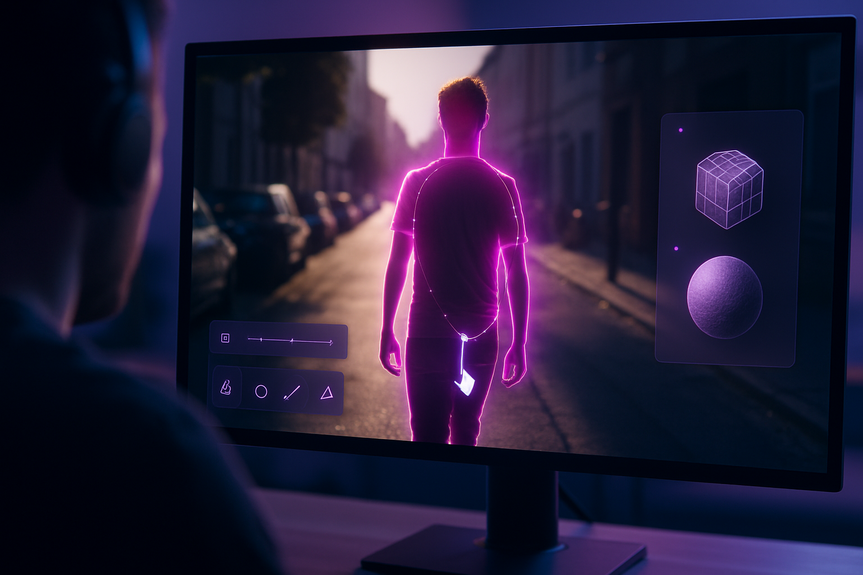
This Premiere AI object mask tutorial shows how to track people or objects in Adobe Premiere using the new Object Mask. Hover and click to select your subject, let AI follow the motion, then refine with shape masks and faster tracking. We also cover Firefly Boards, Adobe Stock, and related After Effects updates to speed your workflow.
Adobe just added powerful AI tools to Premiere and After Effects. The star is Object Mask in Premiere. It can find and track a person or item with a single click. The model runs on your device. Adobe says it does not use your activity or clips to train its AI. The Shape Mask tools also got faster and easier. You can now move, resize, and track with more precision and up to 20x better speed. Firefly Boards and Adobe Stock are now inside Premiere for quick media pulls. If you work in motion graphics, After Effects now imports SVGs and builds 3D meshes like cubes, spheres, cylinders, cones, torus shapes, and planes.
Update to the latest Premiere version to see Object Mask and the new Shape Masks.
Use clear footage. Good contrast and less motion blur help the tracker.
Enable proxies for 4K/8K projects if your machine feels slow.
Open your sequence and select a clip with a moving subject.
In the Program Monitor, hover over the person or object until a subtle outline appears.
Click once. Premiere creates an Object Mask overlay in seconds.
Press Play or click Track to let AI follow the subject through the clip.
Check the track. If the mask slips, pause and adjust its position or size.
Use Feather to soften edges. Use Invert if you want to affect the background instead.
From the toolbar, pick Ellipse, Rectangle, or Pen to add a shape mask.
Drag the on-screen controls to fit the subject or the area you want to protect or edit.
Use the new, finer handles to nudge edges for a tighter fit.
Click Track. The updated engine follows motion up to 20x faster than before.
Apply Lumetri Color to the masked subject to brighten faces without lifting the background.
Add blur to the background by inverting the mask for a quick portrait look.
Drop a glow, sharpen, or noise reduction onto the mask for targeted fixes.
Stack masks. Combine Object Mask with a Pen mask for small, tricky areas like hands or hair.
If the subject leaves frame and returns, split the clip and restart tracking at the re-entry point.
When objects cross in front, pause at the occlusion and adjust the mask shape, then continue tracking.
Use forward or backward tracking to fix problem sections without redoing the whole clip.
For very fast motion, add a few manual keyframes to guide the AI.
If you only need the basics, use this Premiere AI object mask tutorial to hover, click, track, and refine. For more control, combine Object Mask with Shape Masks and manual tweaks.
Ellipse, Rectangle, and Pen masks live in the toolbar for quick access.
New control points make precise moves easy, even on tight edges.
Tracking is up to 20x faster, so you spend less time waiting and more time editing.
Bring ideas and assets from Firefly Boards straight into Premiere to test looks fast.
Search and license Adobe Stock without leaving your edit. Drop B-roll, overlays, and audio right into the sequence.
Import SVG files from Illustrator for crisp, scalable graphics in motion.
Build 3D parametric meshes (cubes, spheres, cylinders, cones, torus shapes, planes) to create realistic objects inside images.
Send masked clips from Premiere to After Effects for advanced comp shots, titles, and 3D work.
Object Mask runs on your machine. Adobe says it does not use your clips or activity to train its AI models.
Light your subject and keep contrasts strong so edges are easy to read.
Reduce motion blur with faster shutter speeds during shooting if possible.
Stabilize shaky clips before tracking to help the AI lock on.
Trim long shots into logical sections to save time and get more reliable results.
Use Object Mask for the main subject. Use Shape Masks for background cleanup and accents.
Save presets for common looks (face brighten, background blur) to speed repeat tasks.
Preview at 1/2 or 1/4 resolution while tracking to keep playback smooth.
Creators who blur backgrounds or faces for social videos.
Editors who need quick color isolation on people in interviews.
Teams that iterate fast with mood boards and stock pulls inside Premiere.
Motion artists who jump between Premiere and After Effects for titles and 3D elements.
With hover-and-click selection, faster mask tracking, and tighter controls, tracking people no longer slows your edit. Keep this Premiere AI object mask tutorial handy, and you will fix subjects, protect backgrounds, and push stylized looks in minutes, not hours.
Premiere AI object mask tutorial: Step-by-step
Before you start
Track a person in seconds
Refine with Shape Masks
Color, effects, and compositing with masks
Troubleshooting quick wins
Shape masks, speed gains, and workflow boosts
Sharper controls and faster tracking
Firefly Boards and Adobe Stock in the timeline
After Effects: companion features for editors
Performance, privacy, and best practices
On-device AI and data control
Get clean tracks
Edit smarter, not harder
Who benefits from this workflow
For more news: Click Here
FAQ
Q: How do I use the new Object Mask in Premiere to track a person or object?
A: This Premiere AI object mask tutorial recommends hovering over the subject in the Program Monitor until a subtle outline appears, then clicking once to create an Object Mask overlay; press Play or click Track to let the AI follow the subject through the clip. The mask is editable, so you can resize or reposition it and use Feather or Invert to refine the result.
Q: Does the Object Mask send my clips to Adobe or train on my data?
A: The Object Mask model runs on your machine, so processing happens on-device. Adobe says it does not use your activities or clips to train its AI models.
Q: What should I do if the mask drifts or the subject leaves the frame?
A: If the mask drifts, pause and adjust its position or size, then continue tracking; when the subject leaves and returns, split the clip and restart tracking at the re-entry point. For occlusions or crossing objects, pause to adjust the mask shape, use forward or backward tracking to fix problem sections, and add manual keyframes for very fast motion.
Q: What improvements were made to Shape Masks in the update?
A: Shape Masks now include redesigned Ellipse, Rectangle and Pen tools available directly from the toolbar and finer control points for more precise adjustments. The updated tracking engine follows objects up to 20 times faster than before for quicker edits.
Q: How can I combine Object Mask and Shape Masks for color grading and effects?
A: Use Object Mask for the main subject and add Shape Masks for background cleanup or small areas, then apply Lumetri Color to the masked subject to brighten faces without affecting the background. You can invert masks to blur the background, stack masks for tricky areas like hair or hands, and drop targeted effects such as glow, sharpen, or noise reduction onto the mask.
Q: What footage and project settings give the best tracking results?
A: Update to the latest Premiere version and use clear footage with good contrast and minimal motion blur, and stabilize shaky clips to help the tracker lock on. If your machine feels slow on 4K/8K projects, enable proxies and preview at 1/2 or 1/4 resolution while tracking to keep playback smooth.
Q: How do Firefly Boards and Adobe Stock integrate with Premiere’s workflow?
A: You can bring media from Firefly Boards directly into Premiere to test looks quickly, and Adobe Stock is fully integrated so you can search and license assets without leaving the editor. That lets you drop B-roll, overlays, and audio right into your sequence to speed iterations.
Q: What After Effects features complement Premiere masks for advanced compositing?
A: After Effects now imports SVG files from Illustrator and can build 3D parametric meshes such as cubes, spheres, cylinders, cones, tori and planes for photorealistic objects. You can send masked clips from Premiere to After Effects for advanced comp shots, titles, and 3D work.
Contents