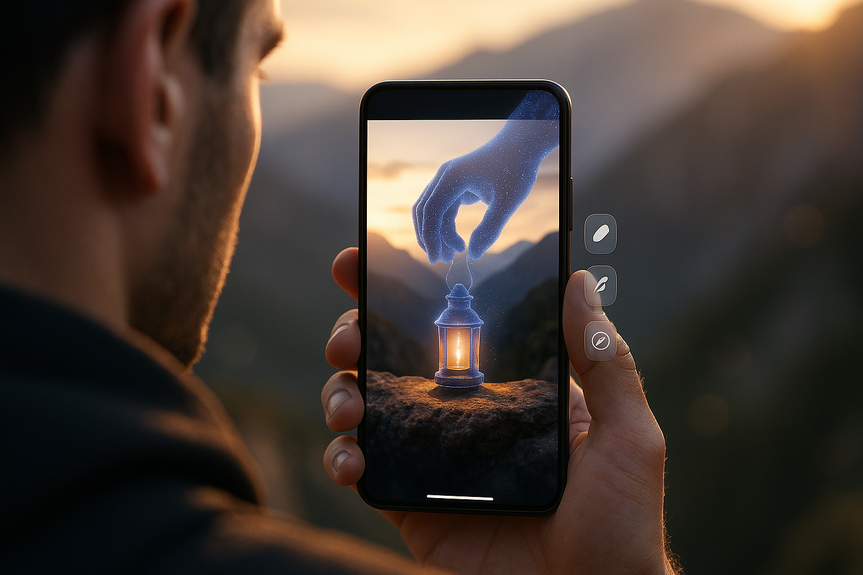
 AI-generated
 AI News
26 Jul 2026
Read 11 min
Project Indigo AI Playground guide: How to master AI edits
Project Indigo AI Playground gives instant AI edits to remove distractions and guide better shots now
Project Indigo’s experimental camera now adds AI help right at capture. This Project Indigo AI Playground guide explains how to use Object Editing, Styles, Photo Guidance, and Custom Edit to remove distractions, test looks, get live feedback, and transform scenes with prompts. Learn fast tips, smart workflows, and what to expect on access and pricing.
Adobe’s Nextcam Team is turning Project Indigo from a “natural SLR-like look” camera into a smart, guided shooter. The new AI Playground packs tools that clean up scenes, suggest better shots, and even rebuild a photo with a prompt. In this Project Indigo AI Playground guide, you’ll learn the best ways to apply each tool without overdoing it.
Update or install Project Indigo on your iPhone from the App Store.
Open the app and look for “AI Playground.” Adobe is rolling this out to only a small percent of users for a few weeks.
Features are free during this test, but Adobe says a paid version may follow if it proves popular.
Object Editing: Remove people, cars, signs, or blur the background.
Styles: Turn a photo into “pen and ink,” “ink line with color wash,” and more.
Photo Guidance: Get critiques and suggestions before your next shot.
Custom Edit: Use prompts to reshape the scene, lighting, and context.
Frame your subject with space around edges. This gives the AI room to rebuild the background.
Tap Object Editing, select Remove, then tap or brush over people, cars, or signs you want gone.
Zoom in to check edges. If you see smears, undo and try a smaller selection.
Use Background Blur to mimic portrait-style depth.
Keep it subtle. A light blur looks natural; a heavy blur can create halos around hair or hands.
Increase blur only after you confirm the subject mask is accurate.
Shoot with good light from one side. Clear light helps the AI separate subject from background.
Avoid super busy patterns behind your subject if you plan to remove objects later.
Take two shots: one clean plate (no subject) and one with your subject. If removal fails, you have a backup for manual fixes outside Indigo.
Pen and ink: Great for architecture and street scenes with strong lines.
Ink line with color wash: Good for landscapes and travel for a soft illustrated look.
Test styles on duplicates so you always keep the original.
Start at low strength, then nudge up. Over-stylizing can erase detail you care about.
Pair Styles with light Object Editing first. Remove a stray sign, then apply the look.
Export both the styled and plain versions. You might prefer the clean edit tomorrow.
Watch for notes on framing, crooked horizons, and clutter.
If it says “subject is centered and flat,” try a rule-of-thirds shift or step closer.
If it flags “busy background,” change your angle or add a slight background blur.
Take a shot, read the critique, fix one thing, shoot again.
Repeat three times. You’ll learn what the AI looks for and improve in minutes.
When it praises exposure and framing, lock those settings and move to new angles.
Use plain, specific language: “Place the lantern on a mountain ledge. Sunlight from the right.”
Name light quality and direction: “soft morning light, from behind,” or “golden hour, right side.”
Define mood and environment last: “thin mist,” “clear sky,” “rocky ridge.”
Match shadows and perspective. If the sun is right-side in your original, keep it right-side in the edit.
Zoom in to check edges and textures. If they look rubbery, refine the prompt or reduce the change.
Label heavy edits when sharing. Be clear if a scene was moved or rebuilt by AI.
AI Playground currently runs on Google’s Nano Banana model, according to Adobe’s Nextcam Team.
Adobe may switch to other models later, which can change speed or results.
Large edits can take longer and may use more battery. If processing stalls, try a smaller area or simpler prompt.
Capture: Compose with Photo Guidance on. Fix horizon and clutter first.
Clean: Use Object Editing to remove distractions, then add light background blur if needed.
Decide: Duplicate the photo. Keep one natural, turn the other into a styled or prompted version.
Refine: Use Custom Edit for tough fixes the brush can’t handle.
Share: Export at full resolution. Keep the original in case future updates deliver better results.
AI Playground is free during testing but only for a few percent of Project Indigo users and only for a few weeks.
Access may expand based on results. Adobe also says a paid version is likely if the feature is popular.
Update the app often and watch Indigo’s announcements to see if you’re included.
This Project Indigo AI Playground guide will help you make the most of your trial window so you can judge if it’s worth paying for later.
You now have a fast path to cleaner shots, bolder looks, and smarter feedback at the moment of capture. Use the tips in this Project Indigo AI Playground guide to remove clutter, test styles, and shape scenes with prompts while staying natural. If you get access, practice today and build a repeatable flow before the trial ends.
(p(Sou Source: https://www.engadget.com/2218980/adobe-crams-multiple-ai-tools-into-its-experimental-camera-app/)
Project Indigo AI Playground guide
Quick setup and access
Know the four modules
Master Object Editing
Remove distractions cleanly
Create a shallow depth look
Pro tips
Style your photos without losing the moment
Pick the right Style for the scene
Control intensity
Nail composition with Photo Guidance
Use feedback before your next click
Build a fast feedback loop
Go further with Custom Edit prompts
Write simple, directional prompts
Keep it believable
Performance and model notes
Workflow that saves time
Shoot smart, edit fast
Availability and pricing
For more news: Click Here
FAQ
Q: What is AI Playground in Project Indigo?
A: AI Playground is a set of generative AI tools built into Adobe’s Project Indigo experimental camera app that assist mobile photographers at the point of capture. This Project Indigo AI Playground guide covers four modules — Object Editing, Styles, Photo Guidance, and Custom Edit — which remove distractions, apply artistic looks, offer live critiques, and reshape scenes with prompts.
Q: How can I access AI Playground on my device?
A: Update or install Project Indigo on your iPhone from the App Store and open the app to look for “AI Playground”, which Adobe is rolling out to only a small percent of users for a few weeks. The features are free during this test period, but Adobe says access may expand and a paid version is likely if the feature proves popular.
Q: What does Object Editing do and how should I prepare shots for it?
A: Object Editing lets you remove people, cars, signs and add background blur to mimic shallow depth of field, and you should frame your subject with space around the edges so the AI has room to rebuild the background. Shoot with good side lighting, avoid very busy backgrounds, zoom in to check edges after removal, and keep a clean plate shot as a backup for manual fixes outside Indigo.
Q: How do Styles work and how can I avoid over-stylizing photos?
A: Styles convert images into looks such as “pen and ink” or “ink line with color wash” and are best tested on duplicate images so the original is preserved. Start at low strength and nudge up, pair Styles with light Object Editing first, and export both the styled and plain versions to compare later.
Q: How does Photo Guidance help me take better photos?
A: Photo Guidance provides critiques and suggestions before your next shot, flagging issues like framing, crooked horizons, and busy backgrounds. Use a quick loop—take a shot, read the critique, fix one thing, and reshoot a few times—to learn what the AI prioritizes and improve quickly.
Q: What are the best practices for writing Custom Edit prompts?
A: Use plain, specific language that names placement, light quality and direction, and environment, for example “place the lantern on a mountain ledge with sunlight from the right”. Match shadows and perspective to keep edits believable, zoom in to check edges and textures, and refine the prompt if results look rubbery.
Q: Which AI model powers AI Playground and what performance should I expect?
A: Adobe’s Nextcam Team currently runs AI Playground on Google’s Nano Banana model but may switch to other models later, which can change speed or results. Large or complex edits can take longer and use more battery, and if processing stalls the guide suggests trying a smaller area or a simpler prompt.
Q: Will AI Playground stay free and how will availability change over time?
A: AI Playground is free during the current test but available only to a few percent of users for a few weeks, and Adobe says it can’t offer it for free forever. Depending on popularity, access may expand and a paid version is likely, so update the app and watch Indigo’s announcements for changes in availability.
Keep reading, keep building
Three things from our own workshop that fit this topic:
- Diktly Free is our dictation app for Mac: speech becomes text entirely on your own machine, nothing goes to the cloud. Free version, Basic 14.99 €.
- 1000+ Prompts to Level Up Your Life is our most downloaded pack. Pay what you want, including 0.
- OpenAI Agent Mode for Beginners walks you through letting AI agents handle tasks for you. 19.99 $.
Our own products. Tech Moments is our newsletter on AI and tech in plain language, one email, no noise. Subscribe below.
Contents