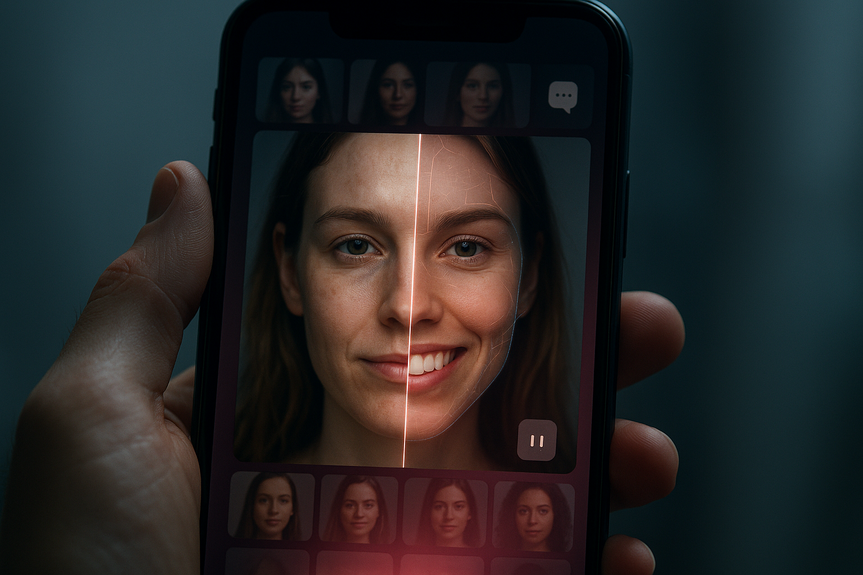
 AI-generated
 AI News
01 Aug 2026
Read 10 min
Tinder AI photo editing complaints How to stop edits now
Tinder AI photo editing complaints: stop unwanted edits now and regain control of your profile photos.
Tinder paused its AI photo enhancer after user reports of unwanted changes to their faces. This guide explains what happened, why it matters, and how to protect your profile today. If you’re seeing odd makeovers, these steps can help you stop edits now and avoid more Tinder AI photo editing complaints.
According to NBC News, some users opened Tinder to find an “enhanced” photo that looked nothing like them — a closed smile turned into a big grin, facial features shifted, skin tone changed, or new details appeared. Tinder has paused the AI tool after feedback. Many daters now want control back and a fast way to undo changes.
Update Tinder in the App Store or Google Play to get the paused version.
Open your profile and review each picture. If a photo looks different from your original or shows an enhance badge, delete it.
Re-upload the original image from your camera roll. If you no longer have the original, choose a recent, unedited photo that reflects how you look today.
Go to Settings > Tinder > Photos.
Select “Selected Photos” and choose only the images you want to upload.
This keeps your full camera roll separate from any in-app edits.
On Android:
Go to Settings > Apps > Tinder > Permissions.
Tap Photos and videos (or Media). Choose “Allow only while using the app” or limit access where available.
Some Android versions let you choose specific media types to share. Pick the smallest scope possible.
Make a new album called “Dating Photos.”
Copy the photos you are happy to share into that folder.
Upload only from this folder, so your originals stay unchanged elsewhere.
In Tinder, go to Settings > Help & Support (or Contact Us) and describe the issue.
Attach screenshots if you can. Clear reports help the team fix problems faster and reduce future Tinder AI photo editing complaints.
Heavy filter stacks can confuse any enhancer, AI or not.
Upload clean, natural photos to reduce the chance of odd changes.
Use photos from the last 6–12 months.
If your hair, weight, or style changed, add new shots.
Use natural light and simple backgrounds.
Avoid sunglasses and heavy shadows in your first photo.
Include one clear head-and-shoulders photo.
Add one well-lit full-body photo in everyday clothes.
Fix red-eye or adjust brightness if needed.
Avoid edits that change your features or skin tone. Your matches want to meet the real you.
Misrepresentation: Edits can change key features and create a gap between profile and real life.
Bias: AI may lighten or smooth skin in ways that erase identity or culture.
Consent: Edits pushed without a clear opt-in can feel invasive.
Trust: Matches may doubt profiles if AI changes are not labeled.
If dating apps use AI, they should make it opt-in, easy to turn off, and clearly labeled. Users should see a preview, know what was changed, and have a one-tap way to revert.
Product updates: Look for a clear off switch, better previews, and visible labels for AI-edited photos.
Transparency: Expect more detail about what the tool does and how it handles your images.
User control: You should be able to opt out fully and keep only original photos.
Feedback loops: Keep reporting issues so platforms can reduce future Tinder AI photo editing complaints.
Tinder paused its enhancer after real users raised real concerns. If your profile changed without your approval, update the app, remove edited photos, limit photo access, and report the issue. Honest photos build better matches. With clear consent and simple controls, we can avoid more Tinder AI photo editing complaints and keep dating profiles true to life.
Why users spoke up: Tinder AI photo editing complaints
NBC News reported that several users said the app’s AI tool altered their facial features and skin tone, and even added details that weren’t there. One user saw a closed-mouth smile replaced with a wide grin that did not match her real photo. These Tinder AI photo editing complaints point to two core issues: consent and accuracy. People did not ask for big edits, and the results did not reflect their real look. When a dating profile shows an edited face, trust suffers. Matches expect honest photos. Subtle lighting fixes are one thing. New teeth or a new jawline are another. That gap creates confusion on first dates and can lead to safety and comfort concerns.What Tinder says and what it means right now
Per NBC News, Tinder has paused the AI photo enhance feature while it reviews user feedback. The pause means you should not see new automatic edits roll out right now. But any photos already “enhanced” may still be in your profile. You may need to remove them and re-upload originals.How to stop edits now
1) Update the app and replace edited photos
2) Check for in-app enhance toggles (if you see them)
Some app builds surface an Enhance or Auto-enhance control inside the photo editor. If you see any switch, wand icon, or “Enhance” button when you edit or add a photo, turn it off and avoid using it. If you do not see such a control, proceed with the other steps below.3) Limit photo access to protect originals
On iPhone:4) Use a “dating copies” folder
5) Report unwanted edits
6) Avoid third-party filters before upload
Build trust with honest, strong profile photos
Keep your look current
Show your face clearly
Mix close-ups and full-body shots
Stay real, skip drastic edits
AI on dating apps: helpful or harmful?
AI tools can tidy a photo fast. They can brighten a dim room or reduce noise. But big makeovers can mislead. Risks include:What to watch next
For more news: Click Here
FAQ
Q: Why did Tinder pause its AI photo enhancer?
A: Tinder paused the AI enhancer after users reported unwanted automatic changes to their photos, such as altered smiles, shifted facial features and skin-tone changes. These Tinder AI photo editing complaints raised concerns about consent and accuracy while Tinder reviews user feedback.
Q: What kinds of edits did users report from the AI tool?
A: Several users reported that the tool replaced a closed-mouth smile with a wide, toothy grin, shifted facial features, changed skin tone, or added details that weren’t in the original photo. These edits often made profiles look unlike the originals and undermined trust.
Q: How can I stop the AI from editing my Tinder photos right now?
A: Update Tinder in the App Store or Google Play to get the paused version, then open your profile and review each picture for an enhance badge or obvious changes. Delete any edited photos and re-upload the original image from your camera roll, or choose a recent unedited photo if you no longer have the original.
Q: What should I do if I no longer have the original photo that was enhanced?
A: If you don’t have the original, upload a recent, unedited photo that reflects how you look today and delete the enhanced image from your profile. Re-uploading originals when possible and checking for edits after updating the app can help keep your profile accurate.
Q: How can I limit Tinder’s access to my full camera roll on iPhone or Android?
A: On iPhone go to Settings > Tinder > Photos and choose “Selected Photos” to share only images you pick, and on Android go to Settings > Apps > Tinder > Permissions and limit Photos and videos or Media access to “Allow only while using the app” or similar options. Limiting access keeps your full camera roll separate from any in-app edits and helps protect your originals.
Q: How do I report unwanted edits or complain to Tinder?
A: In Tinder go to Settings > Help & Support (or Contact Us), describe the issue and attach screenshots if possible to make the report clear. Clear reports help the team address Tinder AI photo editing complaints and may speed fixes for similar issues.
Q: What practical steps prevent automatic edits when uploading new photos?
A: Create a dedicated “Dating Photos” album and upload only from that folder, avoid heavy third-party filters, and check for any in-app Enhance or Auto-enhance toggle and turn it off if you see one. Uploading clean, natural photos and limiting access reduces the chance of odd AI changes.
Q: What changes should apps make to avoid future Tinder AI photo editing complaints?
A: Dating apps should make AI-photo tools opt-in, provide clear labels and previews, offer an easy off switch and a one-tap way to revert edits, and be transparent about what was changed. Those steps would increase user control and help restore trust in profiles.
Keep reading, keep building
Three things from our own workshop that fit this topic:
- Diktly Free is our dictation app for Mac: speech becomes text entirely on your own machine, nothing goes to the cloud. Free version, Basic 14.99 €.
- 1000+ Prompts to Level Up Your Life is our most downloaded pack. Pay what you want, including 0.
- OpenAI Agent Mode for Beginners walks you through letting AI agents handle tasks for you. 19.99 $.
Our own products. Tech Moments is our newsletter on AI and tech in plain language, one email, no noise. Subscribe below.
Contents