
AI News
09 May 2026
Read 10 min
Unity AI guide for game developers: How to build faster
Unity AI guide for game developers automates editor tasks and generates assets to speed production.
Use this Unity AI guide for game developers to speed up prototyping, automate editor chores, and generate placeholder art without leaving the Unity Editor. The open beta for Unity AI works in Unity 6+, adds an in-editor assistant, asset generators, and an AI Gateway so you can connect trusted third-party models.
Unity now bakes AI into the Editor so you can plan, iterate, and test faster. The in-project assistant reads your scene and code context, proposes a plan, and can make changes with safety nets like rollback. This Unity AI guide for game developers shows how to set up, use key features, and ship faster without losing creative control.
Ask the assistant to set up a scene with a player, camera, input, and a simple goal.
Generate basic materials and a skybox to block out mood.
Use Plan Mode to add UI, scoring, and a respawn loop.
Playtest, then rollback or iterate on only the changes you want.
Auto-place props with tagging rules (e.g., scatter rocks on terrain above a set height).
Generate a placeholder cubemap to test lighting quickly.
Bake lightmaps and probe settings with a single Skill, then compare before/after.
Generate MonoBehaviour stubs with public fields and sensible defaults.
Create unit tests for key gameplay functions.
Produce editor scripts for batch renaming, import settings, or prefab variants.
Auto-assign import presets for textures and audio by folder.
Batch-generate LODs or colliders for 3D meshes.
Build addressable groups and profiles based on scene usage.
Plan a 5-step task list to add a pause menu with resume, settings, and quit. Show files to change and create.
Create a C# component that rotates a target toward the player at a capped turn speed. Expose speed in the Inspector.
Generate a low-contrast, desaturated stone material for prototyping. Assign it to all meshes in folder Assets/Env/Cliffs.
Set up a navmesh for Scene Level_01, bake at medium quality, and add a basic NavMeshAgent to Enemy prefab.
Add input actions for Move, Jump, and Interact using the Input System. Bind WASD/Space/E and gamepad equivalents.
Always work on a feature branch. Commit before any AI apply.
Use Plan Mode. Edit the plan to match your style and architecture.
Review diffs. Accept only the files that look right.
Treat generated art and audio as placeholders. Optimize or replace before ship.
Enforce import presets (compression, streaming) on generated assets.
Profile after AI-driven code changes, especially in Update() loops.
Route third-party model calls through AI Gateway. Protect keys and logs.
Exclude secrets and licensed content from prompts. Redact paths if needed.
Use the MCP server to automate repetitive editor work from your trusted tools.
Set daily or per-user credit budgets.
Prefer small, targeted requests over long, vague prompts.
Cache successful prompts and reuse them across scenes and projects.
Spin up test scenes, UI, and game loops in minutes.
Iterate on balance by asking for structured tweak passes.
Fill graybox scenes with quick materials and skyboxes to keep reviews moving.
Batch-fix naming, pivots, and import settings on deliveries.
Generate boilerplate, tests, and editor tooling so you focus on systems.
Use MCP to script multi-step chores from your IDE.
Standardize Skills and prompts as checklist items.
Measure time saved and reduce context switching.
Open AI Gateway in the Editor.
Add your provider, paste keys, and set model defaults.
Choose which tools the in-editor assistant can call.
Log usage. Review prompts and outputs in a secure audit trail.
Nondeterministic results: lock key files before big milestones.
Licensing: confirm rules for generated audio and images before commercial use.
Context size: keep prompts short and scoped to the open scene or file.
Quality drift: treat AI content as a starting point, not a final asset.
Faster is only valuable if you keep vision and quality. Use the assistant for grunt work, use generators for placeholders, and use Gateway/MCP to tie in your trusted models. With this Unity AI guide for game developers, you can boost iteration speed, protect your project, and ship with confidence.
(p) (Source: https://www.pocketgamer.biz/unity-launches-open-beta-for-unity-ai-game-development-tools/)
Unity AI guide for game developers: What you get in the open beta
Access and setup
– Works with Unity 6 and newer builds. – Access depends on your subscription tier and available AI credits. – Open the AI panel in the Editor, sign in, and confirm credit use. – Turn on version control (Git or Plastic SCM) before applying AI changes. This protects your project when you roll back.In-editor assistant
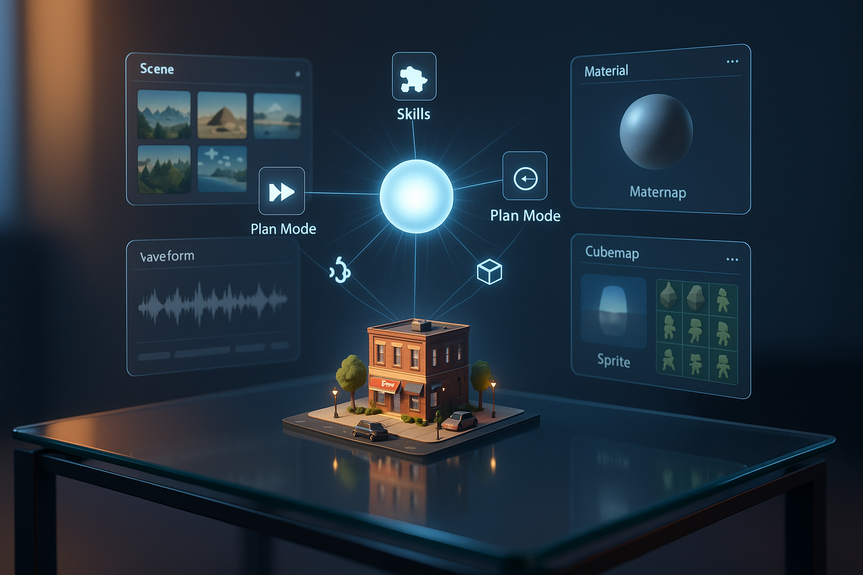
– Plan Mode: The assistant drafts a step-by-step plan before it touches your project. You review and approve each step. – Rollback: Every AI change is reversible. You can compare diffs and undo with one click. – Skills: Prebuilt, Unity-focused actions that understand scenes, prefabs, components, and build targets.Asset generators
– Create placeholder materials, sounds, cubemaps, and 2D or 3D assets inside your project. – Use placeholders early, then swap for final art later. This keeps momentum while you search or outsource.AI Gateway and MCP server
– AI Gateway: Connect third-party AI providers from inside the Editor, route requests securely, and manage keys in one place. – Model Context Protocol (MCP) server: Automate editor tasks from your IDE or preferred LLM app. Great for code-focused workflows.Workflows that cut hours to minutes
Rapid prototype loop
Level dressing and lighting
Code scaffolding
Content pipeline housekeeping
Prompts that work well in Unity
Best practices for safe, fast iteration
Keep control with guardrails
Performance and quality
Security and data hygiene
Credits and cost control
Team play: Where each role wins time back
Designers
Artists
Programmers
Producers
Connecting third-party AI through AI Gateway
Setup snapshot
Limitations to watch
For more news: Click Here
FAQ
Q: What is Unity AI open beta and what tools does it include?
A: Unity AI open beta is a suite of in-editor AI tools built into the Unity Editor that includes an in-project assistant, asset generators, and an AI Gateway for connecting third-party models. This Unity AI guide for game developers notes it works with Unity 6+ and that access depends on subscription tier and AI credits.
Q: How do I set up Unity AI in my Unity project?
A: To set it up, open the AI panel in the Editor, sign in, and confirm credit use; the beta works with Unity 6 and newer and access depends on subscription tier and AI credits. Turn on version control such as Git or Plastic SCM before applying AI changes to protect your project.
Q: What are Plan Mode, rollback, and Skills in the in-editor assistant?
A: Plan Mode has the assistant draft a step-by-step plan which you review and approve before it modifies your project. Rollback support makes AI changes reversible so you can compare diffs and undo with one click. Skills are workflow-specific prebuilt actions that understand scenes, prefabs, components, and build targets.
Q: What kinds of assets can the Unity AI asset generators create?
A: The asset generators can create placeholder materials, sounds, cubemaps, and basic 2D or 3D assets directly inside your project. Treat generated items as placeholders to keep momentum and replace or optimize them before shipping.
Q: How can I connect third-party AI models to Unity AI?
A: Use the AI Gateway in the Editor to add providers, paste keys, set model defaults, and route requests securely while logging usage. For code-focused workflows you can use the Model Context Protocol (MCP) server to automate editor tasks from your IDE or preferred LLM application.
Q: What best practices should teams follow when using Unity AI to avoid breaking their projects?
A: Always work on a feature branch and commit before applying AI changes, use Plan Mode to edit the plan to match your architecture, and review diffs to accept only files that look right. Also set daily or per-user credit budgets, prefer small targeted requests, and cache successful prompts for reuse.
Q: How should teams handle security and data hygiene when using Unity AI?
A: Route third-party calls through the AI Gateway and manage keys centrally to protect credentials and maintain a secure audit trail. Exclude secrets and licensed content from prompts, redact paths where necessary, and use the MCP server to automate trusted editor work.
Q: What limitations and risks should developers watch for when using Unity AI?
A: Developers should be aware of nondeterministic outputs, licensing rules for generated audio and images, limited prompt context size, and potential quality drift in AI-generated content. Lock key files before major milestones, keep prompts short and scoped to the open scene or file, and treat AI content as a starting point rather than a final asset.
Contents





