AI News
02 Aug 2026
Read 8 min
How the Copilot super app Windows 11 release helps you
Copilot super app Windows 11 release will quickly unite Microsoft AI tools to boost your productivity.
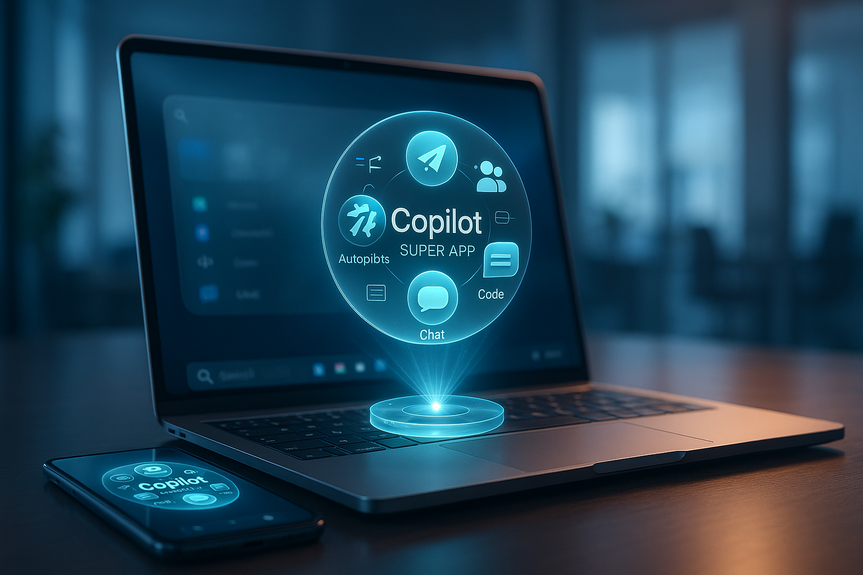
The Copilot super app Windows 11 release brings Microsoft’s AI tools—chat, Autopilots, Cowork, and Code—into one place. Launching this quarter, it aims to cut app-switching, speed tasks, and work for both home and work users. Here’s what it includes, why it matters, and how to get ready.
Microsoft is merging its many AI features into a single hub. CEO Satya Nadella says the new Copilot will serve both consumers and businesses. It combines chat with Autopilots for tasks, Cowork for document help, and Code for developers. It may come to your PC through a Windows 11 update, so you might not need to install anything.
What’s inside the Copilot super app Windows 11 release
The core pieces
- Chatbot: Ask questions, draft text, and get quick answers.
- Autopilots: Set up AI to run common tasks and multi-step actions.
- Cowork: Work with your files to summarize, rewrite, and organize.
- Code: Generate, explain, or refactor code with developer-focused tools.
Why this matters for everyday users
Less switching, more doing
- One place for writing, research, and follow-ups.
- Fewer windows and tabs to manage.
- Faster handoff between tasks like drafting, editing, and sharing.
Better help across your apps
- Use AI while you work in Windows 11 and Microsoft apps.
- Create meeting notes, clean up emails, and format documents faster.
- Keep the same AI experience whether you’re on personal or work accounts.
Boosts for developers and power users
- Code suggestions and explanations in one hub.
- Autopilots can handle routine steps so you focus on logic and review.
- Cowork can outline docs, read logs, or prep release notes.
What this means for work and school
Microsoft says engagement with Copilot is now similar to Outlook and Teams. Conversations per user nearly doubled year over year. Expect stronger ties to tools like email, calendars, and team chat. Note: Microsoft did not share detailed metrics, and it is unclear if these numbers include AI used inside apps like Outlook and Teams.How to prepare your PC
- Update Windows 11: Install the latest updates so you get new features promptly.
- Sign in to your Microsoft account: Sync settings, OneDrive files, and permissions.
- Review privacy settings: Check cloud data, history, and app permissions in Settings.
- Talk to IT (for work or school): Confirm allowed features and data policies.
- Start small: Try one or two workflows, like meeting notes or email drafts.
- Save and verify: Always review AI outputs before sharing or sending.
Privacy, control, and possible downsides
- Data handling: Learn what is stored, for how long, and where.
- Admin controls: Businesses can set policies; ask your admin if unsure.
- Performance: AI features can use CPU, GPU, and network bandwidth.
- Noise: Turn off notifications you do not need to avoid distraction.
- Accuracy: AI can be wrong; fact-check important outputs.
How it compares to other AI “super apps”
OpenAI now offers ChatGPT Work, and Anthropic has Claude Cowork. These also bundle chat with advanced tools. Microsoft’s edge is its deep link with Windows 11 and the Microsoft 365 ecosystem. If the AI sits where you already work, you are more likely to use it every day.Timeline and what to watch
Nadella says the new service launches this quarter. The app could arrive through a standard Windows update or the Microsoft Store. Watch for a new Copilot entry on your taskbar or in Start. Since the Copilot super app Windows 11 release may be baked into the OS, you might have it without a separate install.Who benefits most from the Copilot super app
- Students: Summarize readings, draft outlines, and review notes.
- Small teams: Generate proposals, recap meetings, and track tasks.
- Busy professionals: Clear inboxes faster and prep reports.
- Developers: Speed up code scaffolding, tests, and documentation.
FAQ
Q: What is the Copilot super app and what features does it combine?
A: The Copilot super app Windows 11 release brings Microsoft’s AI tools—chat, Autopilots, Cowork, and Code—into a single hub designed for both consumer and commercial use. It aims to reduce app-switching and speed common tasks by combining chatbot functionality, task automation, document assistance, and developer tools.
Q: When will the Copilot super app be available?
A: Microsoft CEO Satya Nadella said the new Copilot service will launch this quarter. If it’s offered as part of Windows 11, the Copilot super app Windows 11 release may arrive on your computer through a standard Windows update or via the Microsoft Store without a separate install.
Q: How will I get the Copilot super app on my PC?
A: Make sure Windows 11 is up to date and that you are signed in to your Microsoft account so settings and OneDrive files are ready. The Copilot super app Windows 11 release could be delivered through a standard update or appear in the Microsoft Store and might show up on your PC without a separate download.
Q: What everyday tasks can the Copilot super app help with?
A: It provides a single place for writing, research, and multi-step tasks so you spend less time switching between windows and apps. It can create meeting notes, clean up emails, format documents faster, and keep the same AI experience across personal and work accounts.
Q: Who benefits most from the Copilot super app Windows 11 release?
A: Students, small teams, busy professionals, and developers are the groups the article highlights as likely to benefit most. Examples include summarizing readings and drafting outlines for students, generating proposals and meeting recaps for teams, and code scaffolding and documentation help for developers.
Q: What privacy and control issues should I consider before using the Copilot super app?
A: Review cloud data handling, history settings, and app permissions in Windows Settings, and check with your IT admin about allowed features and corporate policies. Businesses can set admin controls, and you should verify what is stored, for how long, and where before using Copilot for sensitive tasks.
Q: How does Microsoft’s Copilot super app compare to other AI “super apps”?
A: Like OpenAI’s ChatGPT Work and Anthropic’s Claude Cowork, Microsoft bundles chat with more advanced tools in one app. Microsoft’s advantage is deep integration with Windows 11 and the Microsoft 365 ecosystem, which could make the AI more likely to be used where you already work.
Q: Could the Copilot super app affect PC performance or cause distractions?
A: AI features can use CPU, GPU, and network bandwidth, so they may affect system performance on some machines. To reduce distractions, you can turn off unnecessary notifications, and Microsoft has already removed Copilot from some less useful locations in Windows 11 as it tunes the experience.
Contents