AI News
17 Apr 2026
Read 8 min
How to create Chrome AI Skills to save time browsing
How to create Chrome AI Skills to save time browsing with one-click reusable prompts on any tab fast
Learn how to create Chrome AI Skills in minutes: write a helpful prompt in Gemini in Chrome, save it as a Skill from your chat history, and run it on any page with one click or by typing “/”. Use the Skills library, edit anytime, and speed up shopping, reading, and planning.
AI in Chrome now helps you repeat common tasks without retyping the same prompt. With Skills in Chrome, you can save your best prompts, run them on the page you are viewing, and even apply them across multiple tabs. This makes research, shopping, and reading faster and easier.
What are Chrome AI Skills?
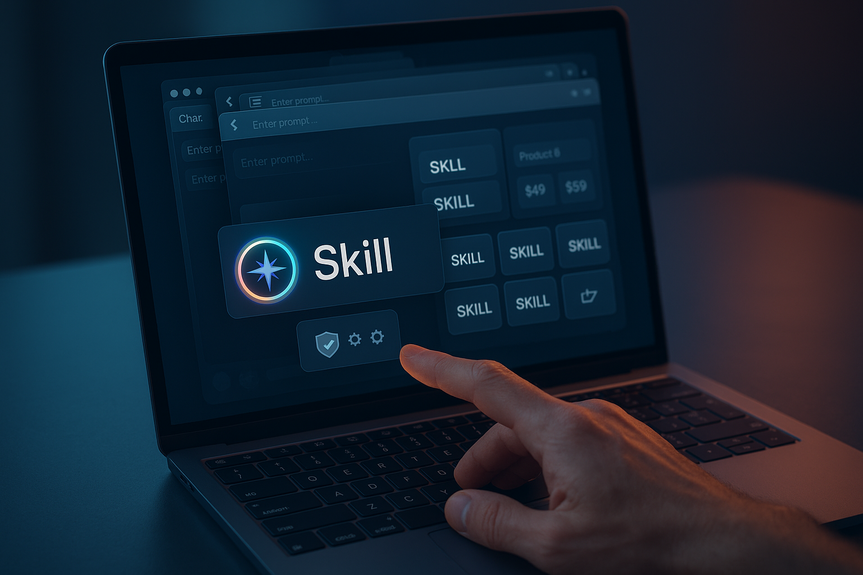
Skills are saved prompts that you can run on any web page inside Gemini in Chrome. You create a Skill from your chat history, give it a name, and reuse it with one click. You can run a Skill on the current page and choose extra tabs to include. You can also edit or delete saved Skills at any time.How to create Chrome AI Skills: step-by-step
Before you start
- Update Chrome to the latest version.
- Sign in to Chrome on your desktop.
- Open Gemini in Chrome and start a chat.
Create your first Skill
- Go to a page you want to use, like a product page or a long article.
- In Gemini in Chrome, write a prompt that describes the task. Example: “Summarize the key claims on this page in three bullets and flag any missing sources.”
- Run the prompt once and check the result.
- From your chat history, save that prompt as a Skill and give it a clear name, like “3-bullet page summary.”
Run and reuse your Skill
- On any page, open Gemini in Chrome and type “/” or click the “+” button.
- Select your saved Skill. Choose to run it on the current page and, if helpful, select other open tabs.
- Review the output. If the Skill suggests actions (like adding a calendar event or sending an email), Chrome will ask you to confirm first.
Start fast with the Skills library
Google offers a library of ready-to-use Skills for common tasks. You can add a Skill, try it, and edit the prompt to fit your style. Examples include:- Break down ingredients on a product page and explain what each one does.
- Find the best gift by matching options to a budget and interests.
- Plan dinner from recipes across tabs and build a quick shopping list.
Write prompts that work well
When you plan how to create Chrome AI Skills for shopping, reading, or planning, strong prompts make the biggest difference. Try these tips:- State the goal: “Compare these two laptops and recommend one for photo editing.”
- Point to page context: “Use details from this page and any selected tabs.”
- Set the format: “Return a table with model, price, weight, battery life.”
- Limit the length: “Keep the answer under 120 words.”
- Add criteria: “Prioritize under $1,000 and a weight under 3 lbs.”
- Test and edit: Save, run, review, then tweak the prompt for clarity.
Privacy, safety, and availability
Skills use the same safeguards as Gemini in Chrome. If a Skill tries to take an action, such as adding a calendar event or sending an email, you will see a confirmation request. Chrome also applies layered protections like automated red-teaming and auto-updates. Your saved Skills sync across signed-in Chrome desktop devices. To manage them, type “/” in Gemini in Chrome and click the compass icon.Smart ways to use Skills today
- Health & Wellness: Calculate protein macros for any recipe page.
- Shopping: Build side-by-side spec comparisons across product tabs.
- Productivity: Scan long PDFs or docs for key dates, owners, and risks.
- Food swaps: Suggest vegan or gluten-free substitutions for a recipe.
- Ingredient check: Explain each ingredient and flag possible allergens.
- Planning: Turn event pages into calendar-ready summaries after review.
(Source: https://blog.google/products-and-platforms/products/chrome/skills-in-chrome/)
For more news: Click Here
FAQ
Q: What are Chrome AI Skills?
A: Skills are saved prompts that you can run on any web page inside Gemini in Chrome. You create a Skill from your chat history, give it a name, and then reuse it with one click or by typing / to run it on the current page or additional selected tabs.
Q: How do I create my first Skill in Gemini in Chrome?
A: Before you start, update Chrome, sign in on your desktop, and open Gemini in Chrome to start a chat. Then go to a page, write and run a prompt that describes the task, check the result, and save that prompt from your chat history as a Skill with a clear name.
Q: How do I run a saved Skill on a page or across multiple tabs?
A: To run a saved Skill, open Gemini in Chrome and type / or click the + button, then select the Skill you want to use. Choose to run it on the current page and any other open tabs you need, review the output, and confirm any suggested actions such as adding a calendar event or sending an email.
Q: Can I edit or delete saved Skills and will they sync across devices?
A: Yes, you can edit or delete saved Skills at any time from Gemini in Chrome. To manage your Skills, type / in Gemini and click the compass icon, and your saved Skills will sync across signed-in Chrome desktop devices.
Q: What privacy and safety protections apply to Skills?
A: Skills use the same safeguards applied to prompts in Gemini in Chrome and will ask for confirmation before taking actions like adding calendar events or sending emails. Chrome also applies layered protections such as automated red-teaming and auto-update capabilities.
Q: What is the Skills library and how can it help me start?
A: The Skills library offers ready-to-use Skills you can add, try, and customize by editing the prompt to fit your needs. Examples in the article include breaking down product ingredients, selecting gifts by cross-referencing budget and interests, and planning dinners from recipes across tabs.
Q: What are good prompt-writing tips when learning how to create Chrome AI Skills?
A: When planning how to create Chrome AI Skills, state a clear goal, point to the page context, and set the desired output format or length. Also add specific criteria, test the prompt on real pages, then save and edit it from your chat history until it produces the output you want.
Q: What are common use cases for Skills in Chrome?
A: Common use cases include health and wellness tasks like calculating protein macros on recipe pages, shopping tasks such as building side-by-side spec comparisons across product tabs, and productivity tasks like scanning long documents for key dates or risks. Other examples are food swaps, ingredient checks to flag allergens, and turning event pages into calendar-ready summaries.
Contents