
AI News
16 Jun 2026
Read 10 min
how to install Hermes with Ollama to master local AI
how to install Hermes with Ollama to run private desktop AI that automates tasks and tracks progress
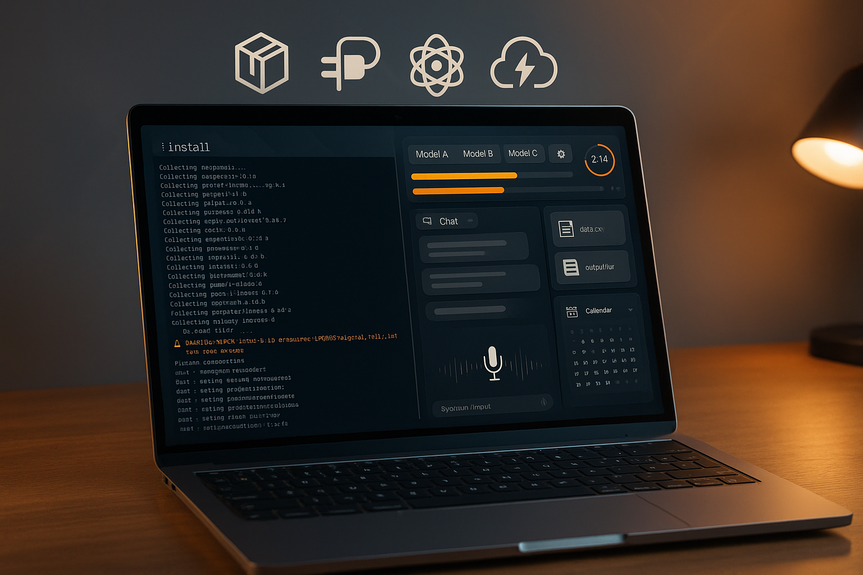
Follow these steps to learn how to install Hermes with Ollama: install Ollama on Linux, macOS, or Windows, start the Ollama service, then launch Hermes from the command line and choose a model. In minutes, you’ll have a private desktop AI agent that remembers, schedules tasks, and shows clear progress as it works.
Local AI gives you speed, privacy, and control. Hermes builds on that with an agent that can remember past work, learn new skills, and run on a schedule. Pairing it with Ollama lets you use strong local models for free, then switch to cloud models when you need them. Below, you’ll find a simple guide that shows how to set everything up and what to try first.
Privacy: Your prompts and files can stay on your machine when you use local models.
Cost control: Local models avoid per‑token fees and reduce API surprises.
Clarity: Hermes shows each step it takes, the tools it calls, and how long tasks run.
Power features: Memory, skills (reusable playbooks), cron jobs, sub‑agents, voice input, and artifact tracking for every session.
Install Ollama: curl -fsSL https://ollama.com/install.sh | sh
Start the service: sudo systemctl enable –now ollama
Launch Hermes: ollama launch hermes-desktop
Install Ollama (Homebrew): brew install ollama
Or use the script: curl -fsSL https://ollama.com/install.sh | sh
Launch Hermes: ollama launch hermes-desktop
Install Ollama (PowerShell as Administrator): irm https://ollama.com/install.ps1 | iex
Launch Hermes: ollama launch hermes-desktop
Note: If a command returns an error or your OS blocks scripts, check Ollama’s official docs for the latest steps. After launch, Hermes opens a window and asks you to pick a model. You can change or add more models later in Settings.
Click the gear icon in the top right.
Select a local Ollama model (for example: llama3, qwen2, phi3, or a code‑focused model).
Optionally connect a cloud model (for example: Google Gemini via OAuth) if you want internet tools or larger context windows.
Click Set Up and follow the prompts (API keys or OAuth where needed).
Return to the main screen, pick your model, and run a simple test prompt like “Summarize this paragraph.”
This flow lets you switch between local and cloud with one click. It’s a big reason many users prefer Hermes. If a job needs speed and privacy, use a local model through Ollama. If you need the best coding or long‑context reasoning, switch to a cloud model for that session.
Hermes asks clarifying questions before it builds or automates anything.
It shows a live timeline with each step and how long it took.
It stores artifacts (files, scripts, notes) per session so you can reopen and continue later.
Memory: Save facts or preferences the agent should recall in future sessions.
Skills: Turn a good solution into a reusable playbook you can run again.
Crons: Schedule tasks (for example: “Every morning, summarize my Slack channel”).
Linux: sudo systemctl status ollama (then start or enable if needed)
macOS/Windows: Close and relaunch Ollama; ensure the app or service is active.
Pull it with Ollama first (examples):
ollama pull llama3
ollama pull qwen2
Restart Hermes and check Settings again.
If Hermes suggests installing PyQt5 via pip on Linux, use your package manager instead:
Ubuntu/Debian: sudo apt install python3-pyqt5
macOS (Homebrew): brew install pyqt@5
Switch to a local Ollama model for unlimited experiments.
If using a cloud model, check your plan or API quota.
Prompt: “Create a Python desktop app to track my vinyl collection with add/search/export features.”
Answer Hermes’ follow‑ups (framework choice, features, file format).
Open the artifacts panel to view files, scripts, and run instructions.
Set a cron to summarize a Slack channel at 8 AM and send a brief to your email or notes app.
Paste URLs or notes, ask Hermes to compare sources, and store key takeaways in memory for the next session.
Switch to a code‑tuned model (local or cloud).
Ask for step‑by‑step refactors with tests. Watch the progress timeline to see each action.
Start local: For privacy and speed, begin with a local model via Ollama, then switch to cloud only when needed.
Be clear and concrete: Short, direct prompts plus quick answers to Hermes’ questions lead to better results.
Save good workflows as skills: Turn repeat tasks into one‑click runs.
Review artifacts: Check generated files before running them. This keeps your system safe and your workflow clean.
Iterate: If something fails, read the step timeline, fix a missing dependency, and re‑run only that step.
Fast model switching: Toggle between local Ollama models and cloud options in one place.
Transparent progress: See every step and the time it takes, so you can debug and improve.
Organized work: Pin important chats and keep all files tied to each session.
True autonomy: Memory, skills, crons, and sub‑agents turn chat into action.
Voice input: Talk to your agent when typing is not convenient.
Getting comfortable with how to install Hermes with Ollama unlocks a private, capable desktop AI that works the way you do. With a quick setup, smart model choices, and a few early wins, you can automate daily tasks, build small apps, and track progress clearly. Learn how to install Hermes with Ollama once, and you’ll be ready for fast, reliable local AI anytime.
Why run Hermes on your desktop
How to install Hermes with Ollama
Linux
macOS
Windows
Pick and connect your model
Open Settings and choose a model
Onboard and test
First run: what you’ll see
Agent guidance, not just chat
Memory, skills, and crons
Troubleshooting common issues
Ollama service not running
Model not listed in Hermes
Builds fail due to missing system packages
Hit a query or rate limit
Quick projects to try after setup
Build a simple desktop app
Daily summaries and alerts
Research support
Coding helper
Best practices for a smooth experience
What makes this combo stand out
(Source: https://www.zdnet.com/article/hermes-ollama-hands-on-desktop-ai-tool/)
For more news: Click Here
FAQ
Q: How to install Hermes with Ollama on Linux, macOS, and Windows?
A: The article explains how to install Hermes with Ollama: install Ollama on your OS, start the Ollama service if required, then run ollama launch hermes-desktop to open Hermes. For example, on Linux run curl -fsSL https://ollama.com/install.sh | sh and then sudo systemctl enable –now ollama before launching Hermes.
Q: What specific commands install Ollama and launch Hermes on each operating system?
A: On Linux run curl -fsSL https://ollama.com/install.sh | sh and enable the service with sudo systemctl enable –now ollama, then launch Hermes with ollama launch hermes-desktop. On macOS you can use brew install ollama or the same curl script and then run ollama launch hermes-desktop, and on Windows run PowerShell as Administrator and execute irm https://ollama.com/install.ps1 | iex before launching Hermes.
Q: After launching Hermes, how do I choose and onboard a model?
A: Open Settings by clicking the gear icon in the top-right, select a model from the dropdown, and click Set Up to walk through the onboarding prompts. For cloud models like Google Gemini the onboarding may require OAuth or API keys before the model becomes selectable in Hermes.
Q: How can I add a new local model so it appears in Hermes’ model list?
A: Pull the model into Ollama first using commands such as ollama pull llama3 or ollama pull qwen2, then restart Hermes and check Settings again. Once the model is pulled it should appear in the model dropdown for selection.
Q: What should I do if the Ollama service is not running on Linux?
A: Check the service status with sudo systemctl status ollama and start or enable it as needed with sudo systemctl enable –now ollama. On macOS or Windows, close and relaunch Ollama and ensure the app or service is active before launching Hermes.
Q: Why might a build fail when Hermes suggests installing PyQt5 via pip, and how do I fix it?
A: Hermes may suggest using pip even though PyQt5 is managed by the OS; on Ubuntu/Debian use sudo apt install python3-pyqt5 and on macOS use brew install pyqt@5 instead of pip. After installing the correct system package, re-run the step in Hermes and check the session timeline for progress.
Q: What debugging and progress information does Hermes show during a session?
A: Hermes displays a live timeline with each step and how long it took, shows session runtime, and stores artifacts like files and scripts per session so you can reopen and continue later. It also asks clarifying questions before building or automating tasks to guide the agent’s actions.
Q: How can I avoid hitting query or rate limits when experimenting with Hermes?
A: Use local Ollama models for unlimited experiments and for privacy or speed, and switch to cloud models only when you need larger context or specific cloud features. If you must use a cloud model, check your plan or API quota to manage rate limits.
Contents





