AI News
07 Mar 2026
Read 8 min
How CorelDRAW AI tools for vector artists speed mockups
CorelDRAW AI tools for vector artists speed mockups and deliver polished client-ready presentations.
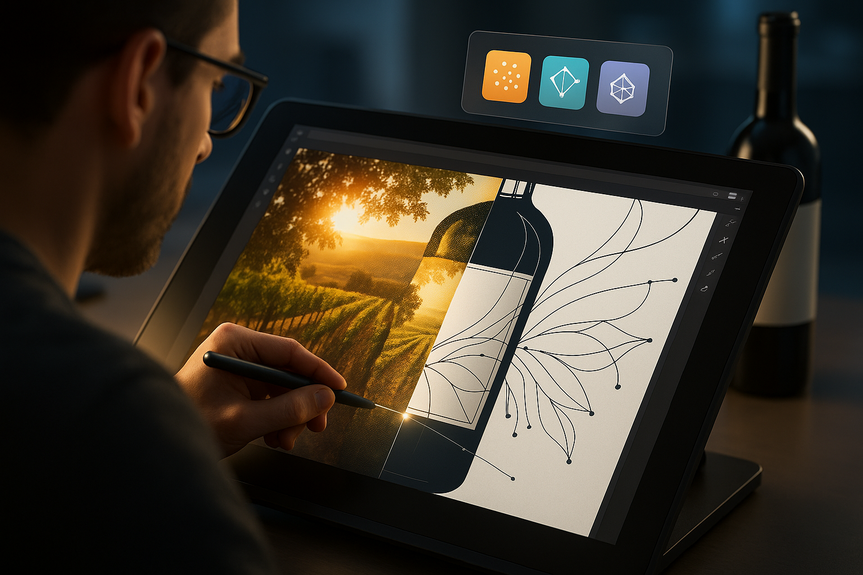
CorelDRAW AI tools for vector artists speed up mockups and client previews inside the app. You can generate scenes with Stable Diffusion 3.5, Flux Schnell, or Nano Banana, then place your label or logo in seconds. The results are raster, but fast controls and credits make this update useful for pitches.
CorelDRAW now docks popular image models directly inside its vector suite. You can prompt images, remix styles, and create quick variations without leaving your canvas. The catch is simple: outputs are raster. If your workflow demands clean, scalable vectors, you must still convert. That extra step adds time, but the payoff appears when you sell ideas fast.
Design your label, logo, or poster in vector.
Send a clear prompt for the scene (lighting, setting, time of day).
Generate a few variations and pick the best frame.
Place your art, adjust perspective, and tweak color to match.
Export for review decks or social previews.
In short, these CorelDRAW AI tools for vector artists do not replace craft. They remove friction between idea and client preview. Freelancers and studios that live on approvals gain the most.
Aspect ratio presets (social, print, widescreen)
Batch variations to compare looks
Style and color palettes for quick cohesion
Reference image strength to anchor the output
Corel says uploads are not used to train the models. That helps trust, but you still should avoid sending sensitive assets to any cloud tool. Keep local copies of your source files and export only what you need.
Brand and packaging designers: quick shelf renders and lifestyle scenes speed approvals.
In-house teams: faster comps for meetings without hunting for stock.
Agencies: rapid art directions for mood boards and campaigns.
Vector purists: keep using native tools; convert AI images only when needed.
Corel did not build a new model. It integrated stable, known systems into a legacy app. That feels safe and familiar. The trade-off is still raster-first output, but the speed gain in concepting and mockups is real.
What CorelDRAW AI tools for vector artists actually do
Prompt-to-image inside the canvas
You can call Stable Diffusion 3.5, Flux Schnell, or Nano Banana from a new AI panel. Type a prompt, pick an aspect ratio, choose a style or color palette, and make several variations at once. You can also set a reference image and control how strongly the model follows it.Raster in a vector world: the catch
These models create pixels, not paths. CorelDRAW’s vector trace is strong, so you can convert AI images to curves, but it adds a step and can soften detail. For logos, icons, and technical art, native vector work still wins. For mood boards and scene comps, AI is fast and good enough.Where AI helps most: faster mockups and pitches
Nano Banana shines for context shots. Think label-on-bottle, sticker-on-laptop, or signage-on-brick. You can drop your artwork into a realistic scene and show a client how it lives in the real world. This saves setup time you would spend searching for stock photos or building 3D mockups.Controls that reduce guesswork
Corel’s AI panel adds practical dials that move it beyond a slot machine:PHOTO-PAINT gets competitive
Corel PHOTO-PAINT now includes one-click background removal, AI subject selection, and cleanup tools. These close the gap with Adobe Photoshop for fast edits. If you split time between vector and raster work, this reduces app switching and helps you keep momentum on a job.Pricing, credits, and CorelDRAW Web
You can still buy CorelDRAW outright for $549. That one-time license includes 2,000 AI credits, plus up to 100 free generations. When credits end, generations stop unless you buy more or subscribe. The $269/year subscription refreshes 2,000 credits monthly and adds CorelDRAW Web, a full browser version with the same tools. CorelDRAW Go remains a lighter, separate app with its own monthly fee. The choice matters. If you dabble in AI for pitches, a perpetual license can work. If you will generate often, the subscription’s monthly credits may be cheaper long term.Who benefits right now?
Bottom line
The update does not rewrite vector work. It does make selling ideas faster. If you live by client decks, mood boards, and product previews, CorelDRAW AI tools for vector artists are worth learning. Use them to frame your best vector work in minutes, not hours, then convert to curves only when it truly matters. (Source: https://www.creativebloq.com/art/digital-art/coreldraw-adds-ai-image-tools-but-do-designers-really-need-them) For more news: Click HereFAQ
Q: What are the CorelDRAW AI tools for vector artists and which image models do they integrate?
A: They are a docked set of generative image tools inside CorelDRAW that let you prompt images and create variations from models including Stable Diffusion 3.5, Flux Schnell and Nano Banana. The panel runs inside the vector app so you can generate scenes and experiments without leaving your canvas.
Q: Do the AI-generated images in CorelDRAW produce vector artwork or raster images?
A: The AI models produce raster images rather than vector paths, so you must convert them to curves if your workflow requires scalable vector art. CorelDRAW includes a vector trace tool to convert AI outputs to vectors, but conversion can soften detail and adds an extra step.
Q: What controls are available in CorelDRAW’s AI panel to shape generated outputs?
A: The AI panel offers aspect ratio presets, batch variations, optional styles and colour palettes, and reference image strength controls to anchor outputs. These dials are designed to give designers more control over how the models follow prompts and references.
Q: How can CorelDRAW AI tools for vector artists speed up mockups and client previews?
A: They let you quickly generate contextual scenes—like dropping a label onto a bottle or placing a logo on signage—so you can present polished mockups without hunting for stock or building 3D renders. That speed makes producing client-facing visuals and pitch materials faster, particularly for freelancers and studios juggling approvals.
Q: Will Corel use my uploaded images to train its AI models?
A: Corel says images you upload to the AI won’t be used to train the models, but the article advises caution and recommends avoiding sending sensitive assets to cloud tools. Keep local copies of your source files and export only what you need.
Q: How does CorelDRAW’s AI pricing and credit system work?
A: A perpetual CorelDRAW license costs $549 and includes 2,000 AI credits plus up to 100 free generations, and when credits run out you must buy more. The $269/year subscription refreshes 2,000 credits each month and also adds CorelDRAW Web, which may be better value if you generate images often.
Q: What new AI features does Corel PHOTO-PAINT include and why does that matter?
A: PHOTO-PAINT gained one-click background removal, AI-assisted subject selection and image clean-up tools that narrow the gap with Adobe Photoshop for quick photo edits. For designers who split time between vector and raster work, these features reduce app switching and help keep momentum on a job.
Q: Which designers or teams benefit most from CorelDRAW’s AI additions?
A: Brand and packaging designers, in-house teams and agencies benefit most for rapid shelf renders, mood boards and client comps, while vector purists can continue working natively and convert AI images only when necessary. Overall the AI update speeds concepting and pitch visuals but does not replace traditional vector craft.
Contents