AI News
27 Dec 2025
Read 9 min
How to verify AI videos in Gemini and spot SynthID
Verify AI videos in Gemini to instantly detect SynthID markers and confirm which clips are AI-made.
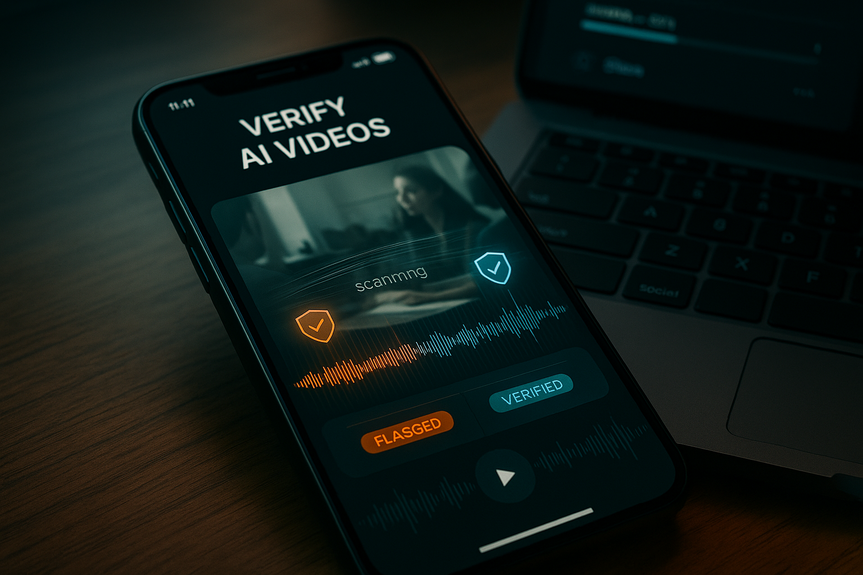
Google now lets you verify AI videos in Gemini. Upload a clip (up to 100 MB and 90 seconds) and ask, “Was this generated using Google AI?” Gemini scans audio and visuals for SynthID watermarks and highlights any AI-made segments. This quick check helps you avoid sharing edited or fake clips.
It is getting harder to trust what you see online. AI-made clips look real, and people worry about sharing fakes. Google’s Gemini app adds a simple check that can show if a video includes content made or edited with Google AI. It uses SynthID, an invisible watermark that sits in both the picture and the sound.
Open the Gemini app.
Tap the attachment/upload icon and select your video (max 100 MB, 90 seconds).
Type or say: “Was this generated using Google AI?”
Send your prompt and wait for Gemini’s analysis.
Gemini will scan for SynthID across the visual frames and the audio track. If it finds the watermark, it will say so and note which parts of the video include AI content. You can also use the same flow to check images. The ability to verify AI videos in Gemini makes this process fast and clear.
SynthID detected: Gemini will confirm detection and may list time ranges where AI was used.
No SynthID found: The clip likely was not made or edited with Google AI. It could still be AI from another tool.
Uncertain/partially detected: Gemini may flag only some segments or ask for a higher-quality file.
Scope: SynthID only proves that Google AI created or edited the media. It will not flag content made solely with other tools.
Ecosystem: Other companies use different standards, like C2PA content credentials. Those can also show editing history and provenance.
Adoption: Google partnered with NVIDIA to expand SynthID support, but it is not universal yet.
Because of these limits, treat a “no SynthID found” result as “not Google AI,” not “definitely human-made.” When you verify AI videos in Gemini, you get a clear signal about Google AI use, but you may still need other checks for non-Google content.
Use the original file when possible. Avoid screen recordings of the clip.
Keep the audio track. Removing or replacing audio can drop audio watermarks.
Avoid heavy compression, extreme cropping, or speed/pitch shifts.
Export in standard formats and keep the resolution close to the source.
Stay under 100 MB and 90 seconds so Gemini can analyze the full file.
These habits make it easier for Gemini to spot SynthID. They also help when you verify AI videos in Gemini before posting or forwarding them.
Look for “Content Credentials” or “About this content” labels where available.
Use a C2PA viewer to read the edit history and source app.
Reverse search key frames to see if the video appears elsewhere with different claims.
Check the original poster’s account age, previous posts, and location.
Scan for visual and audio tells: odd hand shapes, mismatched shadows, warped text, or lip-sync drift.
These steps complement SynthID detection. Even when you verify AI videos in Gemini, a fast context check can catch non-Google AI edits or misleading captions.
News clips: Verify if shocking footage includes AI-made segments before you share.
Brand safety: Marketers can check user submissions for AI elements.
Creator workflows: Editors can label segments that used Google AI tools.
Education: Teachers can review student submissions for AI-assisted media.
“Was this generated using Google AI? Show the timecodes.”
“Which parts contain SynthID in the audio track?”
“Is there any SynthID in the visuals only?”
“Explain your confidence and any limits of your detection.”
Adding precise prompts can help Gemini explain its reasoning and provide segment-level detail when you verify AI videos in Gemini.
In short, Google’s update gives you a simple, built-in way to check short clips. Upload your file, ask the question, and look for SynthID results across image and sound. Use it alongside C2PA and basic source checks. If you often share media, make it a habit to verify AI videos in Gemini first.
How to verify AI videos in Gemini
Step-by-step
How to read the results
What is SynthID and what it can (and can’t) tell you
SynthID is Google’s invisible watermark for AI outputs. Google’s tools embed it into images, audio, text, and video they generate. The mark is designed to survive common edits like resizing, slight crops, and format changes. In Gemini, the detector looks for this hidden signal and explains what it finds. Important limits:Best practices to reduce false negatives
Small changes can hide or weaken signals. To get the best results:Go wider: Check beyond Google’s watermark
Not every platform uses SynthID. To build a fuller picture, combine tools and common-sense checks.Use C2PA content credentials
Some tools and social platforms attach C2PA metadata that shows who created the media and how it was edited.Run quick context checks
Where this helps most
Quick prompts you can try
(Source: https://www.socialmediatoday.com/news/google-adds-ai-content-detection-tools-to-gemini/808310/)
For more news: Click Here
FAQ
Q: What does it mean to verify AI videos in Gemini?
A: When you verify AI videos in Gemini, the app scans the video’s visual frames and audio track for Google’s invisible SynthID watermark and reports whether it finds that signal. It also identifies which segments include elements created or edited with Google AI and provides contextual details.
Q: How do I verify AI videos in Gemini?
A: Open the Gemini app, tap the attachment/upload icon and select a video under 100 MB and 90 seconds, then type or say “Was this generated using Google AI?” Gemini will scan the file and return analysis that may include timecodes of detected SynthID segments.
Q: What is SynthID and how does Gemini use it?
A: SynthID is Google’s invisible digital watermark embedded in images, audio, text and video created by Google’s AI tools. Gemini scans both audio and visual tracks for this mark and reports detections and segment-level findings when you verify AI videos in Gemini.
Q: What do the possible results mean when I verify AI videos in Gemini?
A: If SynthID is detected, Gemini will confirm the watermark and may list time ranges where Google AI was used; if no SynthID is found, the clip likely was not made or edited with Google AI but could still come from other tools. Gemini may also return partial or uncertain findings and ask for a higher-quality or original file for better analysis.
Q: Are there limits to what Gemini’s SynthID check can detect?
A: SynthID only proves that Google AI created or edited the media and will not flag content made solely with other AI tools or standards like C2PA. Gemini can scan files up to 100 MB and 90 seconds, but heavy compression, extreme cropping or other edits can weaken or hide SynthID signals.
Q: How can I reduce false negatives when I verify AI videos in Gemini?
A: Use the original file when possible, avoid screen recordings, keep the audio track, and avoid heavy compression, extreme cropping, or speed and pitch shifts. Staying under the 100 MB and 90-second limits and exporting in standard formats will also help Gemini spot SynthID.
Q: Will Gemini detect AI content created with other tools like Midjourney or OpenAI?
A: No; Gemini’s SynthID detection only identifies watermarks embedded by Google’s AI tools, so it will not flag content created solely with other platforms that use different standards such as C2PA. Detecting provenance from those tools requires checking C2PA content credentials or other platform-specific indicators.
Q: What additional steps should I take after I verify AI videos in Gemini?
A: Combine Gemini’s results with other checks like C2PA content credentials, reverse-searching key frames, reviewing the poster’s account age and history, and scanning for visual or audio tells such as mismatched shadows or lip-sync drift. These context checks help catch non-Google AI edits that SynthID detection might miss.
Contents